Navigating Roblox can be an immersive experience, but sometimes, the voice chat feature might not be what you are looking for. Many players seek to disable it for various reasons, including privacy concerns, a desire for focused gameplay, or simply managing younger players' interactions. This comprehensive guide will walk you through the essential steps to easily turn off voice chat in Roblox, ensuring a more tailored and comfortable gaming environment for everyone. Understanding how to manage these settings is crucial for maintaining personal boundaries and enhancing your overall Roblox experience. We will cover methods for different platforms and provide insights into Roblox's evolving safety features.
Welcome to the ultimate living FAQ about turning off Roblox voice chat, updated for the latest patch and designed to help you navigate the soundscape of your favorite games! Whether you're a seasoned player or a parent looking to safeguard your child's experience, understanding how to manage voice chat is essential. This guide covers everything from basic settings to troubleshooting, ensuring you have all the tips, tricks, and how-to information at your fingertips. We've compiled the most asked questions from the Roblox community and provided clear, concise answers to help you regain control over your in-game audio. Dive in and make your Roblox experience perfectly tailored to your needs!
Beginner Questions on Voice Chat
How do I turn off voice chat in Roblox's privacy settings?
To turn off voice chat in Roblox, log into your account, click the gear icon for 'Settings', then navigate to the 'Privacy' tab. Look for the 'Spatial Voice' or 'Communication' section and toggle the voice chat feature to 'Off' or select 'No One'. This ensures a quieter experience.
What is Spatial Voice on Roblox and why would I disable it?
Spatial Voice is Roblox's official voice chat system, allowing players to communicate via microphone in proximity-enabled games. Players often disable it for privacy, to avoid distractions, manage content exposure for children, or simply for a more focused gaming session.
Can I turn off voice chat on mobile devices like phones or tablets?
Yes, you can turn off voice chat on mobile devices. The process is very similar to the desktop version: open the Roblox app, tap the 'More' icon (three dots), go to 'Settings', then 'Privacy', and adjust the 'Spatial Voice' settings there. The functionality remains consistent across platforms.
Privacy & Security Tips for Voice Chat
How do Parental Controls work for Roblox voice chat?
Roblox Parental Controls allow parents to lock privacy settings, including voice chat, with a PIN. To set this up, go to 'Settings', then 'Parental Controls', enable the Account PIN, and ensure voice chat is disabled in the 'Privacy' section. This prevents unauthorized changes to your child's communication settings.
What should I do if I encounter inappropriate voice chat in Roblox?
If you encounter inappropriate voice chat, immediately mute the player in-game by accessing the player list and selecting their name. Additionally, use Roblox's reporting feature to flag the user for moderation. This helps maintain a safe and respectful community environment for everyone.
Troubleshooting Common Voice Chat Issues
I turned off voice chat but still hear people; what could be the problem?
If voice chat is disabled but you still hear voices, first try restarting the Roblox app or browser to refresh settings. Ensure you saved your changes in the 'Privacy' section. Sometimes, a specific game might have an independent voice system, but typically, your account-wide setting should override it. Verify your age settings too.
Does disabling voice chat affect my ability to use text chat in Roblox?
No, disabling voice chat in Roblox typically does not affect your ability to use text chat. These are separate communication features. You can still type messages to other players in games, even if your microphone and voice output are turned off. This allows for flexible communication options.
Understanding Spatial Voice
Who can use Spatial Voice in Roblox?
Spatial Voice in Roblox is generally available to users aged 13 and older who have successfully verified their age. Younger users or those who haven't completed age verification typically do not have access to the Spatial Voice feature by default.
Why is Roblox's Spatial Voice feature important for immersion?
Roblox's Spatial Voice feature enhances immersion by allowing players to communicate naturally with others near them in a game, mimicking real-world interactions. This adds a layer of realism and depth to collaborative and social experiences within various Roblox games.
Tips & Tricks for a Quieter Roblox Experience
Are there quick ways to temporarily mute voice chat without changing settings?
Yes, the quickest way to temporarily mute voice chat without changing your global settings is to simply mute individual players directly within the game. Access the in-game player list, click on the player's name, and select the 'Mute' option. This is a session-specific mute for their voice.
Still have questions? Check out related guides on Roblox account security or optimizing your Roblox game performance!
Ever wonder how to silence the chatter in Roblox? Many players often ask, "How do I turn off voice chat in Roblox?" whether they are seeking a more peaceful gaming session, prioritizing privacy, or simply managing the experience for younger family members. Roblox introduced its Spatial Voice feature, aiming for more immersive interactions, but understanding how to control this can greatly enhance your gameplay. This guide will help you regain control over your audio environment effectively.
Disabling voice chat in Roblox is a straightforward process when you know where to look. It involves navigating through your account settings and making a few key adjustments. This is not just about muting others; it's about customizing your own gaming space. You can easily manage who communicates with you, which is a significant aspect of enjoying any online platform.
Understanding Roblox Voice Chat and Why Players Disable It
Roblox's voice chat, often referred to as Spatial Voice, allows players near each other in supported experiences to communicate using their microphones. This feature aims to create a more realistic and interactive environment. However, many players choose to disable it for several compelling reasons. These reasons often include privacy concerns, the desire to focus without distractions, or simply to ensure a safer experience for children.
Privacy is a major factor, as not everyone feels comfortable sharing their voice with strangers online. Disruptions from background noise or inappropriate conversations can also detract from the fun. Furthermore, for parents, controlling who their children interact with is paramount, making the ability to turn off voice chat a vital safety feature. Roblox parental controls are an essential tool in this regard.
Navigating Roblox Settings to Turn Off Voice Chat
Turning off voice chat in Roblox primarily involves adjusting your account's privacy settings. This process is consistent across most platforms where Roblox is available, including PC, mobile devices, and consoles. Accessing these settings is the first critical step toward a quieter, more controlled gaming experience. Always ensure you are logged into the correct account to make these important changes effectively.
Step-by-Step Guide: Disabling Spatial Voice
First, log into your Roblox account from a web browser or the Roblox app. Once logged in, locate the gear icon in the top-right corner of the screen, which opens your settings menu. This icon is your gateway to all account-related modifications. Clicking on it will reveal a dropdown menu with several options, including 'Settings'.
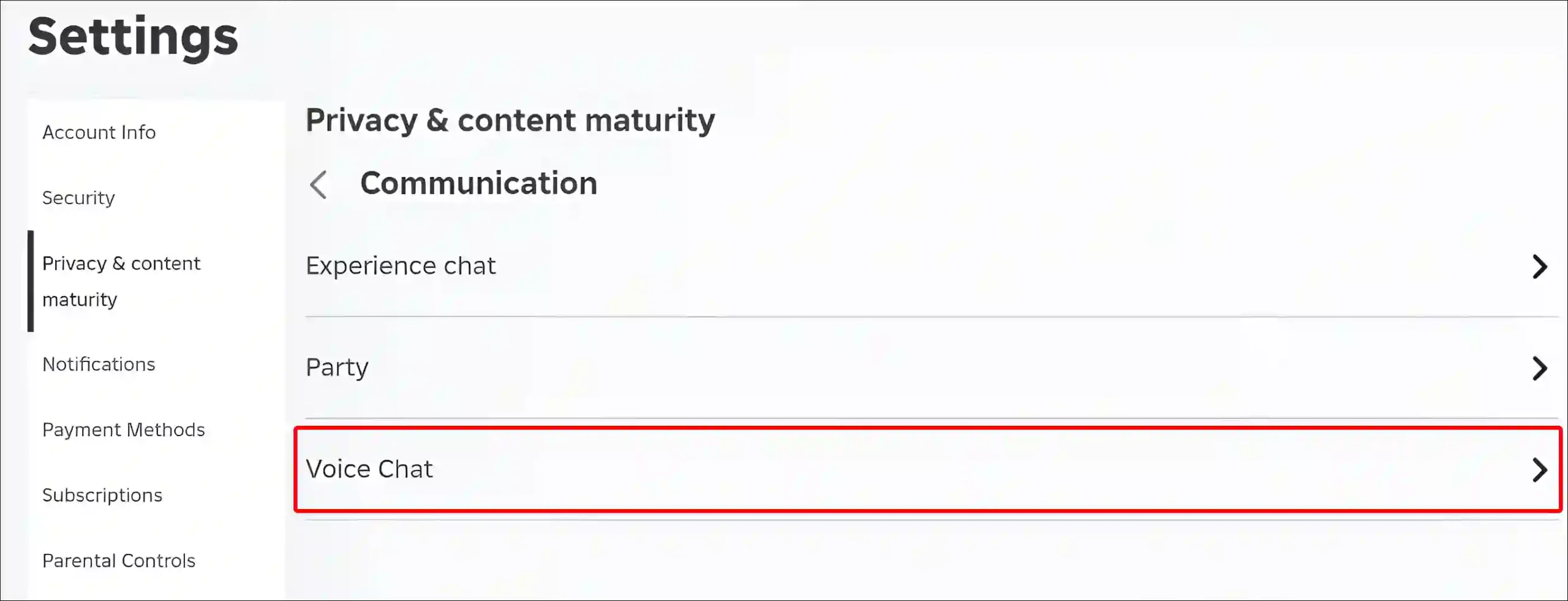
After clicking 'Settings', you will be redirected to your account information page. On the left sidebar, look for the 'Privacy' tab. This section is where all your communication and interaction settings reside. The account privacy Roblox settings are designed to give you granular control over your online presence. Click on 'Privacy' to proceed.
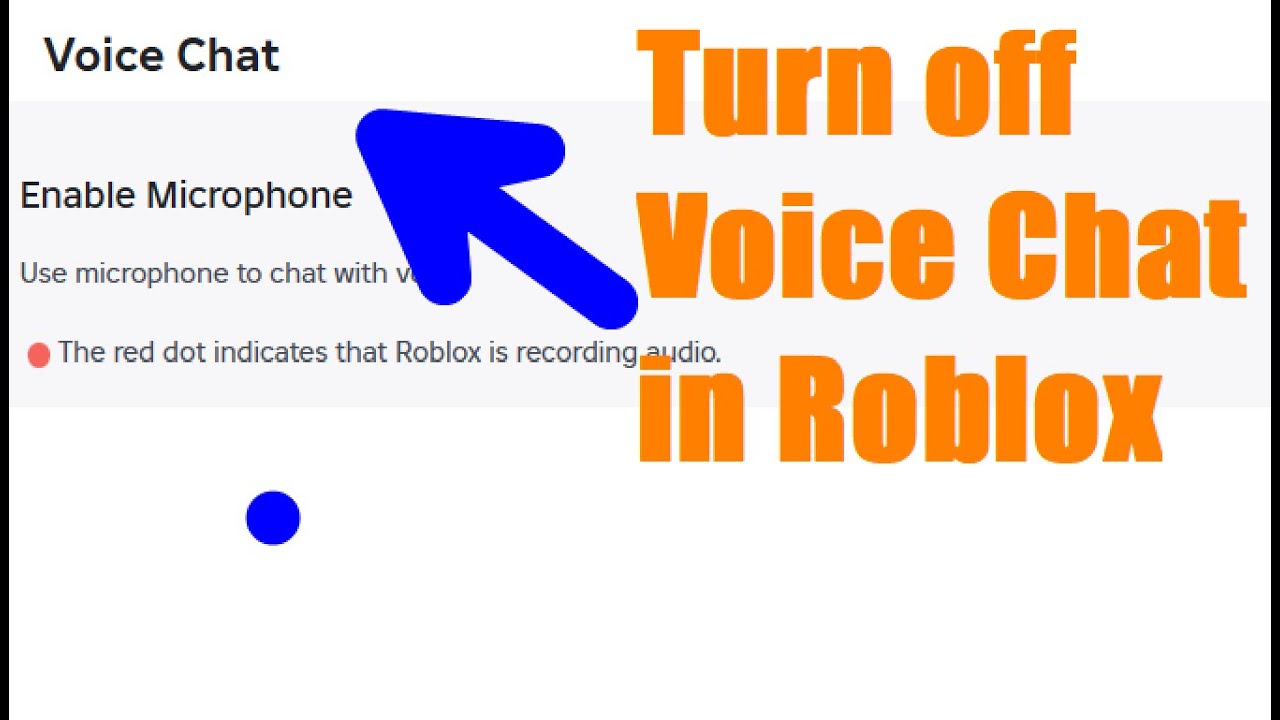
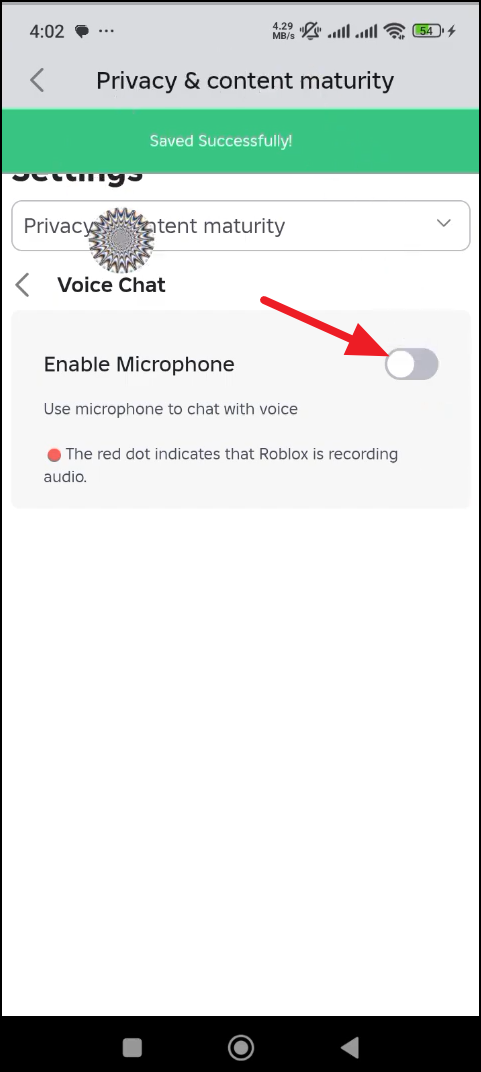
Within the Privacy settings, scroll down until you find the 'Who can chat with me' or 'Communication' section. Here, you will see an option related to 'Spatial Voice' or 'Voice Chat'. To disable voice chat entirely, you'll typically find a toggle or a dropdown menu. Select the option that restricts voice chat, often labeled 'No One' or by simply turning off a toggle switch. Confirming these changes will prevent you from using or hearing spatial voice in Roblox experiences.
Platform-Specific Considerations: Disable Voice Chat Mobile and PC
While the core steps remain similar, there might be slight interface variations when you disable voice chat mobile devices compared to PC. On mobile, the gear icon for settings might be located within a 'More' menu (three dots) first. PC users will usually find it directly at the top right of the Roblox website. The functionality, however, is largely identical across platforms. Console versions of Roblox might integrate these settings through the console's own privacy features or within the Roblox app interface itself.
Why are Roblox safety features important for voice chat?
Roblox safety features, especially those surrounding voice chat, are crucial for creating a secure online environment. They allow players and parents to manage interactions, reducing exposure to inappropriate content or unwelcome conversations. These features empower users to customize their experience, ensuring that Roblox remains a fun and positive space for everyone involved. Regular updates to these features reflect Roblox's commitment to user safety.
Managing Individual Players: Muting and Reporting
Even with voice chat generally disabled, you might occasionally encounter situations where you need to manage communication from specific players. Roblox provides tools to mute individual players within an experience. This is particularly useful if voice chat is enabled for some reason, or if a player is using text chat inappropriately. To mute a player, access the in-game player list, click on the player's name, and select the 'Mute' option. This action specifically silences their communications for your session.
Reporting players is also a crucial Roblox safety feature for dealing with persistent or severe violations of the platform's community standards. If a player is using voice chat inappropriately or behaving offensively, you should report them. This helps Roblox maintain a healthy and respectful community. The reporting tool is usually found alongside the mute option in the player list, allowing you to flag content or behavior for review by Roblox moderators.
## Beginner / Core Concepts
1. Q: What is Roblox Spatial Voice, and why would I want to turn it off?
A: Roblox Spatial Voice is a feature allowing players to chat via microphone in proximity-based areas within certain games. I get why this confuses so many people, especially with younger players around. Many users, including parents and those seeking focused gameplay, often want to turn it off for privacy reasons, to avoid potentially inappropriate conversations, or simply to eliminate distractions during their gaming sessions. It's all about personal preference and safety. You've got this!
2. Q: Is it hard to find the voice chat settings in Roblox?
A: It's really not hard once you know where to look. This one used to trip me up too! The settings are quite accessible through your account's privacy section. Roblox designed it to be user-friendly, although it might take a quick click around if you're unfamiliar. Generally, you'll go to 'Settings,' then 'Privacy,' and then find the voice chat options there. Trust me, it's easier than beating some of those obbies! Try this tomorrow and let me know how it goes.
3. Q: Can I turn off voice chat for just certain games, or is it global?
A: Good question! Turning off voice chat in your Roblox account settings is generally a global change. It applies across all experiences that use Spatial Voice. However, some individual game developers might offer their own in-game mute options, but your primary account setting is the overarching control. Think of it as your master switch for all things voice-related on Roblox. It's a comprehensive setting. You've got this!
4. Q: What happens if I disable voice chat? Will I still be able to text chat?
A: If you disable Spatial Voice, you won't be able to use your microphone or hear others through their microphones. Don't worry, though; this usually doesn't affect your ability to use text chat! Text chat operates separately, so you can still communicate with friends and other players by typing messages. It's a great way to stay connected without the audio. It's a clear distinction between the two communication methods. You're doing great!
## Intermediate / Practical & Production
1. Q: I’ve turned off voice chat in settings, but I still hear people. What's going on?
A: Ah, that can be frustrating, right? This usually points to a caching issue or perhaps you're in an older game that might have its own built-in, non-Spatial Voice communication system. First, try restarting the Roblox application or browser. Sometimes, simply logging out and back in can refresh your settings. Also, ensure you've saved the changes properly. If it persists, double-check that you're disabling the correct 'Spatial Voice' setting under your 'Privacy' tab, as there aren't always glaring error messages. Sometimes, a full system reboot can clear things up. You've got this!
2. Q: My child is playing Roblox. How do I make sure their voice chat is off permanently?
A: This is a super important one for parents! To ensure voice chat is off permanently for your child's account, you'll need to use Roblox parental controls. Log into their account on the Roblox website, navigate to 'Settings,' then 'Privacy.' Under 'Who can chat with me,' make sure 'No One' is selected for voice chat. Critically, you should also set up an Account PIN for their account in the 'Parental Controls' section. This PIN prevents any changes to privacy settings without your explicit approval. It's a robust safeguard! Try this tomorrow and let me know how it goes.
3. Q: Can I selectively mute specific players in-game even if voice chat is on?
A: Absolutely, and it's a feature I use all the time! Even if your Spatial Voice is enabled, you can mute individual players within a game. Simply open the in-game player list (often accessible by pressing 'Tab' on PC or a specific button on consoles/mobile). Find the player you want to silence, click on their name, and you should see an option to 'Mute' them. This is a temporary mute for your current session and can be a lifesaver when someone's mic is acting up! You've got this!
4. Q: What are the age restrictions for Roblox voice chat, and how do they affect turning it off?
A: Roblox voice chat, specifically Spatial Voice, is generally available for users aged 13 and older who have verified their age. If a user is under 13 or hasn't verified their age, the Spatial Voice feature won't be accessible to them in the first place, meaning it's effectively off by default. However, verifying age is a quick process, and if a 13+ user wants it off, they still need to manually disable it in their privacy settings. It's an important distinction for parental oversight. Try this tomorrow and let me know how it goes.
5. Q: I'm on a mobile device. Are the steps to disable voice chat different there?
A: Not significantly different, which is a relief! The core path remains the same: open the Roblox app, tap the 'More' icon (three dots usually), then select 'Settings,' and finally 'Privacy.' From there, you'll find the Spatial Voice toggle or communication options just like on PC. The interface might look a little different due to screen size, but the actual steps and labels are remarkably consistent. It's designed for ease of use across all devices. You've got this!
6. Q: Is there a way to tell if another player has voice chat enabled or disabled?
A: That's a clever thought, but generally, no, there isn't a direct in-game indicator that tells you whether another specific player has voice chat enabled or disabled in their settings. You'll typically only know if they're actively speaking and if you can hear them. If you can't hear someone in a Spatial Voice enabled game, it could be that their microphone isn't working, they're muted by you, or they have voice chat turned off. It's often a bit of a mystery, honestly. Try this tomorrow and let me know how it goes.
## Advanced / Research & Frontier
1. Q: How does Roblox's trust and safety team monitor voice chat for violations?
A: Roblox employs a combination of advanced AI-powered moderation systems and human moderators to monitor voice chat for violations. I get why this is a concern for many. The AI can detect keywords, harmful patterns, and even certain tones, flagging potential issues instantly. Human moderators then review these flagged conversations, along with player reports, to take appropriate action against offenders. It’s a multi-layered approach designed to catch and address inappropriate content quickly, though no system is foolproof. It's an evolving process. You've got this!
2. Q: Are there any third-party tools or methods to disable voice chat beyond Roblox's settings?
A: While you might find information about third-party tools, I strongly advise against using them to modify Roblox's behavior, especially for core features like voice chat. Such tools can often violate Roblox's Terms of Service, potentially leading to account bans or exposing your account to security risks like malware. The official in-game and account settings are the safest and most reliable methods. Stick to the official channels; it's just not worth the risk for your account's safety. You're doing great!
3. Q: Can disabling voice chat impact game performance or my internet bandwidth?
A: Disabling voice chat itself typically has a minimal, almost negligible, impact on game performance or internet bandwidth. Voice data, while it consumes some bandwidth, is generally not a significant drain compared to game assets and other network traffic. If you're experiencing performance issues, it's far more likely due to your internet connection, device specifications, or the complexity of the game you're playing. Think of it as a small drop in a big bucket of data. You've got this!
4. Q: What are the implications for content creators or game developers who rely on voice chat?
A: For content creators and game developers, the ability for players to easily disable voice chat means they cannot solely rely on it for core gameplay mechanics or critical communication. They need to ensure their experiences offer alternative communication methods, like text chat or visual cues, to be accessible to all players, including those who have voice chat turned off. It pushes developers to create more inclusive designs. It's a consideration for game design. Try this tomorrow and let me know how it goes.
5. Q: Will Roblox introduce more granular voice chat controls in the future, like per-game settings?
A: While Roblox doesn't officially pre-announce all future features, it's reasonable to expect that they are continually evaluating and improving their communication tools. More granular controls, such as per-game settings for voice chat, would certainly enhance user experience and provide more flexibility. The platform is always evolving, so keeping an eye on official Roblox announcements and developer blogs is your best bet for updates. It's all about making the user experience better. You've got this!
## Quick Human-Friendly Cheat-Sheet for This Topic
- Head to 'Settings' (gear icon) on the Roblox website or app.
- Click on 'Privacy' in the left-hand menu.
- Find the 'Communication' or 'Spatial Voice' section.
- Toggle the voice chat feature OFF or select 'No One'.
- For kids' accounts, set a Parental PIN in 'Parental Controls' to lock privacy settings.
- Remember, you can always mute annoying players in-game, even if voice chat is on!
Disable Spatial Voice Feature, Adjust Roblox Privacy Settings, Utilize Parental Controls, Mute Individual Players, Platform-Specific Voice Chat Options
35



How To Turn Off Voice Chat On Roblox Easy Guide Roblox Voice Chat . How To Turn Off Voice Chat On Roblox Mobile PC YouTube . How To Turn Off VOICE CHAT In Roblox YouTube . How To Disable Voice Chat On Roblox TURN OFF Voice Chat Guide YouTube . Silence The Chat Disabling Roblox Voice



Turn Off Roblox Voice Chat Mobile Desktop And In Game Image 413 1 . HOW TO ACTUALLY TURN ON OFF VC In ROBLOX VOICE CHAT GUIDE YouTube . How To Turn Off Voice Chat In Roblox The Ultimate Guide Mark Prisk AD LslWwyh8V V2vhw2xD FILWqLUw. Turn Off Roblox Voice Chat Mobile Desktop And In Game Image 32 . How To Turn Off Voice Chat On Roblox 2025 Disable Roblox Voice Chat


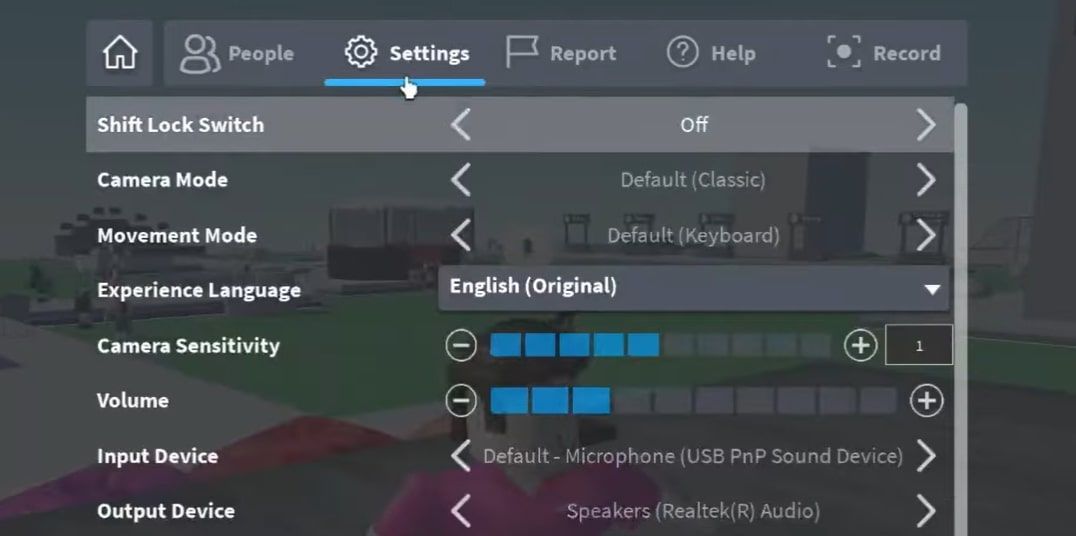
Turn Off Roblox Voice Chat Mobile Desktop And In Game Screenshot 2025 09 05 154005 0 . Xbox Roblox Chat How To Turn It Off . Silence The Chat Disabling Roblox Voice Roblox Voice Chat Settings Scaled.webp. Xbox Roblox Chat How To Turn It Off . Silence The Chat Disabling Roblox Voice 11 Turn The Volume Up By Clicking The Plus Icon Next To It
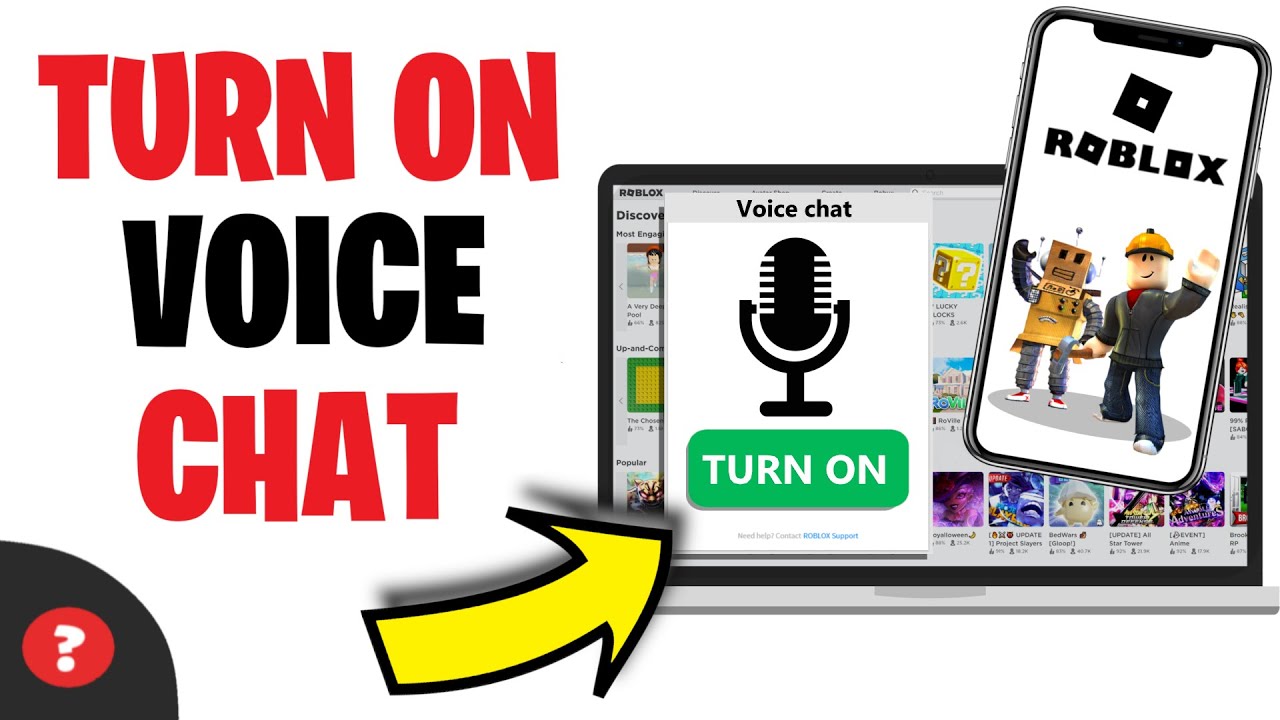


Silence The Chat Disabling Roblox Voice . How To Enable Voice Chat In Roblox 2026 Get Voice Chat On Roblox . Turn On Voice Chat In Roblox How To USE Voice Chat In Roblox IPad . How To Get Voice Chat In Roblox How To Get Voice Chat On Roblox 1024x576 . How To Enable Voice Chat On Roblox Instantly How To Turn On Voice


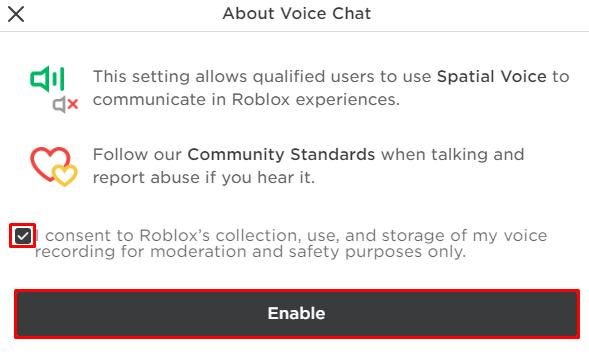
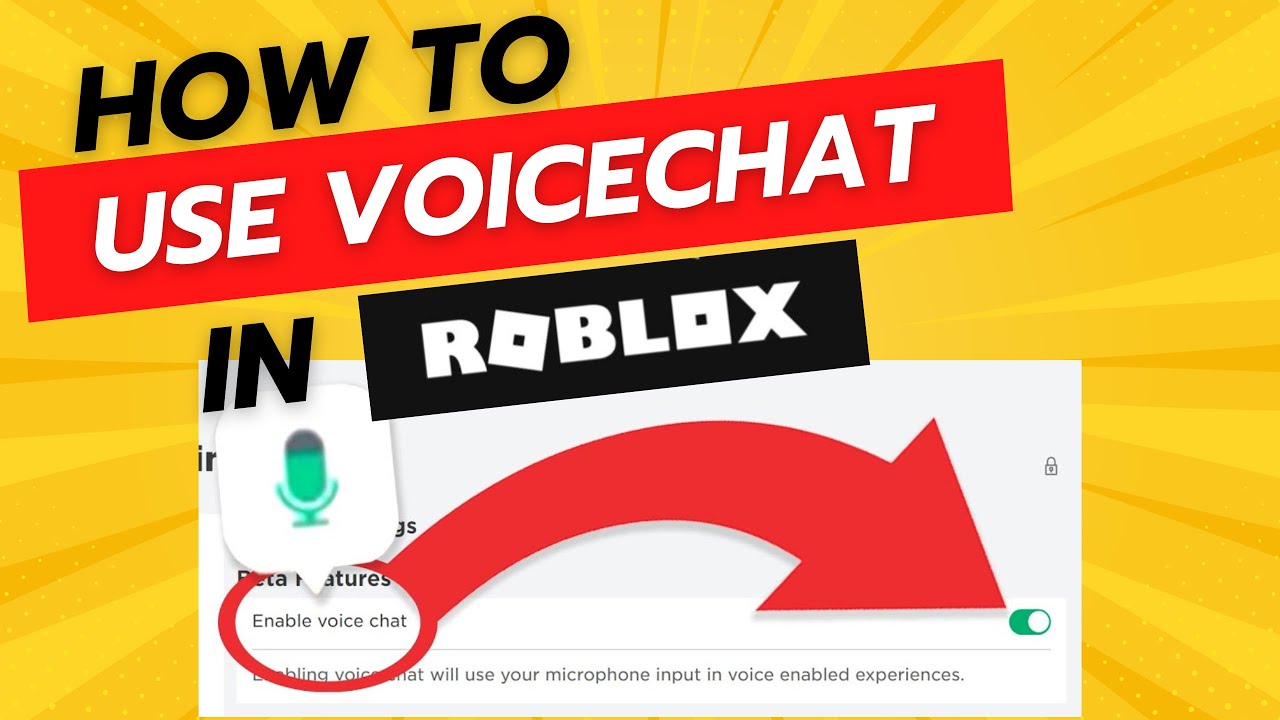

How To Get Voice Chat In Roblox . Roblox Voice Chat Get Talking Now . Roblox PS5 Chat Your Friendly Guide Image 14957c6e8b . Roblox On Xbox Can You Chat With Your Voice . Can 17 Year Olds Use Voice Chat On Roblox Today


Roblox Voice Chat Talk To Your Friends . Can 17 Year Olds Use Voice Chat On Roblox Today Foto Voice Chat Roblox . Roblox Chat Rooms Your Guide To Connecting Amp Chat Enable Voice Chat Roblox Steps . How To Get Voice Chat In Roblox . Roblox Voice Chat Get Talking Now


How To Get Voice Chat In Roblox H Ng D N Chi Ti T V M O T Ng C Ng . Xbox Roblox Chat How To Turn It Off . Xbox Roblox Chat How To Turn It Off . Turn Off Roblox Voice Chat Mobile Desktop And In Game Image 409 1 . Silence The Chat Disabling Roblox Voice