Many busy US gamers, balancing intense play with demanding jobs, often wonder if their high-performance monitors can effectively pull double duty for professional tasks. This comprehensive guide explores whether gaming monitors are genuinely suitable for office work, weighing their significant advantages like vibrant displays, smooth refresh rates, and fast response times against potential drawbacks for productivity-focused users. We delve into crucial aspects such as minimizing eye strain during long work sessions, assessing color accuracy for creative or data-driven tasks, and considering ergonomic factors essential for a comfortable dual-purpose setup. Discover how features like high refresh rates, low response times, and adaptive sync technologies, while crucial for immersive gaming experiences, translate into tangible benefits or unexpected challenges when tackling spreadsheets, coding, graphic design, or video conferencing. This article provides practical, actionable tips on optimizing your gaming monitor settings for a productive workday, ensuring you extract maximum value from your existing hardware investment without compromising either your gaming performance or your professional efficiency. Learn about ideal resolutions, panel types, and essential connectivity options that can make a gaming monitor surprisingly versatile for both peak gameplay and serious work, helping you make smart hardware decisions on a budget.
Can I use a gaming monitor for office work effectively?
Yes, absolutely! Modern gaming monitors are surprisingly versatile for office work. Their high refresh rates make scrolling and window management incredibly smooth, reducing eye strain. Low response times ensure crisp text even with fast movements. Many even boast excellent color reproduction, especially higher-end IPS models, making them suitable for most professional tasks. The key is to optimize settings and choose a monitor with good ergonomics.
What are the main benefits of a gaming monitor for productivity?
The primary benefits include a smoother visual experience due to high refresh rates (reducing fatigue), quick response times for clear text and images, often vibrant and bright displays for better readability, and robust, adjustable stands for improved ergonomics. These features collectively contribute to a more comfortable and efficient workspace, especially for tasks involving a lot of scrolling or visual interaction.
Will a gaming monitor cause more eye strain during long work hours?
Not necessarily. While aggressive brightness or vivid color profiles can contribute to eye strain, most gaming monitors come with settings to adjust these. In fact, the smoother motion from a high refresh rate can *reduce* eye strain compared to a lower refresh rate monitor. Look for features like flicker-free technology and low blue light modes to further protect your eyes during extended work sessions, which many modern gaming monitors offer.
How do I optimize my gaming monitor settings for office work?
To optimize, first lower the brightness to a comfortable level for your environment. If possible, switch to a more neutral color profile or a sRGB mode for better color accuracy, especially if your monitor has one. Enable any low blue light or flicker-free settings. Ensure your operating system's display scaling is appropriate for your resolution (e.g., 100% for 1440p on 27 inches, 150% for 4K). You can keep the high refresh rate; it only adds to smoothness.
What's the best type of gaming monitor panel for dual-purpose use?
An IPS (In-Plane Switching) panel is generally the best choice for dual-purpose use. IPS monitors offer excellent color accuracy, wide viewing angles, and good response times, making them suitable for both visually rich games and professional tasks that require consistent colors. VA (Vertical Alignment) panels offer great contrast but can have slower response times, while TN (Twisted Nematic) panels are fastest but often compromise on color and viewing angles.
Are ultra-wide gaming monitors good for office work?
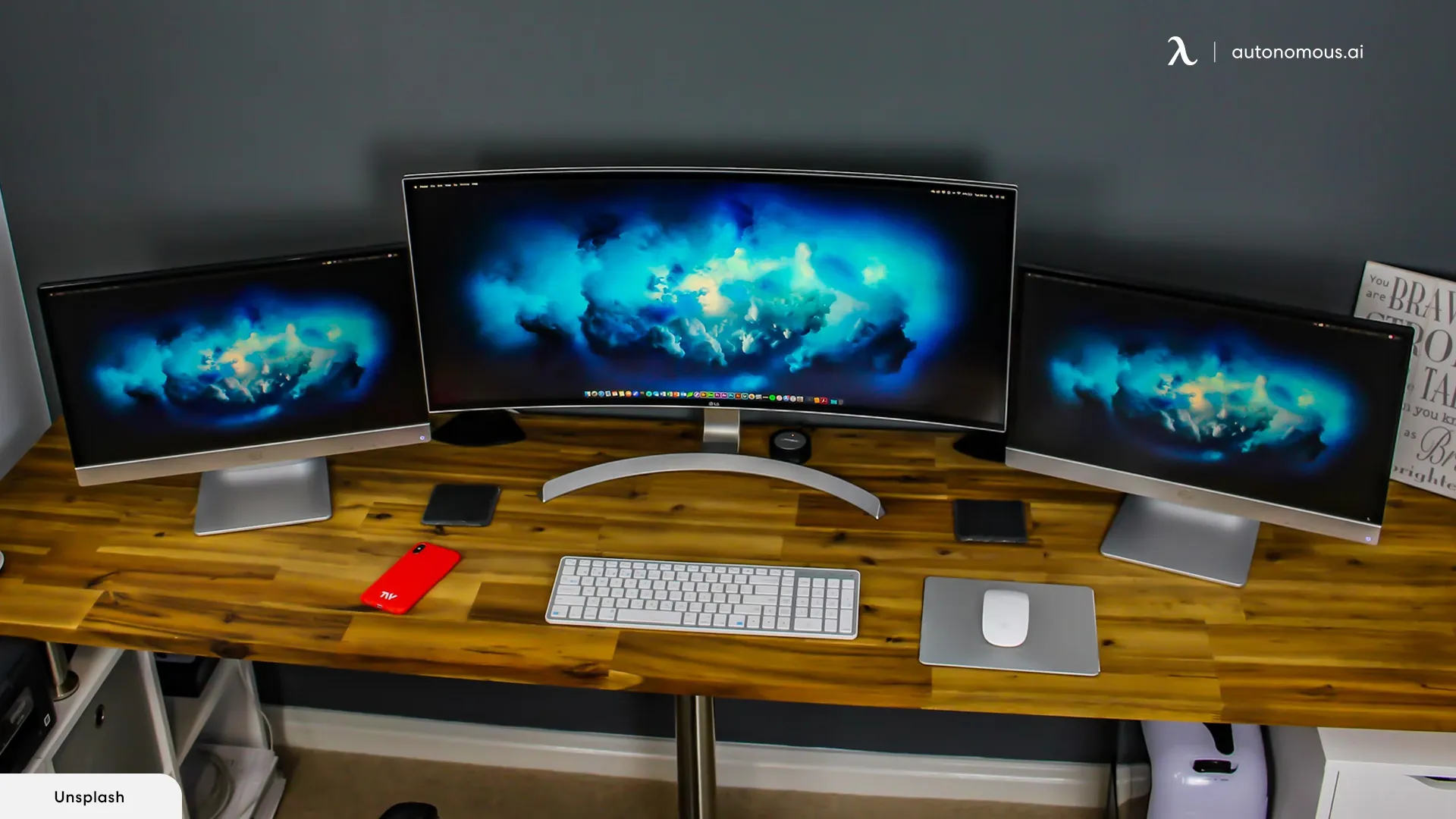
Ultra-wide gaming monitors can be fantastic for office work, offering immense screen real estate that can replace a dual monitor setup. This allows you to have multiple documents, spreadsheets, or applications open side-by-side without needing to toggle between windows constantly. The immersive field of view, while great for gaming, also translates to a highly productive panoramic workspace for multitasking. Ensure it has good pixel density and a comfortable curve.
Should I adjust my refresh rate when switching from gaming to office work?
No, there's generally no need to adjust your refresh rate when switching. Keeping it at its highest setting will provide the smoothest experience for all tasks, including office work. While gaming benefits most from high refresh rates, the smoother scrolling and cursor movement enhance the general desktop experience, making it more comfortable and less fatiguing for your eyes over long periods. Just let your OS and applications utilize it.
Hey fellow gamers! We all love sinking hours into our favorite titles, unwinding after a long day, or connecting with friends online. But let's be real, many of us are also juggling demanding jobs, families, and life's endless responsibilities. Your gaming setup isn't just a leisure zone; for many, it's also a crucial command center for remote work or hybrid schedules. If you've invested in a killer gaming monitor, that sleek, high-refresh-rate beast that makes every headshot feel buttery smooth, you've probably asked yourself: can gaming monitors be used for office work effectively? Is it truly capable of handling spreadsheets, video calls, and endless emails without compromising your productivity or, worse, your eyesight? You're not alone. With 87% of US gamers regularly engaging in their passion, often clocking 10+ hours a week, and a huge segment being adults balancing careers, getting maximum value from your tech investment is a top priority. We're here to cut through the hype and give you the real talk on turning your gaming powerhouse into a productivity machine, solving common pain points like eye strain, setup woes, and maximizing value for your hard-earned cash.
You want performance, value for money, and a seamless transition between your digital battlegrounds and your professional deadlines. This guide is built to help you understand the ins and outs, optimize your existing gear, and make informed decisions, ensuring your monitor serves both your quest for legendary loot and your need to crush those deadlines. Let's dive in and see how your gaming monitor can truly be a versatile ally in your daily grind.
Why Consider Using a Gaming Monitor for Office Work?
For many gamers, the primary motivation is simple: convenience and cost-effectiveness. You've already got a fantastic display for your gaming sessions, so why buy another monitor just for work? Using a single monitor for both purposes simplifies your desk setup, reduces cable clutter, and, most importantly, saves you money on an additional piece of hardware. This is a huge win for those balancing budgets and looking for smart upgrades without breaking the bank. Modern gaming monitors, especially those released in the last couple of years, come packed with advanced features that surprisingly translate well into productivity benefits, offering more than just speedy pixels.
What Are the Key Advantages of a Gaming Monitor for Productivity?
Gaming monitors bring several unexpected benefits to the office desk, making them far more versatile than you might initially think. These advantages are particularly noticeable for tasks that involve a lot of scrolling, visual information, or multitasking.
- High Refresh Rates: While 144Hz, 240Hz, or even higher refresh rates are designed for ultra-smooth gameplay, they also make general desktop use incredibly fluid. Scrolling through documents, moving windows, and interacting with applications feels noticeably smoother and more responsive. This subtle enhancement can reduce perceived lag and contribute to a more comfortable user experience, especially during long hours.
- Low Response Times: Gaming monitors boast extremely low response times (e.g., 1ms GTG) to eliminate ghosting in fast-paced games. For office work, this means text and images remain crisp even when you're quickly dragging windows or scrolling. This clarity can contribute to less eye strain over time.
- Vibrant & Bright Displays: Many gaming monitors feature bright panels with excellent contrast and vivid colors, especially OLED or high-end IPS models. This can make presentations, graphics, and even standard text pop more, improving readability and engagement. Modern panels often support HDR, offering incredible depth and detail for content consumption or design tasks.
- Adaptive Sync Technology (G-Sync/FreeSync): While primarily for tear-free gaming, adaptive sync ensures a smooth, consistent visual experience even when frame rates fluctuate. This technical prowess translates to a general desktop experience that feels more polished, with fewer visual hiccups.
- Robust Build Quality & Ergonomics: Premium gaming monitors often come with highly adjustable stands offering tilt, swivel, pivot, and height adjustments. This superior ergonomics is crucial for maintaining proper posture and preventing discomfort during long work sessions, a feature sometimes lacking in standard office monitors.
Are There Any Downsides to Using a Gaming Monitor for Office Tasks?
While the advantages are compelling, it's important to acknowledge potential drawbacks to ensure a realistic expectation of your dual-purpose setup.
- Color Accuracy: Many gaming monitors prioritize speed and vibrant, punchy colors over precise color accuracy. If your work involves graphic design, video editing, photography, or any task where exact color representation is critical (e.g., matching brand colors, preparing print media), a consumer-grade gaming monitor might fall short compared to a professional-grade monitor designed for creative work with factory calibration.
- Panel Type Specifics: TN panels, while fast, often have poorer viewing angles and color reproduction, which can be detrimental for collaborative work or tasks requiring consistent visuals from different perspectives. IPS and VA panels are generally better choices for office work.
- Power Consumption & Heat: High-performance gaming monitors, especially larger ones or those with advanced backlighting, can consume more power and generate more heat than a basic office monitor. This might be a minor concern for your electricity bill or room temperature.
- Aggressive Aesthetics: Some gaming monitors feature aggressive designs with sharp angles, RGB lighting, or flashy stands. While cool for a gaming den, this might not fit a professional home office aesthetic during a video conference. However, many newer models are sleek and minimalist.
- Cost Overkill: If you're *buying* a new monitor primarily for office work and only game occasionally, investing in a top-tier gaming monitor might be overkill. You might pay for features (like 240Hz+) that provide diminishing returns for productivity.
What Gaming Monitor Features Benefit Office Work Most?
When selecting or evaluating a gaming monitor for office work, focus on these key specifications:
- Resolution: 1440p (2560x1440) is often the sweet spot. It offers significantly more screen real estate than 1080p, allowing you to have multiple windows open side-by-side, which is a massive productivity boost. 4K (3840x2160) provides even more space but requires more GPU power and often mandates UI scaling, which can be hit or miss.
- Panel Type: An IPS (In-Plane Switching) panel is generally recommended. It offers excellent color accuracy, wide viewing angles, and good response times, making it ideal for both gaming and professional tasks where visual fidelity matters. VA (Vertical Alignment) panels offer great contrast but can have slower response times and some color shift at angles. TN (Twisted Nematic) panels are fastest but typically have the weakest color and viewing angles.
- Ergonomics: Look for a monitor with a fully adjustable stand (height, tilt, swivel, pivot). Being able to adjust your monitor to an ergonomic position is crucial for comfort during long workdays. A VESA mount option is also great for monitor arms.
- Connectivity: Ensure it has the ports you need (DisplayPort, HDMI, USB-C often preferred for laptops). USB hubs built into monitors can also be incredibly useful for connecting peripherals like webcams, keyboards, and mice, simplifying your desk setup.
US gamers often prioritize performance per dollar, and choosing a monitor that excels in these areas ensures you're making a smart, versatile investment that aligns with current trends where users seek adaptable tech. A solid 1440p IPS monitor at 144Hz strikes an excellent balance.
How Does Refresh Rate Affect Daily Productivity Beyond Gaming?
The refresh rate, often marketed solely for its gaming prowess (e.g., 120Hz, 144Hz, 240Hz), surprisingly impacts daily productivity. While you won't gain an FPS advantage in Excel, the higher refresh rate means the display updates more frequently. This results in incredibly smooth motion for everything on your screen: scrolling through web pages, dragging windows, typing, and even mouse movements. This smoothness can reduce perceived judder and flicker, potentially leading to less eye strain and a more comfortable, responsive user experience over prolonged periods. Think of it like going from a slightly jerky video to a perfectly fluid one; your eyes simply don't have to work as hard to track movement.
Is Color Accuracy an Issue for Professional Use on Gaming Monitors?
This is where
Gaming monitors excel with high refresh rates and low response times, beneficial for dynamic content in both gaming and office work. They offer smooth visuals for general use, potentially reducing eye strain from motion blur. Color accuracy can be a concern for professional creative tasks on some gaming models. Ergonomic adjustments are vital for long office sessions. Often provides excellent value as a single, versatile display for both play and productivity.
35
.webp)
Best Monitor For Gaming And Work Hybrid Setup Guide 2026 KTC H27T7P 2 Blog 1920x1200 2 Cb9ca4ac D290 4442 80c0 . LG Monitors Buying Guide 2026 UltraGear Vs UltraWide Vs UltraFine Vs OLED AOC Monitors Buying Guide 2026 Main . LG UltraGear Evo Gaming Monitor Lineup Announced Ahead Of CES 2026 27 . Ergonomic Desk Setup Two Monitors. The Best Budget Gaming Monitors 2026 GamesRadar
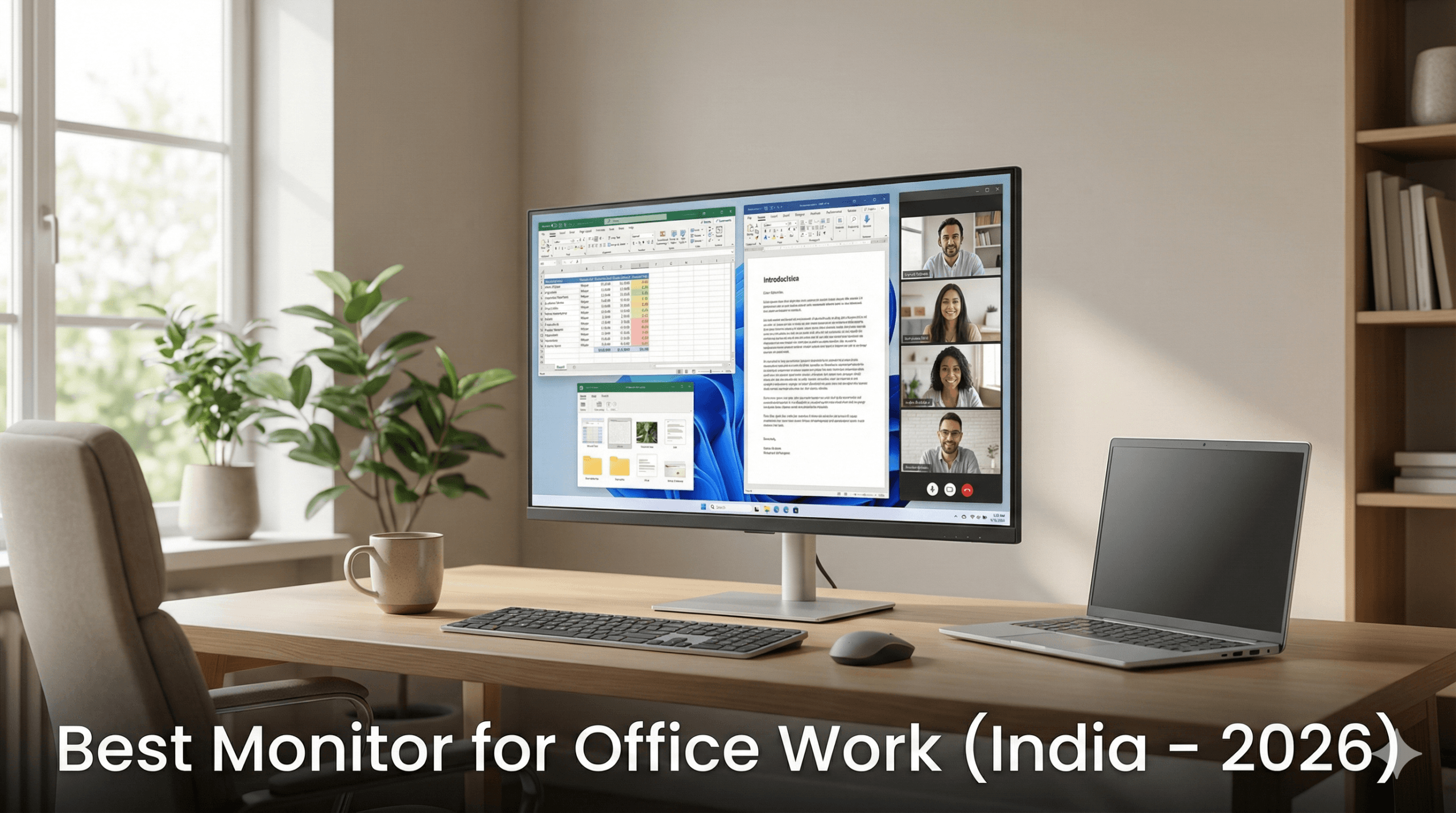
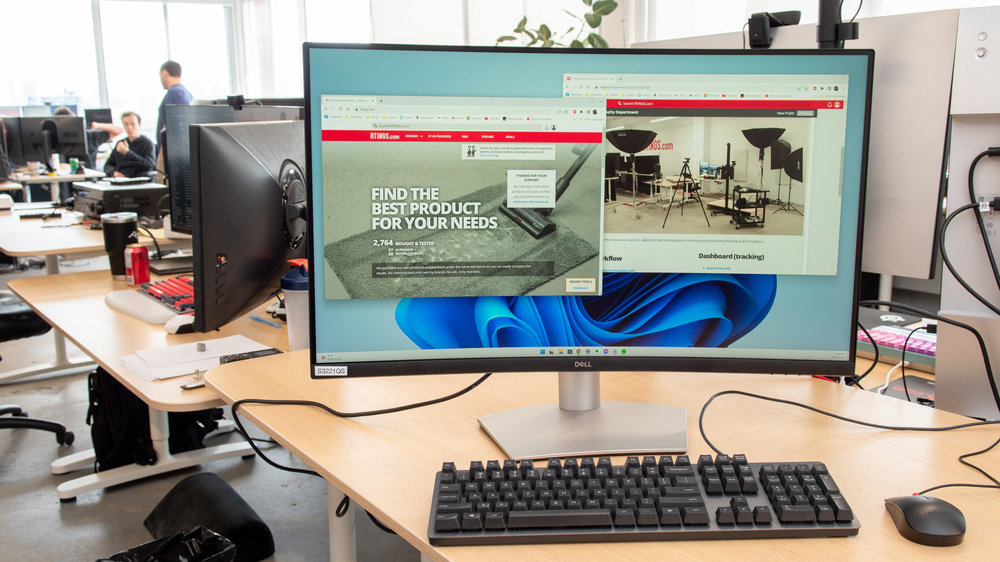
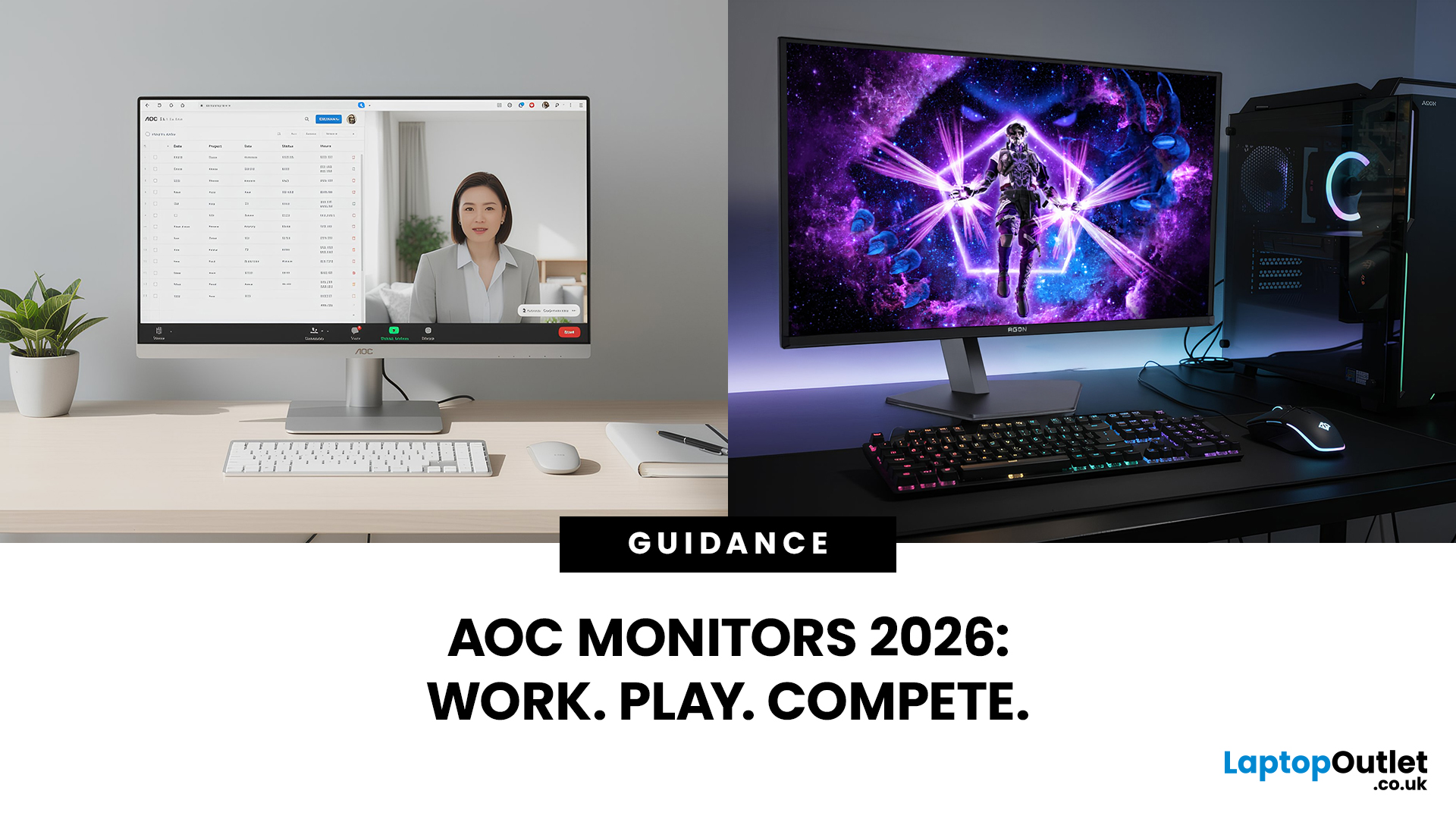
Best Monitor For Office Work In India 2026 Buying Guide Best Monitor For Office Work Scaled . The 5 Best Work Monitors Of 2026 RTINGS Com Best Office Monitors 20230815 Medium . 10 Best OLED Monitors For Office Work In 2026 Digitech Bytes Top Oled Office Monitors Roj8g . LG Monitors Buying Guide 2026 UltraGear Vs UltraWide Vs UltraFine Vs OLED AOC Monitors Explained Overview Main . 2026 Best Triple Monitor Setup Ideas How To Arrange 3 Screens Ultimate Guide For The Triple Monitor Setup Ideas1.webp



Best OLED Gaming Monitors To Buy In 2026 AOC Monitors Buying Guide 2025 For Gaming And Office . How To Reduce Reflection And Glare In Monitors Can Gaming Monitor Be Used For Office Work 1746987481 768x796 . Best Office Chairs For Gaming In 2026 The Top Seats For Work And . BEST Gaming Monitor In 2026 Here S What You SHOULD Buy At Every . Best Monitors For Work Play Complete 2025 Guide Top 3 Ultrawide Monitors For Gaming In 2026


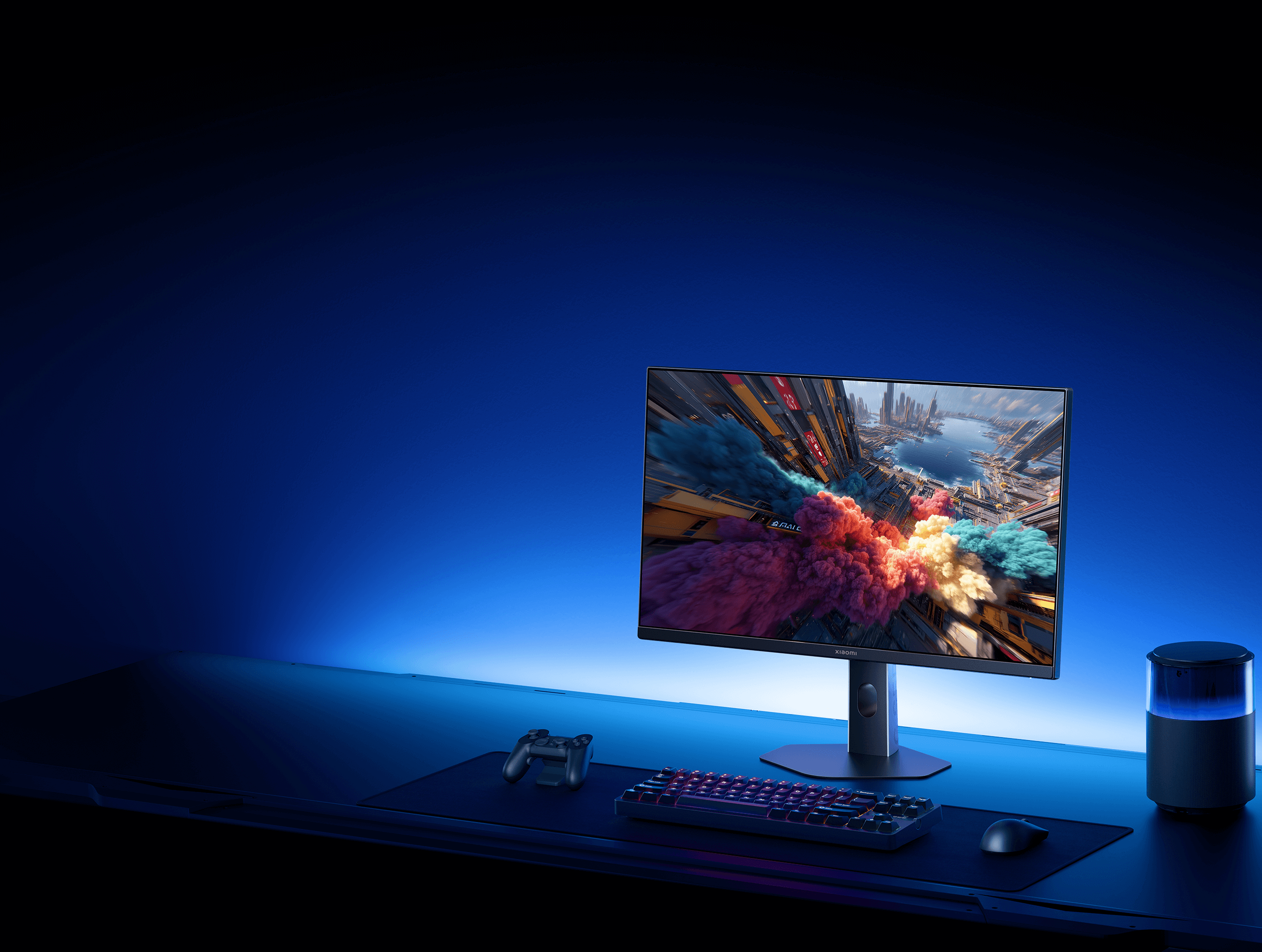
Xiaomi G24i 2026 G27i 2026 Gaming Monitors Launched Globally Xiaomi Xiaomi Gaming Monitor G24i 2026 G27i 2026 Q2XM0.webp. Asus New 5K Gaming Monitor Is So High End It Doesn T Even Officially . Future Displays Mini LED Vs OLED Monitors Compared Dell Monitors 2026 UltraSharp And Business Displays Reviewed . Best Monitors For Office Work 2026 Guide Display Ninja Best USB C Gaming Monitors 768x432 . Xiaomi Gaming Monitor G24i 2026 Xiaomi Global
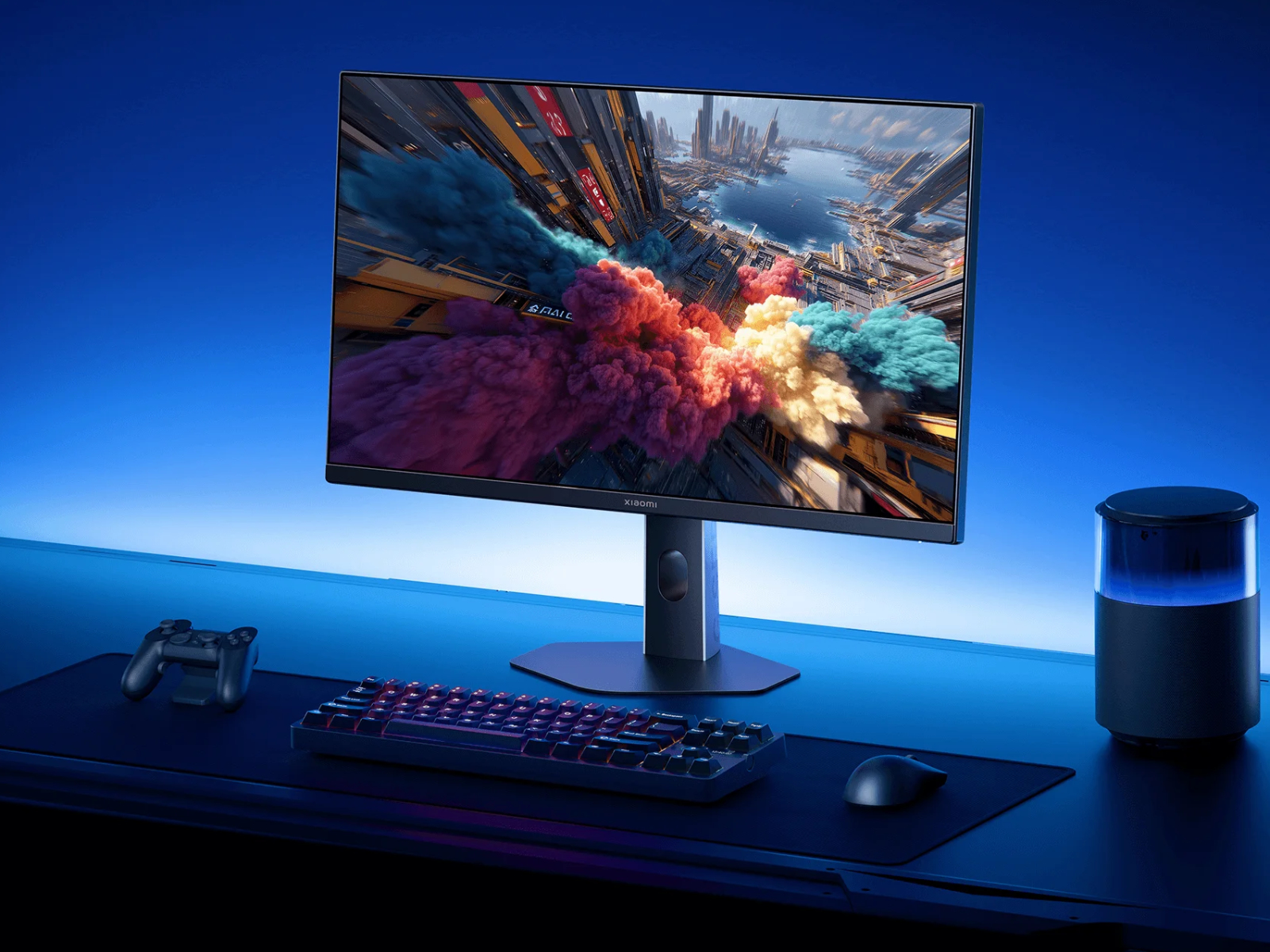

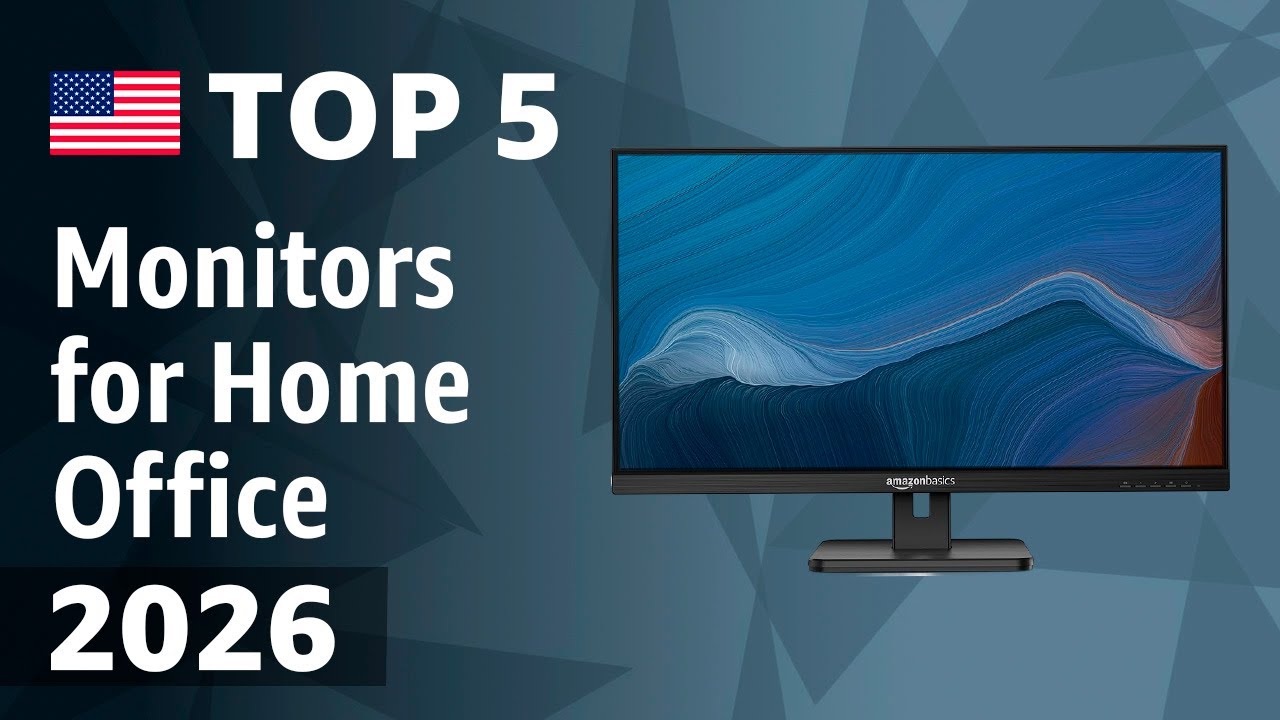
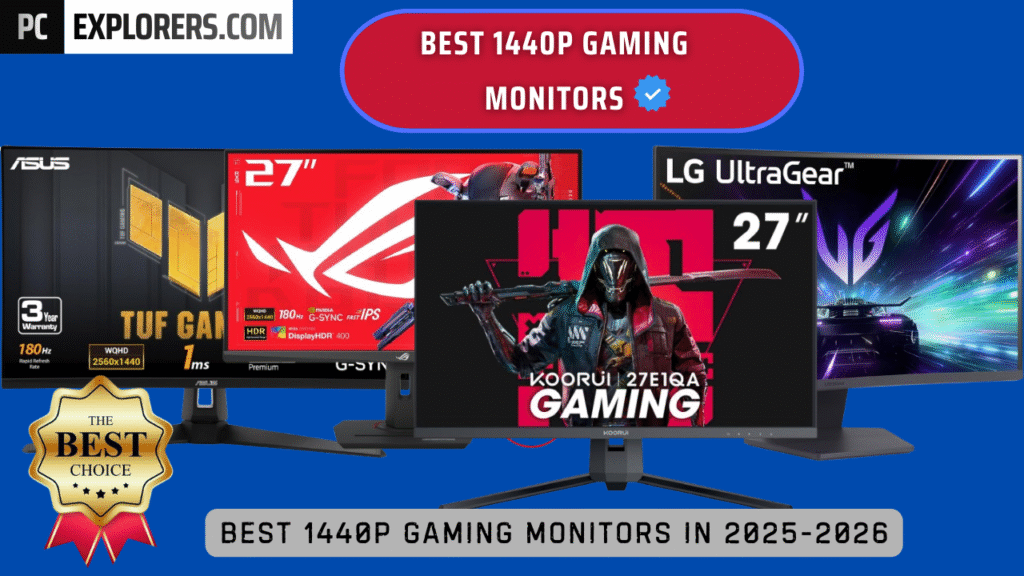
Xiaomi G24i G27i Xiaomi 24 And 27 Inch 2026 Launches Kv . Best Gaming Monitors 2026 Ultimate Buying Guide For Every Budget Setup The Ultimate Gaming. Curved Vs Flat Gaming Monitor Which Is Better In 2026 11.3 1024x687 . TOP 5 Best Monitors For Home Office 2026 YouTube . BEST 1440P GAMING MONITORS IN 2025 2026 PC Explorers Best 1440p Gaming Monitors For Gaming In 2025 2026 1024x576


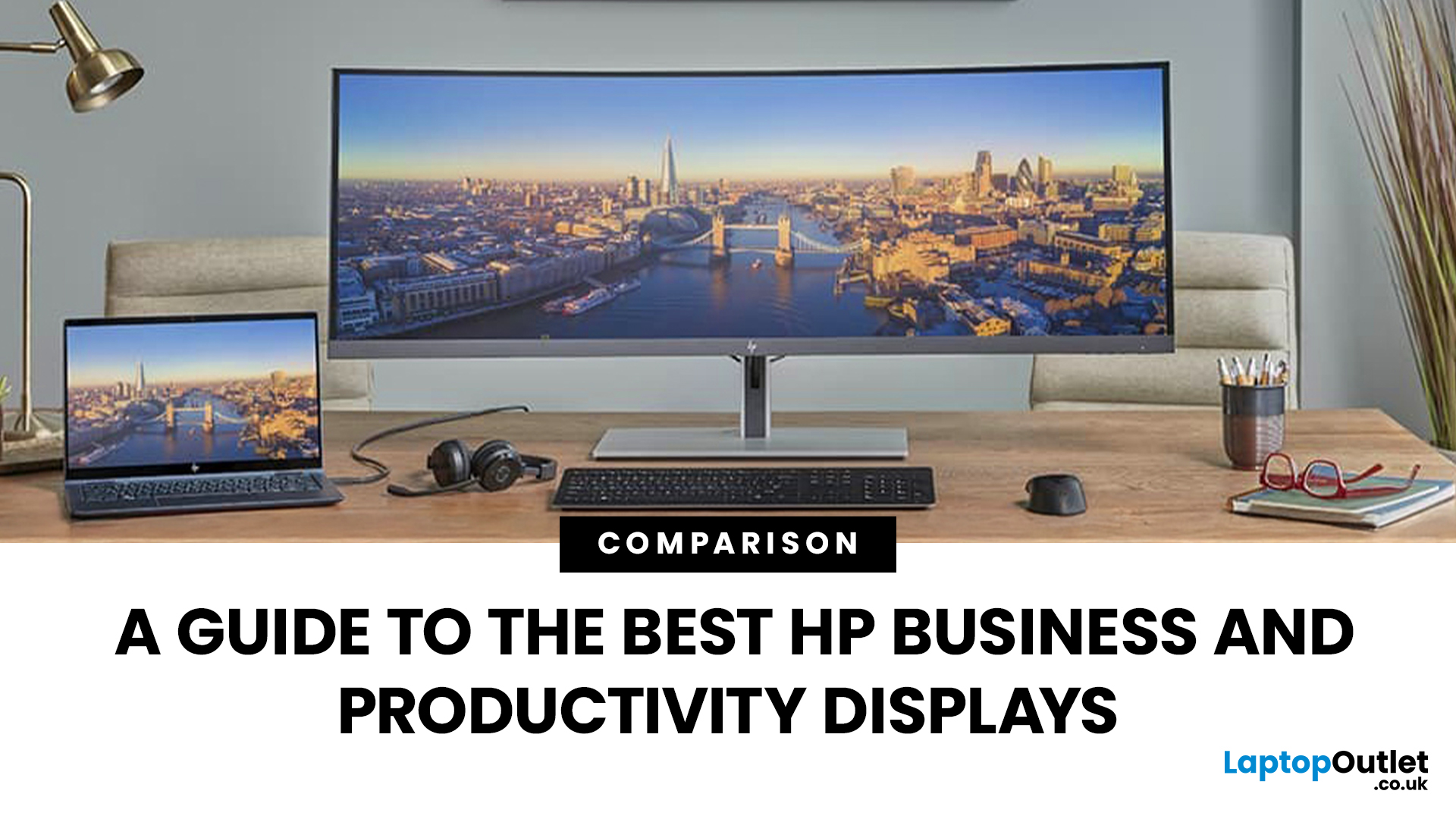
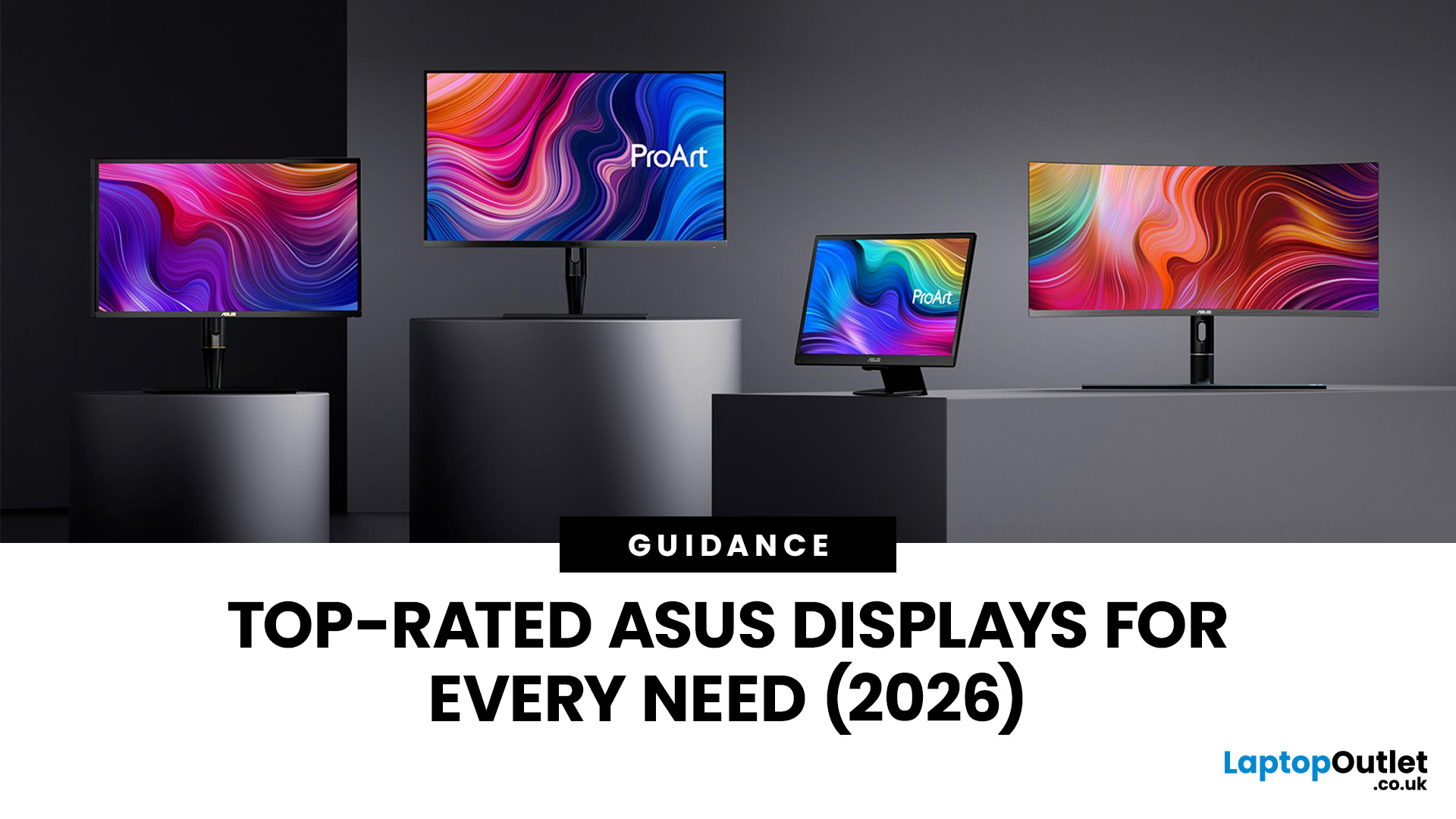
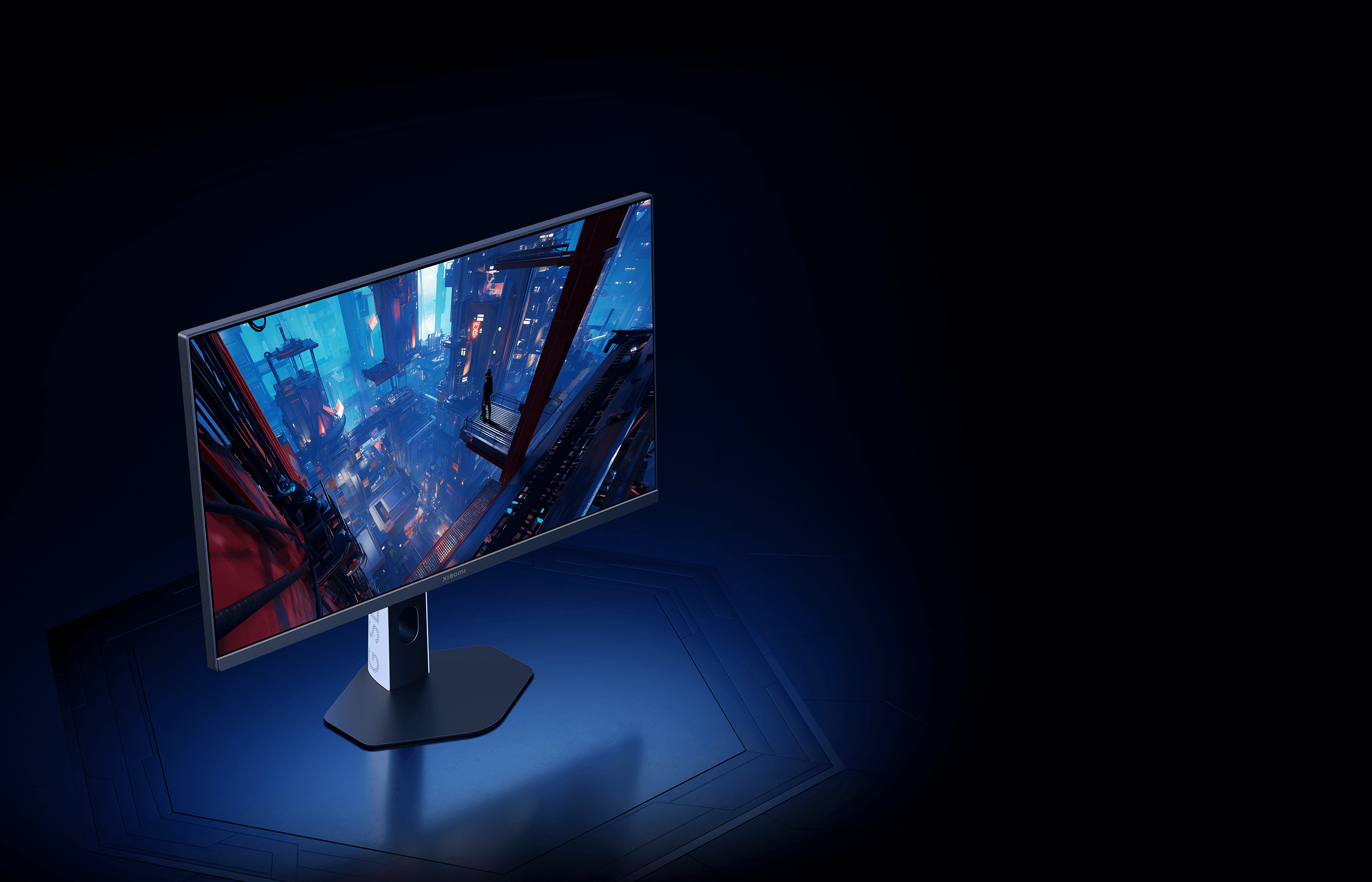
KTC Gaming Monitors At 2026 CES TechPowerUp . Xiaomi Gaming Monitor G27i 2026 Review Solid No Frills Display Can Xiaomi Gaming Monitor G27i 2026 1 1284x722 . Future Displays Mini LED Vs OLED Monitors Compared HP Business Monitors Main . Future Displays Mini LED Vs OLED Monitors Compared Top Rated ASUS Displays For Every Need 2026 . Xiaomi Gaming Monitor G27i 2026 Xiaomi Global

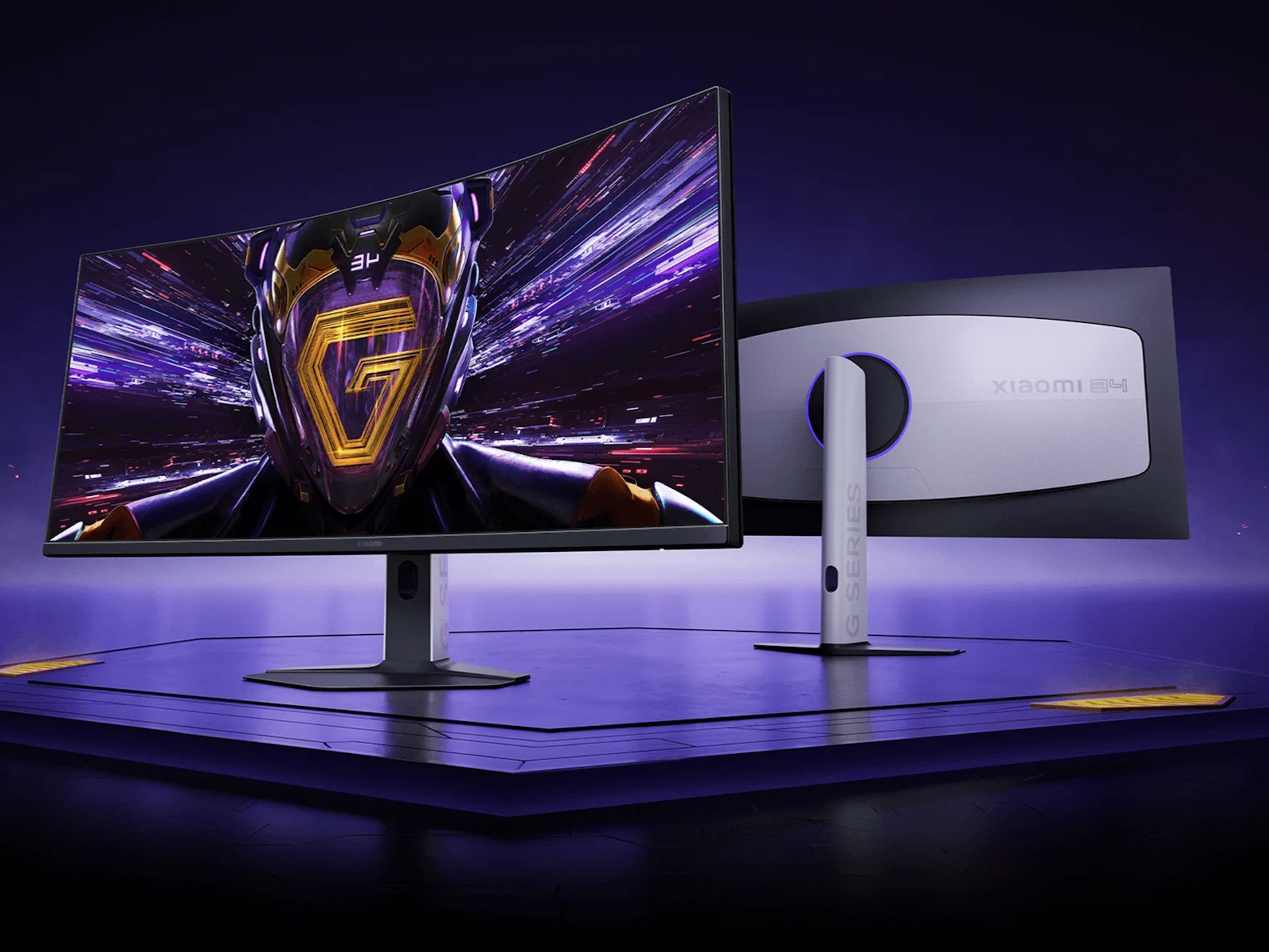
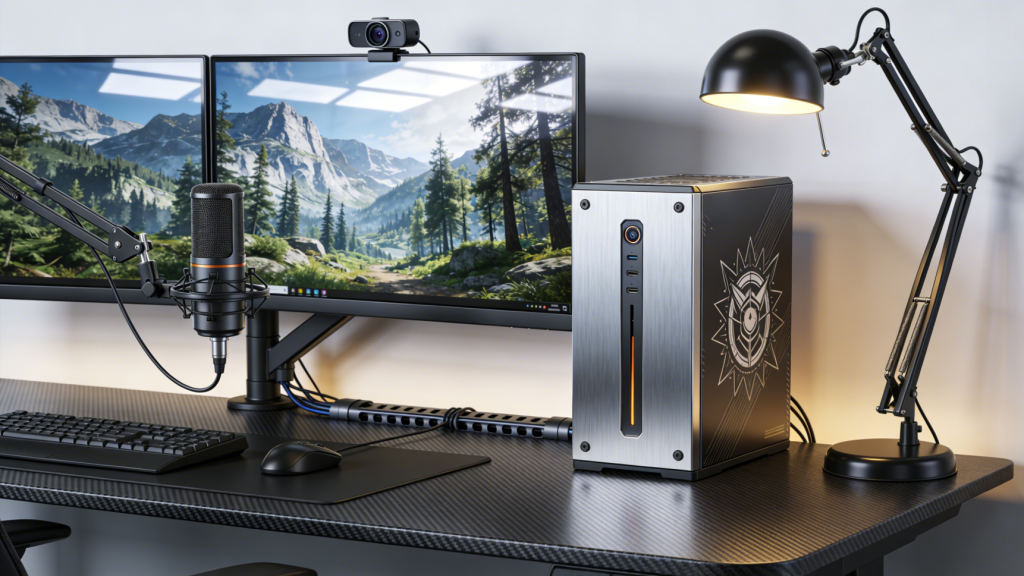

Best Laptop Monitors For Work Best Office Monitors 1024x576 . Xiaomi G34WQi 2026 Curved Gaming Monitor Gets Global Launch G34WQi 2026 . 2026 4K Gaming Monitors GPU Balance And Best Settings 4 1 1 1024x576 . Best Office Monitors Under 300 Best Monitors For Office Medium . Best Gaming Monitors For 2026 Reviews And Bharat Erberbr