Discover how to effortlessly enable Gaming Mode in Windows 10 a crucial step for optimizing your PC gaming experience. This comprehensive guide navigates through the settings ensuring you unlock peak performance for your favorite titles. Many gamers today balance demanding lives with their passion for gaming seeking every advantage to maximize their limited play time. Understanding how to activate and utilize Windows 10s built-in Gaming Mode can significantly reduce latency boost frame rates and minimize background interruptions allowing for smoother more immersive gameplay. We will walk you through the simple steps involved explaining the benefits and addressing common questions. Whether you are a casual player or a competitive enthusiast learning to fine-tune your system for gaming is invaluable. Get ready to transform your Windows 10 machine into a dedicated gaming powerhouse ensuring every session is as fluid and enjoyable as possible. This guide is your essential resource for enhancing gaming performance on Windows 10.
How Do I Activate Gaming Mode in Windows 10?
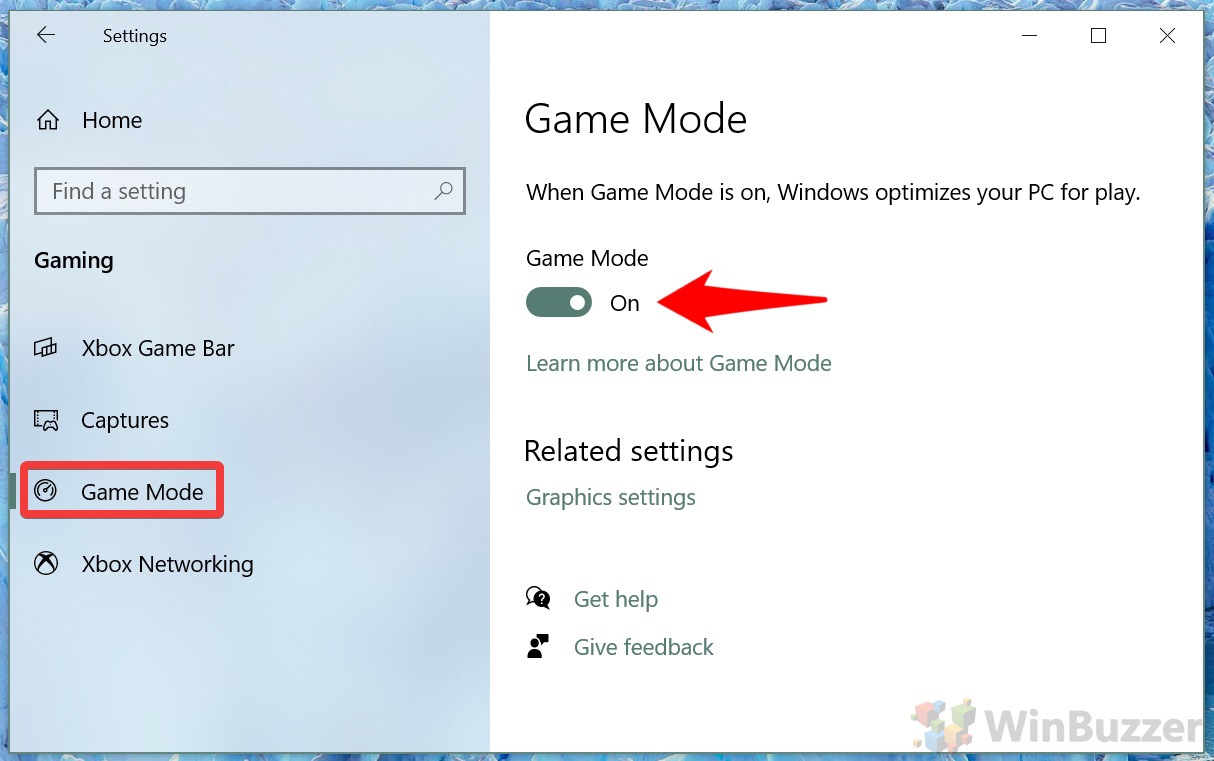
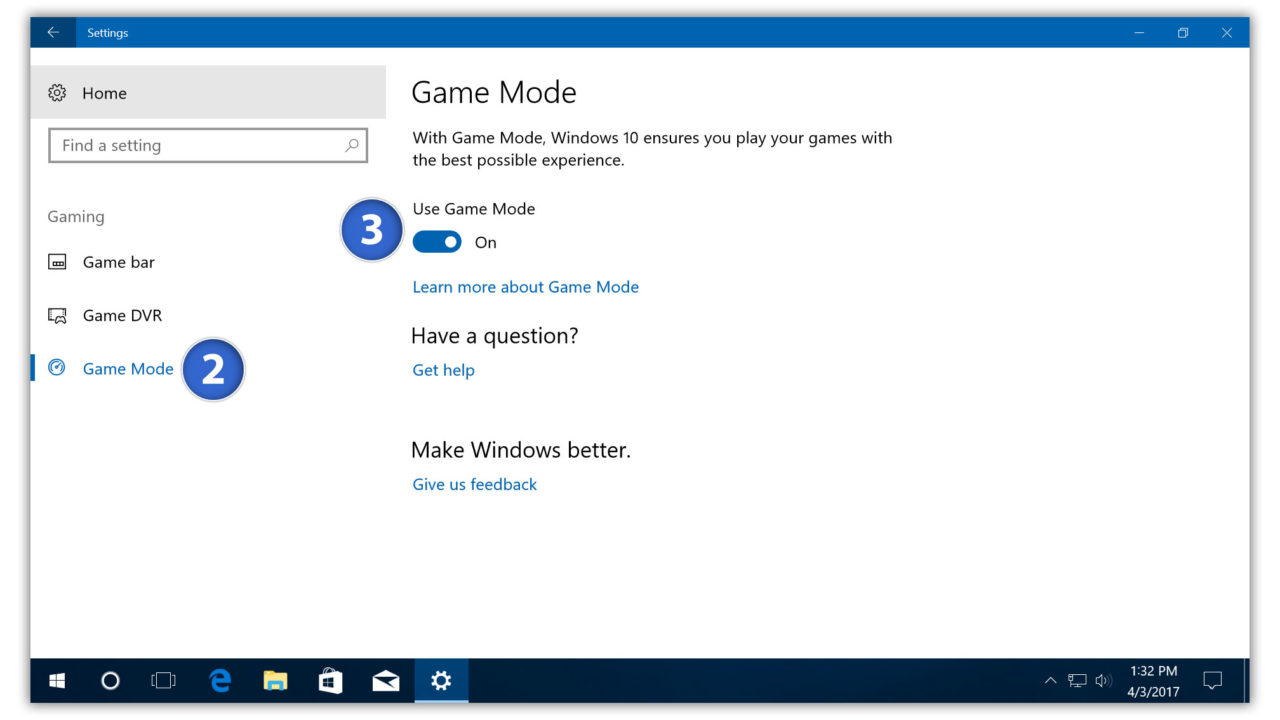
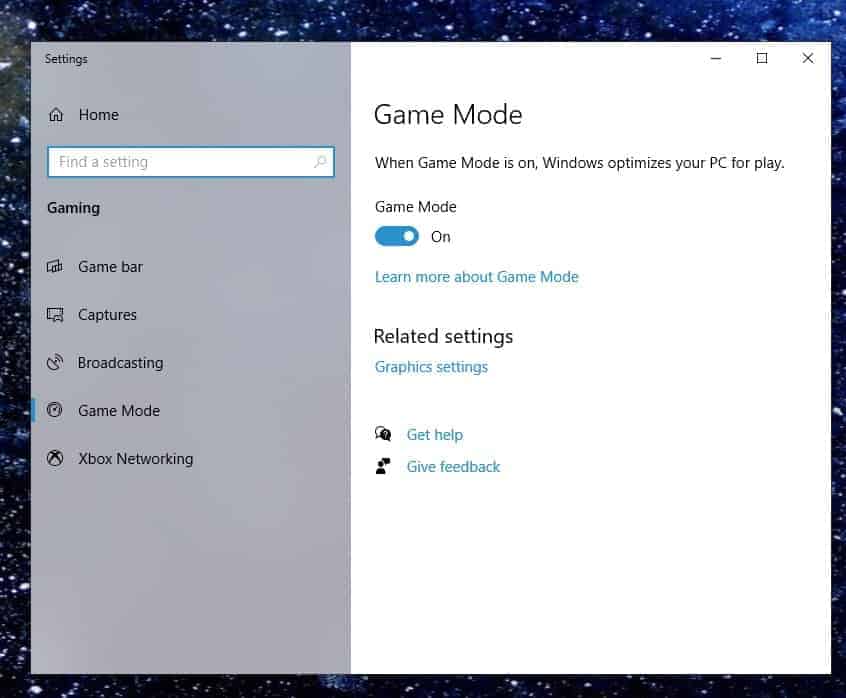
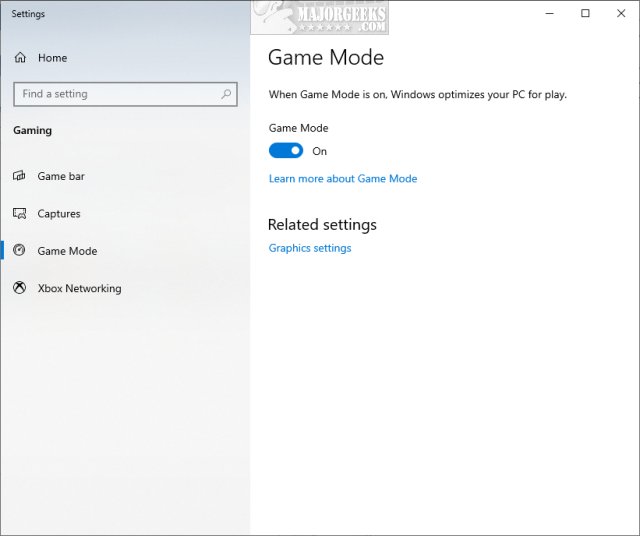
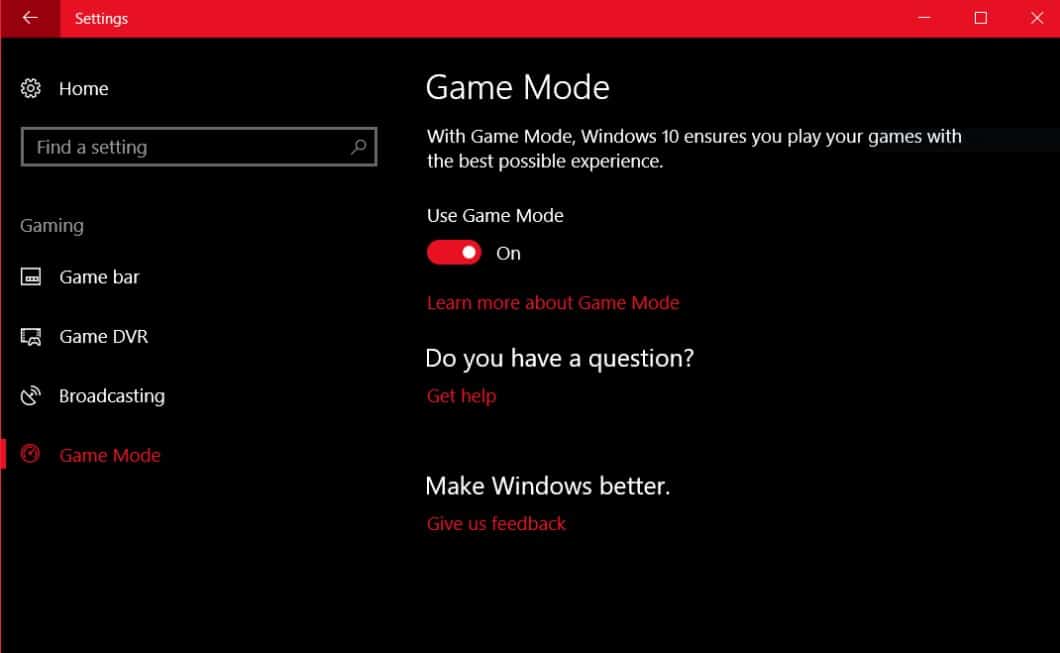
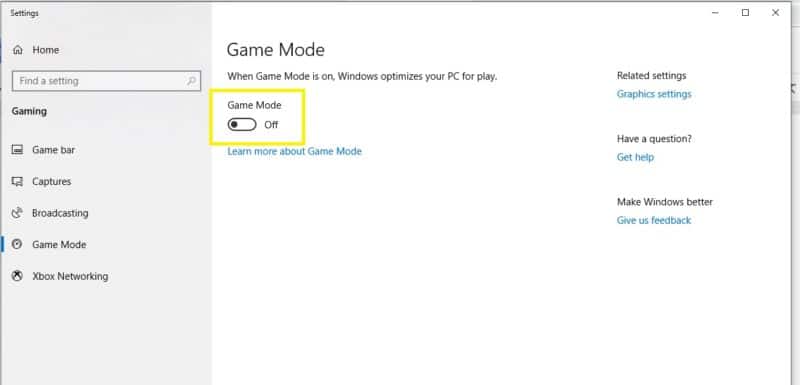
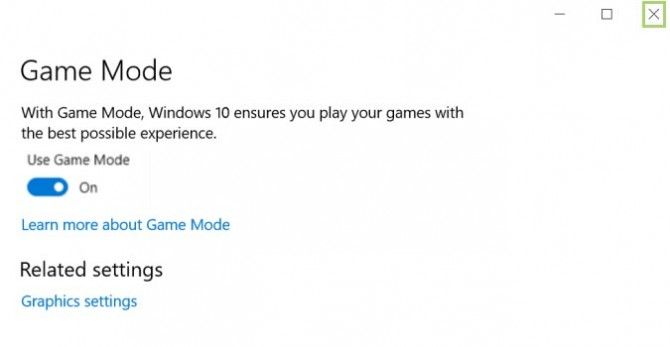
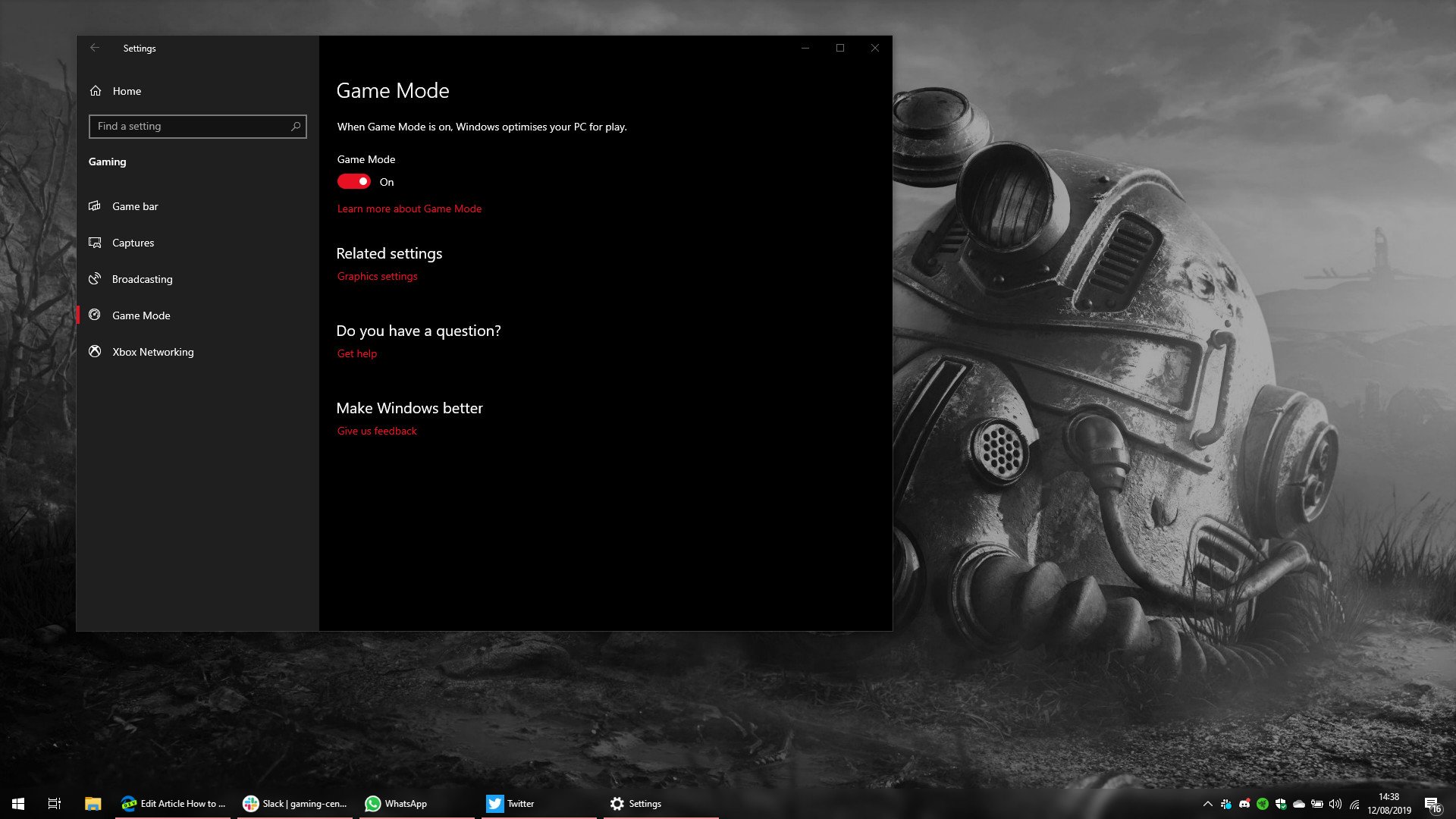
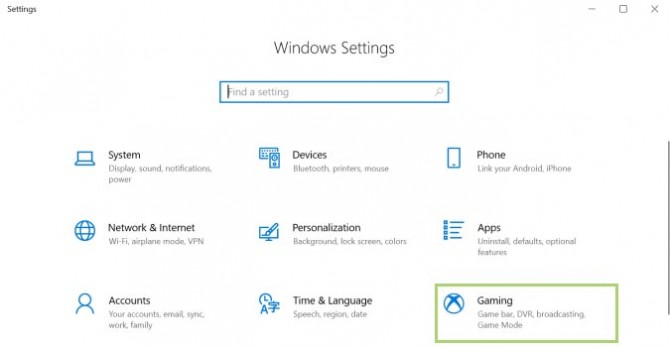
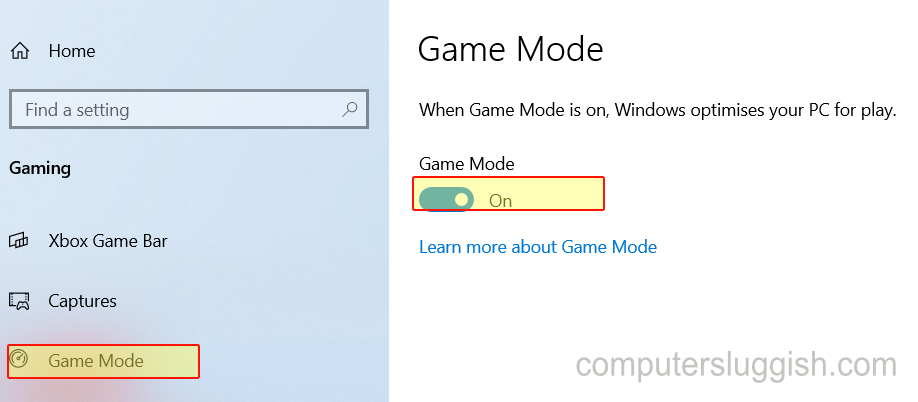
Enabling Gaming Mode in Windows 10 is straightforward and involves a few clicks within your system settings. First open your Start Menu and click on the Gear icon to access Settings. From there navigate to Gaming then select Game Mode. Ensure the toggle switch for Game Mode is set to On. This simple action tells Windows to prioritize your game by allocating system resources and suppressing background activities for a smoother experience.
What Exactly Does Gaming Mode Do for My PC?
Gaming Mode is designed to optimize your PCs performance specifically for gaming. When activated it minimizes background processes halts Windows updates and notifications and dedicates more CPU and GPU resources to your active game. This reduces potential lag and stuttering leading to higher frame rates and a more fluid gameplay experience. For busy gamers balancing life and play every second of smooth performance counts.
Does Using Gaming Mode Truly Improve Game Performance?
Yes Gaming Mode can genuinely improve game performance especially on systems with mid-range specifications or those running many background applications. While high-end PCs might see subtle improvements systems struggling with resource contention will experience more noticeable gains in frame stability and responsiveness. It helps your PC focus its energy where it matters most on your game.
Are There Any Downsides or Disadvantages to Gaming Mode?
For most users there are no significant downsides to using Gaming Mode. The primary effect is the suppression of background tasks and notifications which might delay non-gaming related updates or alerts until your gaming session concludes. If you need certain background applications to run at full capacity while gaming you might notice them performing slower but this is the intended behavior to benefit your game.
How Can I Confirm Gaming Mode is Actively Working?
While there isnt a direct indicator that pops up saying Gaming Mode is on you can verify its status by checking your Game Mode settings in Windows during or after a game. You can also observe performance metrics like frame rate counters in games or through third-party tools to see if there is a difference with Gaming Mode enabled versus disabled. The absence of unexpected notifications or background update prompts is also a good sign.
What Other Windows 10 Settings Complement Gaming Mode for Better Performance?
Beyond Gaming Mode consider optimizing your Power Options to High Performance ensure your graphics drivers are always up-to-date disable visual effects for best performance and manage startup programs to reduce boot time and background resource usage. Adjusting in-game graphics settings to match your hardware capabilities is also crucial. These combined efforts create a truly optimized gaming environment.
Is Gaming Mode Only for High-End Games or All Titles?
Gaming Mode benefits virtually all games from graphically intense AAA titles to casual indie gems and even older classics. Its purpose is resource prioritization making it effective across the board. While the performance uplift might be more pronounced in demanding games even simpler titles will run with fewer interruptions ensuring a consistently smooth and enjoyable experience for every type of gamer.
Are you a dedicated gamer juggling work family and life but still craving those precious moments of immersive gameplay? You are not alone. Across the US 87% of gamers regularly dive into virtual worlds averaging over 10 hours a week. For many gaming is more than just a hobby it is a vital outlet for relaxation skill-building and connecting with friends. However nothing sours a gaming session faster than unexpected lag dropped frames or intrusive notifications. This is where optimizing your system becomes paramount. If you have been wondering how to enable Gaming Mode in Windows 10 to squeeze every ounce of performance out of your rig you have come to the right place. This guide will demystify Windows 10s built-in Gaming Mode showing you exactly how to activate it its benefits and other tweaks to ensure your PC runs like a dream for every adventure.
Forget the frustration of stuttering graphics or getting booted from a crucial moment because of a background update. Modern gamers particularly those in the Gen Z and Millennial brackets often engage in cross-play socialize on platforms like Discord and look for budget-friendly ways to enhance their experience. They value real solutions over hype and seek ways to balance their passion with daily responsibilities. By understanding and utilizing Gaming Mode you can significantly reduce these common pain points transforming your Windows 10 machine into a more reliable and responsive gaming platform. Let us dive in and unlock your PCs full gaming potential.
What is Gaming Mode in Windows 10 and Why Should You Use It?
Gaming Mode in Windows 10 is a dedicated feature designed to optimize your PCs performance specifically when you are playing games. Its primary purpose is to ensure that your active game receives the maximum possible system resources by minimizing the impact of background processes and services. Think of it as putting your PC into a focused state for gaming.
You should absolutely use Gaming Mode because it directly addresses common issues like frame rate drops input lag and unexpected interruptions. By prioritizing your game it helps stabilize frame rates reduces latency and even suppresses Windows Update notifications and other background tasks that can eat up precious CPU and GPU cycles. This means a smoother more enjoyable and less interrupted gaming experience.
How to Enable Gaming Mode in Windows 10 Step-by-Step?
Enabling Gaming Mode is a straightforward process that takes just a few clicks. Follow these simple steps:
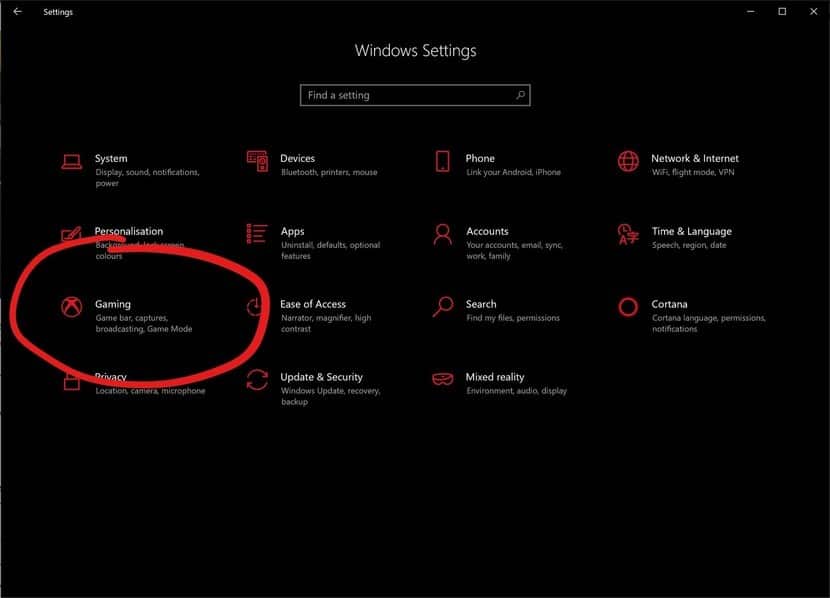
- Open your Windows 10 Settings. You can do this by clicking the Start Menu icon and then selecting the Gear icon. Alternatively you can press the Windows key + I.
- In the Settings window click on Gaming.
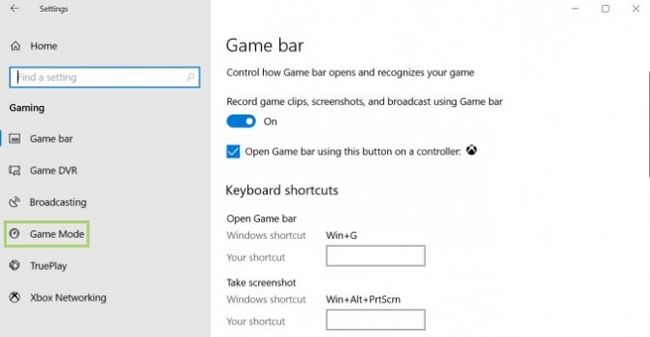
- From the left-hand menu select Game Mode.
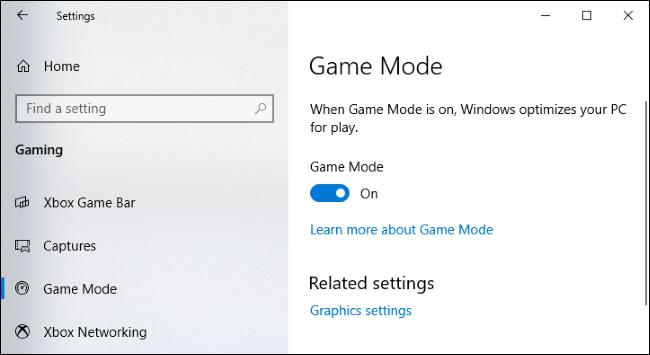
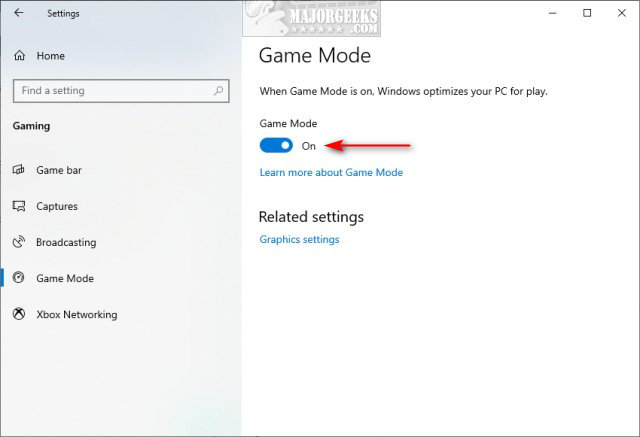
- On the Game Mode page ensure the toggle switch under Game Mode is set to On.
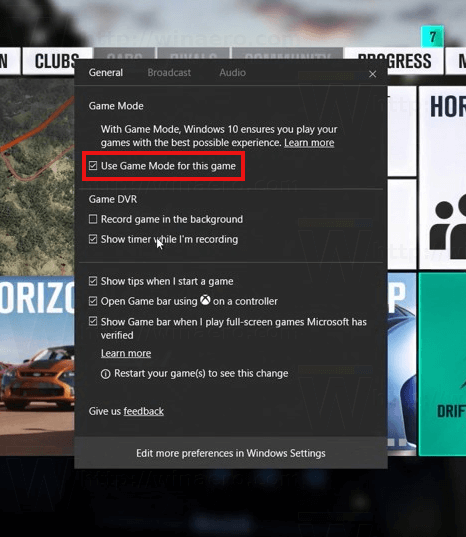
That is it! Once enabled Windows 10 will automatically detect when you are playing a game and apply the optimizations. You do not need to turn it on or off for individual games after the initial setup.
Does Gaming Mode Really Improve Performance?
The impact of Gaming Mode on performance can vary depending on your specific hardware and the game you are playing. However in most scenarios especially on systems that are not top-tier or those running many background applications Gaming Mode provides a noticeable boost. It works by:
- Prioritizing Game Processes: It ensures your game gets more CPU and GPU cycles.
- Stopping Background Tasks: It suspends non-essential background processes and services.
- Suppressing Notifications: It temporarily stops Windows Update notifications and other pop-ups that can pull you out of your game.
While a high-end gaming PC might only see marginal gains a mid-range system or a laptop often experiences more significant improvements in frame rate stability and overall responsiveness. For many US gamers balancing budget and performance this free optimization is a game-changer.
How Does Gaming Mode Affect Background Processes and Notifications?
Gaming Mode is designed to be a silent guardian of your gaming sessions. Its main function is to put a temporary pause on anything that might divert resources away from your game. This includes:
- Background Apps: It reduces the priority of applications running in the background ensuring your game has more memory and CPU access.
- Windows Updates: It defers automatic Windows updates and restarts until your gaming session is over preventing disruptive interruptions.
- System Notifications: It suppresses most system notifications from popping up on your screen allowing for an uninterrupted focus on your game.
This means you can enjoy your favorite social games or intense esports titles without worrying about a sudden notification breaking your concentration or an update slowing down your system. It is all about giving you complete control over your gaming environment.
Are There Any Downsides to Using Gaming Mode?
For the vast majority of gamers there are virtually no downsides to enabling Gaming Mode. The feature is specifically designed to enhance your gaming experience without negative side effects. The only potential effect which is often the desired outcome is that non-gaming background processes might run at a slightly reduced priority or notifications might be temporarily held back. If you are actively monitoring an important background task that needs real-time updates while gaming you might notice a slight delay in that specific application. However this is a rare scenario for most casual and competitive gamers. Overall it is a net positive for performance and immersion.
How Can I Confirm Gaming Mode is Active for My Game?
Windows 10 Gaming Mode largely operates in the background, making its activation seamless. While there is no flashing indicator saying Gaming Mode is currently active you can verify its status and some of its effects. The most direct confirmation is to check your Game Mode settings in Windows as outlined earlier to ensure the toggle is set to On. You will know it is generally working if your games feel smoother you experience fewer sudden frame drops and you are not bombarded by Windows notifications or automatic updates during gameplay. If you want more granular insights you can use in-game FPS counters or monitoring software like MSI Afterburner to observe real-time performance differences with the mode enabled versus disabled.
What Other Windows 10 Settings Can Boost Gaming Performance?
Beyond Gaming Mode there are several other Windows 10 settings you can tweak to further optimize your PC for gaming:
- Power Plan: Set your power option to High performance. Go to Settings > System > Power & sleep > Additional power settings. Choose High performance.
- Graphics Settings: For specific games you can manually assign them to use your dedicated graphics card. Go to Settings > System > Display > Graphics settings. Browse and add your game then select High performance.
- Disable Visual Effects: If you have an older PC reducing visual flair can free up resources. Go to Settings > System > About > Advanced system settings > Performance Settings. Choose Adjust for best performance.
- Update Drivers: Always keep your graphics drivers (NVIDIA AMD Intel) up to date. These updates often include game-specific optimizations.
- Manage Startup Programs: Disable unnecessary programs from launching with Windows via Task Manager (Ctrl+Shift+Esc > Startup tab).
- Storage Sense: Use Storage Sense (Settings > System > Storage) to automatically free up space by deleting temporary files and managing your Downloads folder.
Combining Gaming Mode with these other optimizations will give you the most significant performance improvements ensuring your rig is truly ready for anything from the latest AAA titles to popular free-to-play options like Valorant or Genshin Impact.
Gaming Mode and Social Gaming Are They Connected?
Absolutely. For many US gamers especially Gen Z and Millennials social interaction is a huge part of the gaming experience whether it is through co-op games competitive esports or just hanging out in Discord with friends. Gaming Mode enhances this experience indirectly by ensuring your game runs smoothly. When your game is performing optimally you can:
- Focus on Communication: No lag means clearer communication in voice chat.
- Maintain Performance for Streaming/Recording: If you are streaming to Twitch or recording clips for YouTube a stable game performance is crucial.
- Enjoy Immersive Worlds: Smooth graphics make shared in-game moments more enjoyable.
While Gaming Mode does not directly manage your Discord settings or in-game chat it provides the stable foundation your system needs to handle both the game and your social applications seamlessly. It is about removing the technical hurdles so you can focus on building skills making friends and having fun.
Troubleshooting Gaming Mode What if it Doesn't Work?
Sometimes even with Gaming Mode enabled you might still encounter performance issues. Here are some troubleshooting steps:
- Ensure Windows is Updated: Outdated Windows versions might have bugs. Go to Settings > Update & Security > Windows Update.
- Update Graphics Drivers: This is crucial. Always get the latest drivers directly from NVIDIA AMD or Intel.
- Check Game Settings: Sometimes in-game settings are too demanding for your hardware. Lowering resolutions or graphics quality can help more than Gaming Mode alone.
- Verify Full-Screen Mode: Some optimizations work best when games are running in true full-screen mode not borderless windowed.
- Disable Overlays: Overlays from Discord Steam or other platforms can sometimes interfere. Try disabling them temporarily.
- Check for Conflicting Software: Antivirus software or other background applications can sometimes override Gaming Mode optimizations. Try temporarily disabling them (with caution).
- Restart Your PC: A simple restart can often resolve minor glitches.
If problems persist consider checking online forums or contacting game support for specific title issues. Remember even the best optimizations cannot magically make a game run on unsupported hardware.
Conclusion
Enabling Gaming Mode in Windows 10 is one of the easiest and most effective ways to optimize your PC for a smoother more enjoyable gaming experience. It is a simple toggle that makes a big difference by prioritizing your game reducing interruptions and dedicating resources where they matter most. For gamers who balance demanding lives with their passion for digital adventures this optimization ensures your precious gaming time is spent playing not troubleshooting. Combine it with updated drivers and a few other tweaks and you will transform your Windows 10 machine into a true gaming powerhouse.
What is your biggest gaming challenge when it comes to PC performance? Do you have any go-to tips for optimizing Windows 10? Comment below and share your insights!
FAQ Section
How do I turn on game mode in Windows 10?
To turn on Game Mode in Windows 10 open Settings go to Gaming then select Game Mode and toggle the switch to 'On'. This enables Windows to optimize your system for games by prioritizing resources and minimizing background tasks automatically when a game is detected.
What exactly does Windows 10 Gaming Mode do?
Windows 10 Gaming Mode optimizes your PC by dedicating more CPU and GPU resources to your active game. It also suppresses notifications Windows updates and background processes to prevent interruptions and improve frame rates and overall gaming fluidity.
Is Windows 10 Gaming Mode good for all games?
Yes Windows 10 Gaming Mode is beneficial for virtually all games. Whether it is a graphically intense AAA title or a casual indie game the feature aims to provide a smoother more stable experience by ensuring the game has priority system resources.
Are there any performance downsides to using Gaming Mode?
No there are generally no performance downsides to using Gaming Mode. Its primary effect is resource prioritization which benefits your game. Non-gaming background tasks might run at slightly lower priority but this is the intended behavior to enhance your gaming session.
How can I verify if Game Mode is active for my current game?
While there is no direct on-screen indicator to confirm Game Mode is active you can verify its status in Windows Settings > Gaming > Game Mode. The absence of system notifications or performance issues during gameplay often indicates it is working effectively. You can also monitor FPS.
Does Gaming Mode impact my internet speed or latency?
Gaming Mode primarily focuses on internal system resource management (CPU GPU RAM). It does not directly impact your internet speed or network latency. For network-related optimizations ensure you have a stable internet connection use an Ethernet cable if possible and close bandwidth-intensive background applications.
Can I manually add a game to Gaming Mode in Windows 10?
Windows 10 typically detects games automatically. However if you want to ensure a specific game benefits from GPU priority you can go to Settings > System > Display > Graphics settings. Browse for your game executable add it and then select 'High performance' under Options. This complements Game Mode's benefits.
What is the difference between Game Mode and High Performance power plan?
Game Mode prioritizes resources to the active game and minimizes background tasks. The High Performance power plan keeps your CPU and other components running at their maximum clock speeds continuously regardless of what applications are running. Both can be used together for optimal gaming but they serve different optimization purposes.
Easy steps to activate Gaming Mode. Boosts game performance and frame rates. Minimizes background processes and notifications. Improves overall gaming experience on Windows 10. Essential for serious and casual gamers. Simple optimization for any Windows 10 PC.
35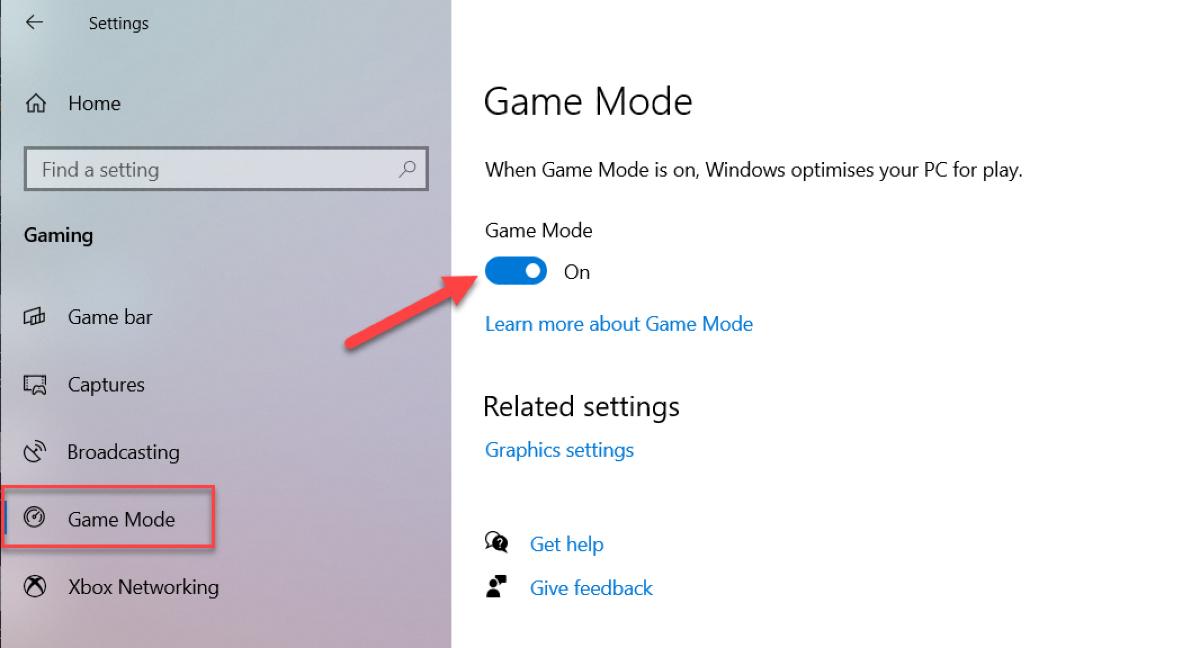

How To Enable Game Mode In Windows 10 Update 06 2026 How To Enable Game Mode In Windows 10 . Windows 10 Game Mode How To Turn It On Or Off 01.3 Windows 10 Settings Gaming Game Mode On . How To Enable Game Mode In Windows 10 Update 06 2026 How To Enable Game Mode In Windows 10 1 . How To Enable Game Mode Windows 10 YouTube . How To Turn On Or Off Game Mode In Windows 10 11 MajorGeeks 2094 How To Turn On Or Off Game Mode In Windows 10 1



How To Enable Game Mode In Windows 10 Game Mode 1024x556 . How To Enable Gaming Mode On Windows 10 YouTube . What Is FPS And How Can You Optimise Your PC For Gaming 2026 Enable Game Mode In Windows 10 . Help Your Games Run Better With Windows 10 Game Mode Windows 10 Game Mode2 . How To Enable Game Mode On Windows 10 Guide YouTube


How To Enable Or Disable Windows 10 Game Mode Feature Windows 10 Game Mode Enable . How To Turn On Game Mode Windows 10 4 Steps Itechguides Com Image 395 1068x708 . How To Enable And Disable Game Mode In The Windows 10 Game Mode Windows 10 . How To Enable And Disable Game Mode In The Windows 10 2128 How To Fix Missing Game Mode In Windows 10 1 . How To Enable Gaming Mode On Windows 10 Windows 10 Game Mode 2


How To Enable Game Mode In Windows WePC GAME MODE IMAGE . Tip How To Use Game Mode In Windows 10 AskVG Enable Game Mode Windows 10 . How To Enable Windows 10 Gaming Mode Laptop Mag 650 80 . How To Enable Game Mode On Windows 10 Game Mode Settings Windows 10 . How To Enable Game Mode In Windows 10 Windows 10 Game Mode In Game Bar


How To Enable Gaming Mode On Windows 10 Gaming Mode 1 . How To Enable Windows 10 Gaming Mode Laptop Mag 1200 80 . How To Enable Or Disable Game Mode In Windows 10 And 11 Windows Central . How To Enable Game Mode In Windows 10 Simple Guide YouTube . How To Enable Or Disable Game Mode In Windows 10 Micro Center



How To Enable Or Disable Game Mode In Windows 10 . How To Enable Windows 10 Gaming Mode Laptop Mag . How To Enable Game Mode In Windows 10 Enable Game Mode Windows10 . How To Enable Or Disable Game Mode In Windows 10 Micro Center . How To Enable Game Mode In Windows 10 Turn On Game Mode Windows 10



How To Enable Game Mode On Windows 10 YouTube . How To Enable Game Mode In Windows 10 Quick Tutorial YouTube . 10 Tips How To Optimize Windows 10 For Gaming Enable Gaming Mode Windows 10 . How To Enable Game Mode In Windows 10 Enable Game Mode Windows10 Tn 520x293 . How To Enable Gaming Mode On Windows 10 Gizbot News How To Enable Gaming Mode On Windows 10 1578735217