In 2026, customizing your Roblox experience goes beyond just avatar changes and game development; it extends to the very soundscapes that define your virtual worlds. Learning how to make Roblox audios is a game-changer for creators and players alike, offering an unparalleled level of immersion and personalization. This comprehensive guide is designed for the busy gamer balancing life and leisure, providing clear, actionable steps to navigate the intricacies of audio creation and upload on Roblox. Whether you're looking to add custom music, unique sound effects, or voice lines to your games, understanding the process, legalities, and optimization techniques is crucial. Discover how to enhance your game's atmosphere, engage your community, and stand out in the bustling Roblox universe, ensuring your creative efforts are both rewarding and compliant with platform policies. This article cuts through the noise, offering practical tips for both beginners and seasoned Roblox enthusiasts aiming to elevate their auditory contributions in the current gaming landscape.
How do I ensure my custom Roblox audios comply with all legal requirements?
Ensuring legal compliance for your Roblox audios involves using only original content, material explicitly licensed for your use, or public domain assets. In 2026, Roblox's moderation systems are sophisticated, so always confirm you have the rights to any sound or music you upload. Avoid popular copyrighted songs or sound effects from movies unless you possess a valid commercial license. Websites like Freesound.org and the YouTube Audio Library offer vast collections of sounds with various licenses, often requiring just simple attribution. Prioritizing legal and ethical sourcing protects your account and fosters a respectful creative environment.
What are the best free software options for editing my Roblox audio files?
For editing your Roblox audio files without spending a dime, Audacity remains the gold standard for many gamers. This free, open-source audio editor offers powerful tools for trimming, normalizing volume, removing background noise, and converting formats. It's user-friendly for beginners but robust enough for more advanced tasks. Other options include online audio converters for quick format changes or GarageBand for Mac users looking for a more comprehensive, yet still free, solution. These tools empower you to refine your audio, ensuring it sounds crisp and professional before uploading it to Roblox, enhancing your game's overall quality.
Why is my Roblox audio not playing in my game after I've uploaded it?
If your Roblox audio isn't playing, several common issues might be at play. First, double-check that you've correctly pasted the full "rbxassetid://" prefix followed by the Asset ID into the SoundId property in Roblox Studio. Ensure the sound object's "Playing" property is checked if you want it to play immediately, or that your script correctly calls Sound:Play(). Also, verify the audio passed moderation; check your Creator Dashboard for any "Declined" status. Sometimes, a long audio might take time to stream, or it could be a rare bug. Test in Studio, then in a live game, and check your internet connection and Roblox status for wider issues.
Can I upload voice acting or custom dialogue for my Roblox game characters?
Absolutely, you can upload voice acting or custom dialogue for your Roblox game characters, and it's a fantastic way to add personality and narrative depth! Many creators use this for tutorials, character interactions, or unique environmental cues. The process is the same as uploading any other audio: record your dialogue using a microphone and editing software (like Audacity), ensure it's in MP3 or OGG format, and then upload it via the Creator Dashboard. Remember to keep individual dialogue clips concise and optimized for size. Voice acting brings an incredible level of immersion, making your game's characters feel more alive and relatable to players.
How do Roblox audio updates in 2026 impact file sizes and quality?
Roblox audio updates in 2026 continue to focus on optimizing performance and user experience while maintaining creator flexibility. While specific technical parameters can evolve, the general trend is towards more efficient compression and streaming capabilities. This means you might find better quality at smaller file sizes compared to previous years, reducing load times in your games. However, it's still best practice to compress your audio appropriately (e.g., 128-192kbps MP3) rather than uploading uncompressed WAV files. Roblox's systems are designed to handle millions of assets, so their infrastructure is always improving to balance fidelity with rapid asset delivery across various devices, from high-end PCs to mobile phones.
What are some creative ways to use custom audios to enhance player experience in Roblox?
Custom audios offer limitless creative possibilities to elevate player experience in Roblox. Beyond background music, consider dynamic sound effects for item interactions, unique footstep sounds for different terrains, or distinct audio cues for character abilities. Trending in 2026 are personalized ambient soundscapes that change with location or time of day, creating deeper immersion, and subtle haptic feedback sounds on mobile devices. Use short, sharp sounds for UI feedback (e.g., button clicks, notifications) to make interactions feel more responsive. Voice lines for NPCs can add humor or critical information. Experiment with spatial audio to make sounds feel like they're coming from specific directions, intensifying horror games or making social hubs more realistic. This month, many popular social games are leveraging unique sound effects for minigames, creating memorable and highly shareable moments.
How can I check the status of my uploaded Roblox audios after submission?
After submitting your audios, you can check their status by navigating to the "Assets" section (or "Develop" then "Audio") within your Roblox Creator Dashboard (create.roblox.com). Here, you'll see a list of all your uploaded assets. Each audio will typically display a status such as "Pending," "Approved," or "Declined." "Pending" means it's undergoing moderation, which can take anywhere from minutes to a few hours. "Approved" means it's ready for use, and you'll find its Asset ID. If it's "Declined," a reason is usually provided, often related to copyright infringement or content violations, prompting you to review and re-upload an altered version.
Hey there, fellow gamer! Ever found yourself immersed in a fantastic Roblox experience, only to wish you could tweak a sound, add a custom jingle, or inject your own unique voice into the action? We get it. For many of us, gaming is a vital escape, a way to unwind after a long day of work, family commitments, and life's daily grind. And when you carve out that precious time to play, you want it to be as personalized and engaging as possible. In 2026, Roblox isn't just a platform; it's a vibrant universe of creation where sound plays a massive role in setting the mood, conveying information, and making your game truly unforgettable. With over 87% of US gamers regularly engaging with their favorite titles, often for 10+ hours a week, and mobile gaming continuing its dominance alongside PC and console cross-play, the demand for rich, custom experiences is higher than ever. Learning how to make Roblox audios isn't just a creative pursuit; it's a powerful way to enhance your own gameplay, elevate your creations, and connect with a massive community.
You might be thinking, "Sounds complicated! I barely have time to finish my dailies, let alone become an audio engineer." We hear you. The good news is, making custom audios for Roblox is far more accessible than you might imagine, and this guide is built specifically for busy gamers like you. We'll cut through the jargon, provide clear, step-by-step instructions, and help you navigate everything from recording your first sound to optimizing it for seamless integration into your Roblox world. Forget the hype and focus on practical solutions. Let's dive in and unlock the power of sound in your Roblox adventures!
What Are the Current Roblox Audio Policies and Copyright Rules in 2026?
Understanding Roblox's audio policies and copyright rules is your absolute first step when learning how to make Roblox audios. In 2026, Roblox remains committed to protecting intellectual property while fostering creativity. Any audio you upload must either be:
- Your original creation.
- Licensed for commercial use (meaning you have explicit permission).
- From the public domain.
Uploading copyrighted material without permission can lead to your audio being taken down, account moderation, or even a permanent ban. Roblox uses advanced content moderation systems to detect infringing content, so it's always better to be safe than sorry. Always double-check your sources! For instance, using royalty-free music libraries is a popular and safe route for many creators.
How Do I Record and Edit Audio for Roblox Like a Pro?
Making high-quality Roblox audios starts with good recording and editing. You don't need a professional studio; many free tools can get the job done.
1. Recording: For voiceovers or custom sound effects, a decent USB microphone is often sufficient. Many gamers already have a good headset mic for Discord calls, which can work in a pinch. Software like Audacity (free and open-source) or the built-in voice recorder on your OS can capture audio easily. Find a quiet space to minimize background noise.
2. Editing: Audacity is excellent for basic editing. You'll want to:
- Trim: Remove silence at the beginning and end.
- Normalize: Adjust the volume to an optimal level without clipping.
- Remove Noise: Use built-in tools to clean up any unwanted hums or hisses.
- Export: Roblox primarily supports MP3 or OGG formats. Ensure your audio is exported in one of these formats.
Keep your audio files concise. Shorter, punchier sounds are generally better for sound effects, while background music can be longer, but remember Roblox's file size limits.
What Are the Technical Specifications for Roblox Audio Uploads?
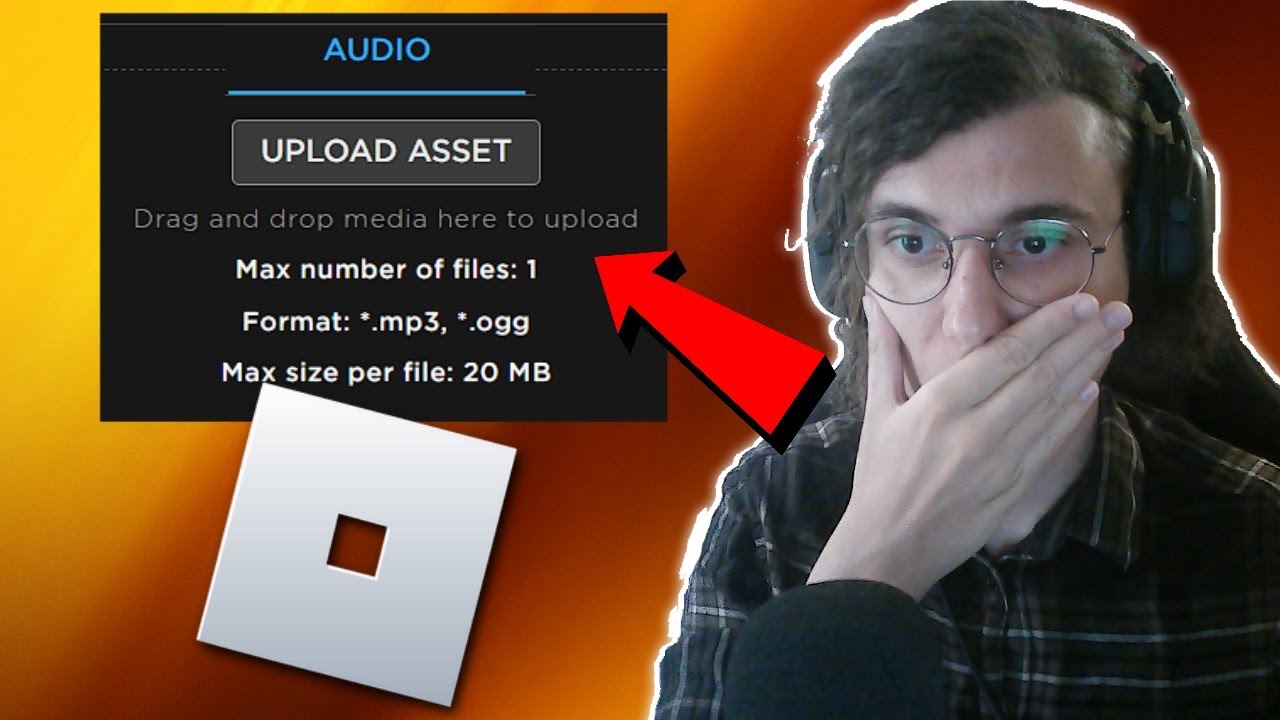
When you're ready to upload your custom creations, knowing the technical requirements for Roblox audios is key to a smooth process. Roblox typically accepts MP3 or OGG file formats. While specific maximum file sizes and durations can sometimes change, a general guideline is to keep individual audio files under 7 minutes in length and ideally under 10MB in size for optimal performance and upload speed. Remember, the goal is efficient streaming in-game.
Bitrate for MP3s usually ranges from 128kbps to 192kbps for good quality without excessive file size. For OGG, similar quality can be achieved with slightly lower bitrates. Always aim for a balance between audio fidelity and file size. Overly large files can lead to longer load times in your game, impacting the user experience – a big no-no for gamers who value seamless performance and instant gratification.
How Do I Upload My Custom Audio to Roblox via the Creator Dashboard?
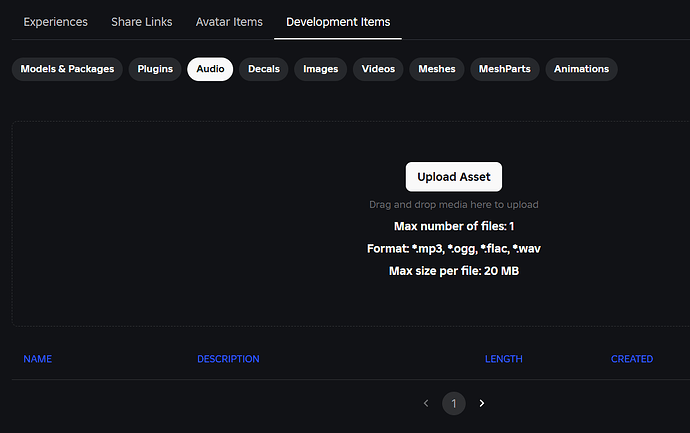
Uploading your carefully crafted Roblox audios is a straightforward process through the Creator Dashboard. Follow these steps:
- Log In: Go to create.roblox.com and log in with your Roblox account.
- Navigate: On the dashboard, find the "Asset Manager" or "Develop" section, then look for "Audio."
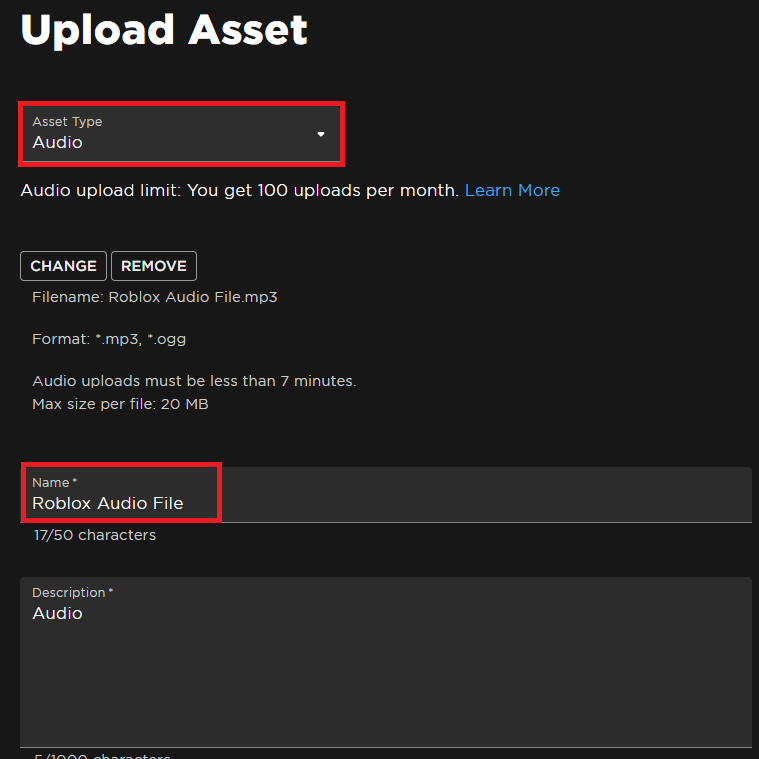
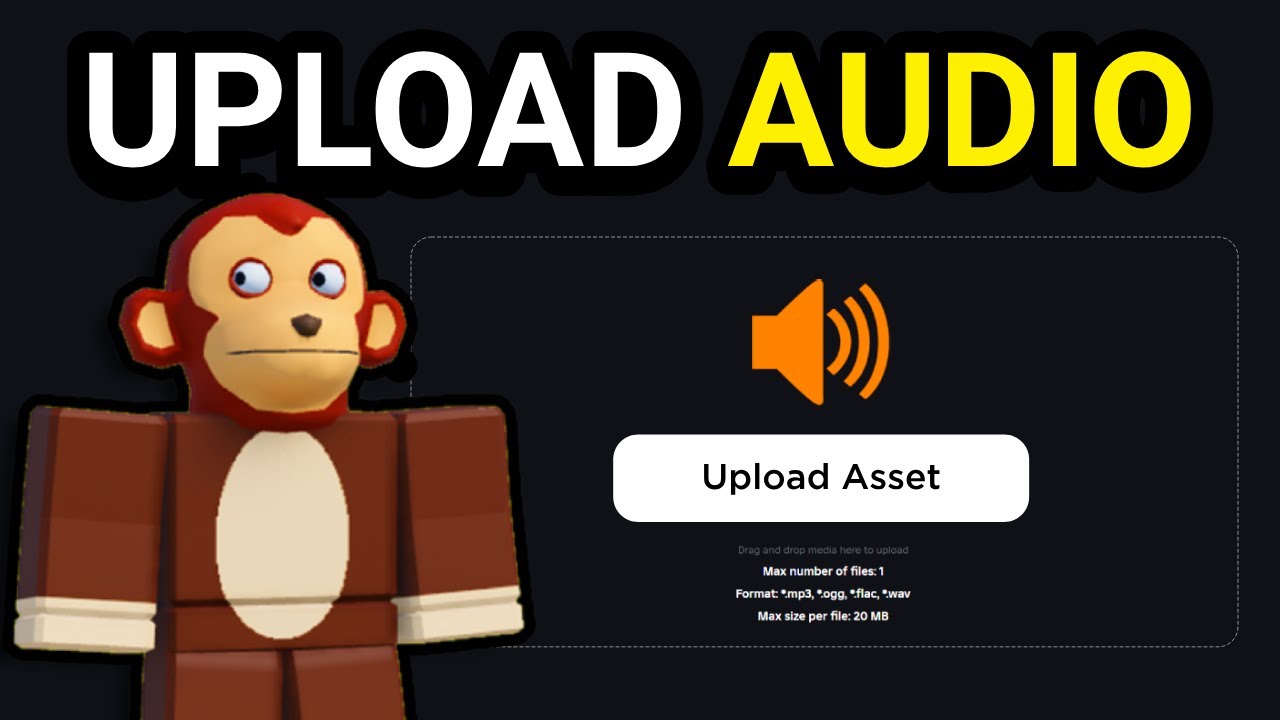
- Upload: Click "Upload Asset" and select your prepared MP3 or OGG file.
- Configure: You'll be prompted to give your audio a descriptive name and a brief description. Ensure these are accurate and appropriate.
- Review and Submit: Roblox will often process the audio, which may take a few moments. Once processed, it will be available for use in your games.
Keep in mind that there might be a small Robux fee for uploading audio, especially for larger files or if you're not a Premium subscriber, although Roblox periodically adjusts these policies to support creators. Always check the current fees on the upload page.
What Are Common Troubleshooting Tips for Roblox Audio Upload Errors?
Encountering issues when trying to make Roblox audios is frustrating, but many common problems have simple fixes. Here are a few:
- Incorrect File Format: Ensure your audio is in MP3 or OGG. Other formats (like WAV or FLAC) will be rejected.
- File Size Too Large: If your file exceeds the maximum limit, try compressing it (reducing bitrate) or splitting longer tracks into shorter segments.
- Copyright Infringement: If your audio is flagged, it's likely due to copyrighted content. Re-evaluate your source or create original content.
- Internet Connection: A stable internet connection is crucial for uploads. Intermittent connections can cause timeouts.
- Roblox Server Issues: Occasionally, Roblox's servers might be experiencing temporary issues. Check the Roblox Status page or forums for widespread reports.
- Pending Moderation: Sometimes, audio might take longer to appear due to moderation queues. Be patient; it will usually show up after review.
If problems persist, consulting the Roblox Developer Forum or contacting Roblox Support can provide more specific assistance.
How Can I Integrate My Custom Audios into My Roblox Game?
Once your Roblox audios are uploaded and approved, bringing them into your game is the exciting part!
- Find the Asset ID: In your Creator Dashboard, go to your audio assets. Each uploaded audio will have a unique Asset ID (a long string of numbers). Copy this ID.
- Roblox Studio: Open your game in Roblox Studio.
- Insert an Audio Object: In the Explorer window, right-click on "Workspace" or a specific part where you want the sound, then select "Insert Object" and search for "Sound."
- Configure Sound Properties: Select the new "Sound" object. In the Properties window, find the "SoundId" property. Paste your copied Asset ID here (it will look like "rbxassetid://[your ID]").
- Adjust Settings: You can also set properties like "Looped" (for background music), "Volume," and "Playing" (to start automatically).
- Scripting for Dynamic Play: For more advanced control (e.g., sound playing when a player touches a part, or a button press), you'll use a simple LocalScript or Server Script with functions like
Sound:Play()andSound:Stop().
Testing your sounds frequently in Studio is vital to ensure they trigger correctly and sound as intended. This iterative process helps busy developers optimize their workflow.
Are There Free Tools and Resources for Roblox Audio Creators in 2026?
Absolutely! You don't need to break the bank to make fantastic Roblox audios. The gaming community thrives on accessible tools, and 2026 offers plenty of options:
- Audacity: As mentioned, this is a powerhouse for recording and editing. It's free, open-source, and has a massive community for support.
- Freesound.org: A vast collaborative database of audio snippets, samples, recordings, and bleeps, often under Creative Commons licenses. Always check the specific license for each sound you use.
- YouTube Audio Library: Offers a collection of free music and sound effects that you can use in your projects, often with attribution.
- Incompetech.com: Kevin MacLeod's extensive library of royalty-free music, widely used and often just requires attribution.
- LMMS (Linux MultiMedia Studio): A free alternative to commercial digital audio workstations (DAWs) for creating your own music from scratch.
Leveraging these free resources allows you to experiment and build your audio library without an upfront investment, making custom sound design accessible to every gamer, regardless of budget.
How Can Custom Audios Enhance Player Immersion and Engagement in Roblox?
Custom Roblox audios are more than just background noise; they're powerful tools for immersion and engagement. Think about it: a unique sound cue for an item pickup, a custom jingle when a player levels up, or a perfectly timed ambient track for a spooky forest. These elements transform a good game into a truly memorable experience. For adult gamers who play to relax or escape, a well-crafted soundscape can significantly deepen their connection to your virtual world.
For example, a trending approach in social and cozy games this month is using subtle, calming audio loops to create a relaxed atmosphere, which directly appeals to players looking to unwind. Conversely, competitive games leverage sharp, distinct sound effects for feedback on hits, misses, or special abilities, enhancing player performance and tactical awareness. Custom sounds contribute to your game's unique identity, making it stand out in the vast Roblox catalog and encouraging players to return. It's about creating a holistic experience that resonates on an emotional level.
What Are the Best Practices for Optimizing Roblox Audio for Performance?
For the busy gamer who values performance, optimizing your Roblox audios is crucial. Lag or slow loading sounds can break immersion and frustrate players. Here are some best practices:
- Keep Files Small: As mentioned, smaller MP3/OGG files load faster. Prioritize efficient encoding over ultra-high fidelity for most in-game assets.
- Reuse Sounds Judiciously: If multiple objects use the same sound, consider having one sound object that's played by various scripts, rather than duplicating the sound asset.
- Streamed vs. Non-Streamed: For longer background music, consider if it needs to be streamed or fully loaded. Roblox handles streamed assets more efficiently for longer content.
- Distance Culling: Use Roblox's spatial audio properties (MinDistance, MaxDistance) to ensure sounds only play and load when a player is within a certain range. This saves resources.
- Prioritize Critical Sounds: Ensure essential gameplay sounds (e.g., combat effects, UI feedback) are always crisp and responsive by keeping their filesizes minimal and loading them efficiently.
Optimizing sound isn't just about saving memory; it's about ensuring a fluid, responsive experience that keeps players engaged, especially on mobile devices where bandwidth and processing power can be more limited – a reality for a significant portion of the Roblox player base.
There you have it, fellow creators! Learning how to make Roblox audios might seem like a daunting task at first, especially when you're balancing a busy life with your passion for gaming. But as we've explored, with the right tools, a bit of know-how, and a mindful approach to Roblox's policies, you can significantly elevate your creations and immerse players in truly unique soundscapes. From understanding copyright to leveraging free editing software and seamlessly integrating sounds into your game, the journey is rewarding. Custom audio isn't just a technical detail; it's an artistic touch that breathes life into your virtual worlds, making them more engaging, memorable, and fun. It's a way to stamp your unique creative signature on the vast canvas of Roblox.
So, whether you're crafting the next big social hangout, a thrilling adventure, or a cozy escape, remember the power of sound. Experiment, create, and let your imagination soar. What's your biggest gaming challenge when it comes to creativity or development? Comment below and let's tackle it together!
Q: Can I use any song I like in my Roblox game?
A: No, you can only use songs that you own, have explicit permission/license for, or are in the public domain/royalty-free. Roblox strictly enforces copyright to protect creators.
Q: Does Roblox charge for uploading audios?
A: Yes, generally there is a small Robux fee per audio upload, which can vary based on file size and your Roblox Premium status. Always check the current fee on the upload page.
Q: What is the best file format for Roblox audios?
A: MP3 and OGG are the recommended file formats for Roblox audio uploads due to their balance of compression and quality, ensuring efficient streaming in-game.
Q: How long can a Roblox audio file be?
A: While specific limits can vary, it's generally recommended to keep individual audio files under 7 minutes for optimal performance and to adhere to typical upload limits.
Q: Where can I find free sound effects for my Roblox game?
A: Great resources include Audacity for recording your own, Freesound.org, the YouTube Audio Library, and Incompetech.com for royalty-free music, always checking licenses.
Q: Why is my Roblox audio upload failing?
A: Common reasons include incorrect file format (not MP3/OGG), file size exceeding limits, copyright infringement, or temporary Roblox server issues. Double-check your file and connection.
Q: How do I get an Asset ID for my uploaded audio?
A: After successful upload, navigate to your "Audio" assets in the Roblox Creator Dashboard. Each uploaded audio will have a unique numerical Asset ID that you can copy for use in Studio.
Q: Can I monetize my Roblox games using custom audios?
A: Yes, by creating engaging experiences with custom audios that attract players, you can monetize your game through various Roblox systems like game passes, developer products, and Premium Payouts.
Understanding Roblox audio guidelines and copyright. Step-by-step process for recording and editing audio. Optimizing audio files for Roblox upload. Using the Roblox Creator Dashboard for seamless integration. Troubleshooting common audio upload errors. Creative tips for enhancing game immersion with custom sounds. Cost considerations and premium payouts for audio creators.
35


How To Make Audio ID Public In Roblox 2025 YouTube . How To Make Roblox Audios For Your Game Creations 3 Upload Audio Asset. How To Make Audio Public On Roblox 2026 Is It Possible YouTube . How To Upload Audio To Roblox UPDATED 2026 YouTube . How To Make Audio ID Public In Roblox 2025 YouTube


How To Make Roblox Audio Public 2026 UPDATED YouTube . HOW TO MAKE ROBLOX AUDIO PUBLIC 2026 FULL GUIDE YouTube . How To Upload Video To Google Drive Link From Iphone Dibujos Cute . Level Up Your Roblox Soundboards Explained . How To Upload Audio To Roblox 2026 FULL GUIDE YouTube
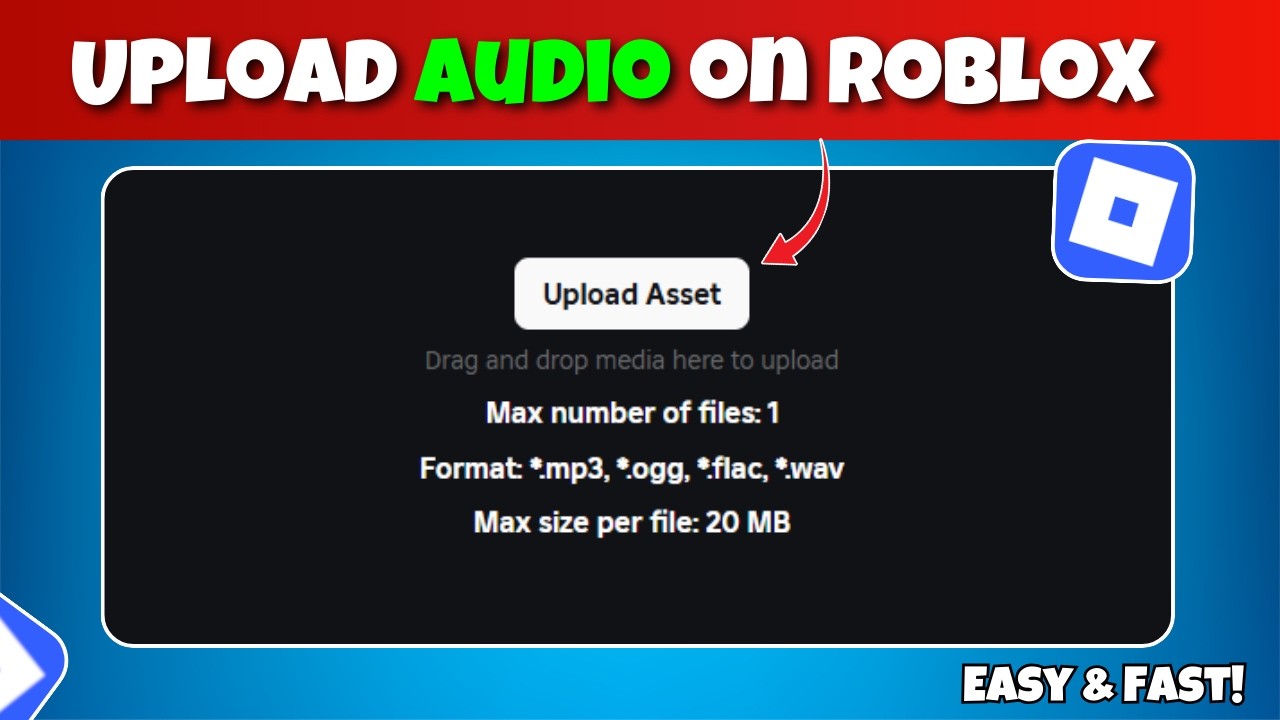
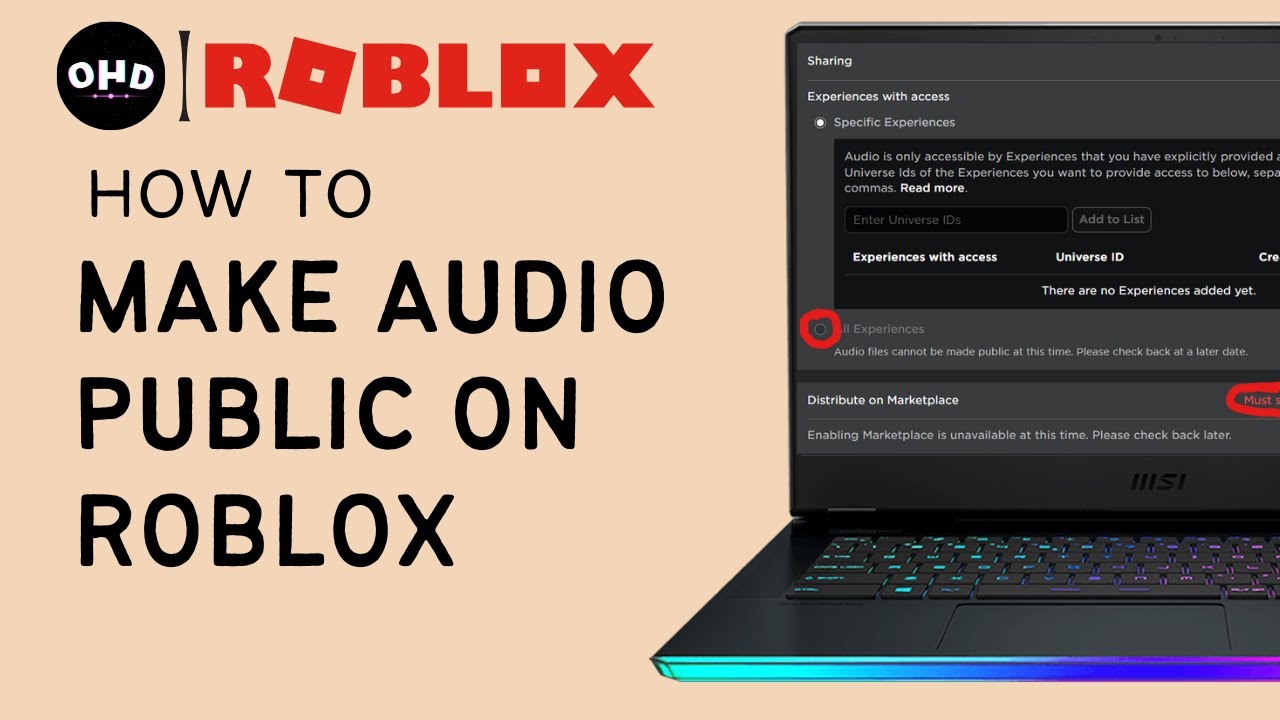

How To Upload Audio To Roblox 2026 Upload Music To Roblox Studio . Level Up Your Roblox Soundboards Explained . How To Make Audio Public On Roblox 2025 Make Roblox Audio Public . How To Make Audio On Roblox A Simple Guide Playbite How To Make Audio On Roblox . Level Up Your Roblox Soundboards Explained



Roblox Mu3ic Codes How Do They Elevate Your Game Roblox Music Codes . Level Up Your Roblox Soundboards Explained . How To Make Audio Files Public On Roblox At Holly Stine Blog . How To Make Roblox Audio Public 2025 YouTube . How To Make Money On Roblox 2026 Creator Guide How To Make Money On Roblox

Roblox Fisch Music Boombox Codes 2026 Roblox Fisch Music Codes . How To Make A Roblox Audio Step By Step Hollyland Featured Image 20260226 140114 . Roblox Audio Your Guide To Finding And Using Sounds Hqdefault . Not Able To See Audios In Audio List Creator Hub Create Roblox Com 2 690x433 . Roblox Create Audio H Ng D N T O V S D Ng M Thanh Trong Roblox Studio


How To Find Roblox Audios Aug 2022 YouTube . How To Add Your Own Music In Roblox Studio Quick Guide YouTube . How To Make Audio Public Roblox 2025 YouTube . How To Make Audio Files Public On Roblox At Holly Stine Blog . How To Make Audio Files Public On Roblox At Holly Stine Blog



How To Upload Audio To Roblox 2026 Add Your Own Sounds Music . How Do I Make Music For My Games Game Design Support Developer . How To Make Audio Public On Roblox Full 2025 Tutorial YouTube . 2D Roblox Tutorial How To Make A 2D Game In Roblox Sorceress Blog 2d Roblox Tutorial How To Make A 2d Game In Roblox Thumbnail. How To Upload Audio To Roblox On Mobile Full Guide YouTube