Dive into the essential guide on how to overclock your gaming laptop safely and effectively in 2026. This comprehensive resource is designed for the modern gamer who balances work family and life but still demands peak performance. Learn the whats whys and hows of pushing your laptop hardware to its limits from GPU and CPU overclocking to managing thermals and maintaining system stability. We cover everything from software recommendations to step-by-step processes ensuring you get the most frames per second without risking your valuable rig. Understand the benefits and potential pitfalls tailoring your approach to fit your specific gaming needs and hardware. Whether you are looking to boost FPS in the latest AAA titles improve responsiveness for competitive play or simply extend the life of your current setup this guide provides actionable insights. We address common pain points like overheating performance bottlenecks and the fear of damaging components empowering you with the knowledge to make informed decisions. Stay ahead of the curve and unlock your laptops full potential making every gaming session smoother and more immersive. This is your go-to resource for optimizing your gaming laptop for peak performance.
Can I overclock any gaming laptop model?
While many gaming laptops allow for some level of overclocking, especially those with dedicated GPUs from NVIDIA or AMD, not all models are equally suited. Laptops with robust cooling systems and higher-end components generally offer more headroom. Integrated graphics or budget laptops often have limited or no overclocking capabilities due to thermal constraints.
What software do I need to overclock my gaming laptop?
For GPU overclocking, MSI Afterburner is the most popular and versatile tool, compatible with both NVIDIA and AMD GPUs. For CPU overclocking, Intel Extreme Tuning Utility (XTU) for Intel CPUs or Ryzen Master for AMD CPUs are the go-to choices. Always download these tools from official sources to ensure safety and functionality.
How much FPS gain can I realistically expect from overclocking?
Realistic FPS gains from safely overclocking a gaming laptop typically range from 5% to 15%. This can vary significantly based on your specific hardware, the game you're playing, and the existing thermal headroom. For instance, a game that's already GPU-bound will see more benefit from a GPU overclock, translating to smoother visuals.
Will overclocking my laptop reduce its lifespan?
If done properly with careful monitoring of temperatures and voltages, modern components are designed to withstand reasonable overclocking without significantly shortening their lifespan. Excessive voltage or prolonged high temperatures are the main culprits for degradation, which smart overclocking aims to avoid through cautious adjustments.
What should be my maximum safe temperature when overclocking my laptop?
For GPUs, aim to keep temperatures below 80-85 degrees Celsius under load. For CPUs, try to stay below 90-95 degrees Celsius. Exceeding these limits consistently can lead to thermal throttling, reduced performance, and potential long-term damage, so prioritize cooling and adjust settings accordingly.
Is it worth overclocking an older gaming laptop?
Overclocking an older gaming laptop can be worthwhile if you're looking to extend its usability and squeeze out a few more frames without investing in new hardware. However, older laptops often have less efficient cooling, making careful thermal management even more critical to prevent overheating and ensure stability.
How do I know if my overclock is stable?
Stability testing involves running demanding benchmarks and playing games for extended periods. Tools like FurMark for GPU and Prime95 for CPU, along with real-world gaming, help identify crashes, artifacts, or freezes. A truly stable overclock will run without issues through various intensive tasks, giving you consistent performance.
Hey fellow gamers! Ever find yourself staring at a new game release, excited to dive in, only to realize your trusty gaming laptop is struggling to hit those smooth 60 frames per second? Or perhaps you're deep into a competitive online match, and a sudden frame drop costs you a crucial win. We get it. Many of us, part of the 87% of US gamers who play regularly, averaging over 10 hours a week, are balancing demanding jobs, family commitments, and life outside of gaming. Yet, when we do get that precious window to play, we want the best experience possible without necessarily dropping another grand on a brand-new rig. That's where understanding how to overclock gaming laptop hardware comes in – a powerful secret weapon to unlock extra performance from your existing machine.
You might have heard whispers about overclocking, often associated with desktop PCs and custom builds. But the truth is, with the right knowledge and careful steps, you can absolutely optimize your gaming laptop for better frame rates and responsiveness. It's about getting more bang for your buck, extending the life of your current investment, and enhancing your precious gaming moments. This isn't about chasing hype; it's about practical solutions for real-world performance gains, especially relevant with the rise of demanding cross-play titles and the continuous evolution of gaming tech in 2026. In this comprehensive guide, we'll walk you through everything you need to know about how to overclock gaming laptop components safely, effectively, and intelligently.
What exactly is overclocking and why should I consider it for my gaming laptop?
Overclocking is the process of manually increasing a component's clock speed beyond its manufacturer-set default. For a gaming laptop, this primarily involves boosting the GPU (graphics processing unit) and sometimes the CPU (central central processing unit) to achieve higher performance. This results in more frames per second (FPS) in games, smoother gameplay, and faster overall system responsiveness. Gamers consider it to extend the life of their current hardware, avoid immediate upgrades, and gain a competitive edge in demanding titles. For those balancing gaming with life, getting more from your existing machine means more satisfying play sessions without budget strain.
Is it safe to overclock a gaming laptop, and what are the risks?
Yes, it can be safe if done carefully and incrementally. The primary risks include increased heat generation, system instability leading to crashes, and in rare extreme cases, hardware degradation or failure. However, modern components have built-in safeguards, and by closely monitoring temperatures and making small adjustments, most risks can be mitigated. The key is to proceed with caution and prioritize thermal management. Start with small adjustments and always test for stability. Remember, consistency is more important than chasing extreme numbers that cause crashes and frustration.
How do I prepare my gaming laptop before attempting to overclock?
Preparation is crucial for a successful and safe overclock. First, ensure your laptop's cooling system is clean and free of dust. Consider a high-quality cooling pad. Second, update all drivers (GPU, chipset) to their latest versions for optimal stability. Third, install monitoring software like HWMonitor or HWiNFO to track temperatures and clock speeds, and benchmarking tools like FurMark (GPU) and Cinebench R23 (CPU) for stress testing. Finally, back up any critical data, just in case.
What's the difference between CPU and GPU overclocking on a laptop?
GPU overclocking focuses on the graphics card, increasing its core clock and memory clock speeds. This directly impacts frame rates in most games, especially those that are graphically intensive. CPU overclocking involves boosting the processor's clock speed, which benefits CPU-bound games (like strategy titles or open-world games with many NPCs), physics calculations, and overall system responsiveness. On laptops, GPU overclocking is generally easier and yields more noticeable gains for gaming, while CPU overclocking often faces greater thermal challenges due to limited cooling.
Which software tools are best for overclocking my laptop's GPU and CPU?
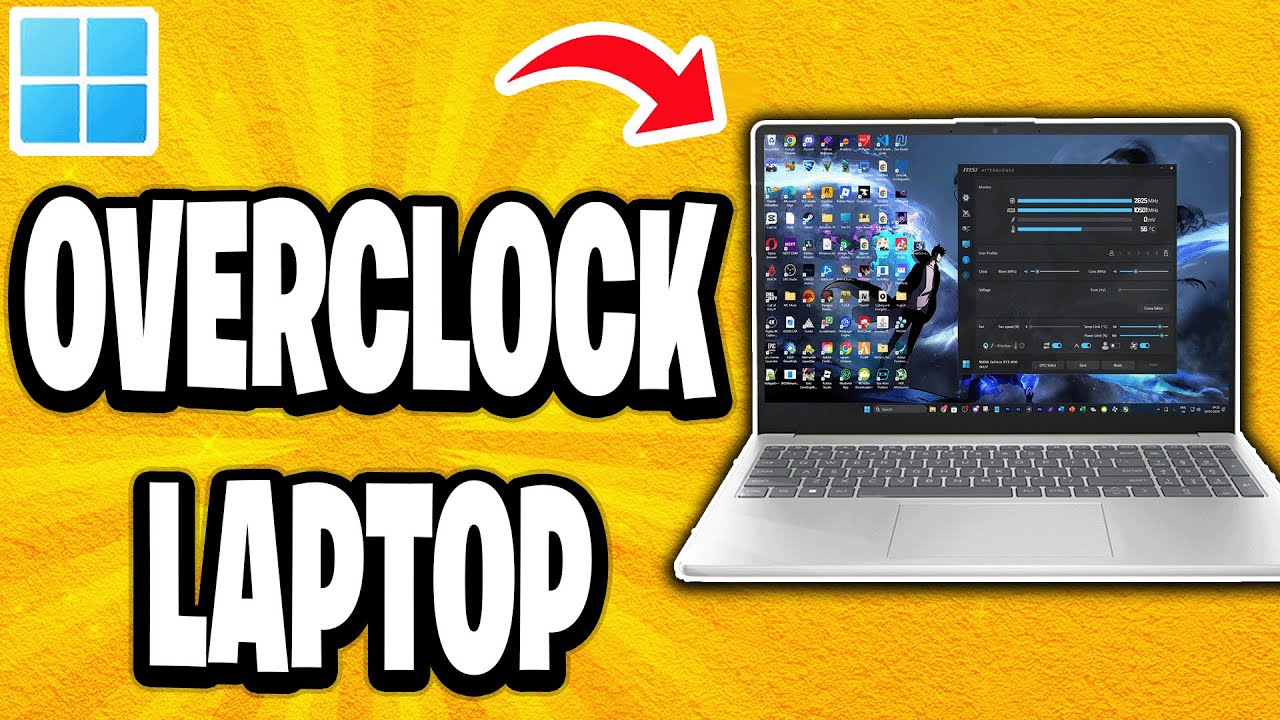
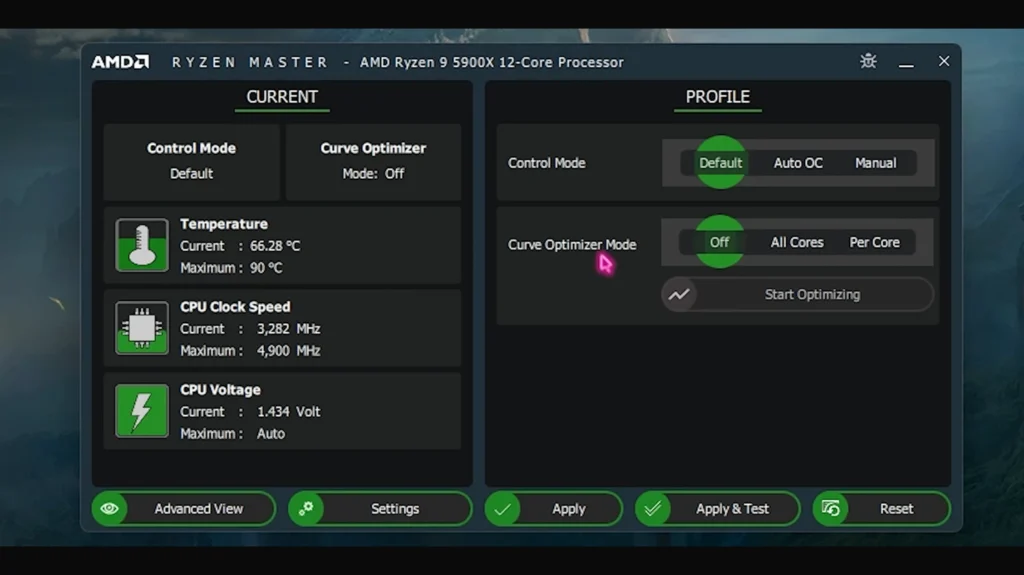
For GPU overclocking, **MSI Afterburner** is the industry standard. It's user-friendly, compatible with both NVIDIA and AMD GPUs, and offers comprehensive control over core clock, memory clock, voltage (if unlocked), and fan speeds. For CPU overclocking, **Intel Extreme Tuning Utility (XTU)** is excellent for Intel processors, providing fine-tuned control over core ratios and voltage. For AMD Ryzen CPUs, **Ryzen Master** is the official and most recommended tool. Always download these from official developer websites to avoid malware and ensure compatibility.
What are the steps to safely overclock my laptop's GPU?
Safely overclocking your GPU involves a gradual process:
- Start MSI Afterburner and ensure it detects your GPU.
- Increase the **Core Clock** by small increments (e.g., +25 MHz) and apply.
- Run a demanding game or benchmark (like FurMark or 3DMark) for 15-30 minutes, monitoring temperatures and stability.
- If stable and temperatures are good, repeat step 2. If you experience crashes or artifacts, reduce the Core Clock to the last stable setting.
- Once satisfied with the Core Clock, repeat the process for the **Memory Clock**, increasing it incrementally and testing for stability.
- Fine-tune fan curves for better cooling, if available.
- Save your stable profile.
How do I safely overclock my laptop's CPU?
CPU overclocking on laptops is more challenging due to thermals and often limited BIOS access. If your laptop and CPU support it:
- Install Intel XTU (for Intel) or Ryzen Master (for AMD).
- Open the software and navigate to the overclocking section.
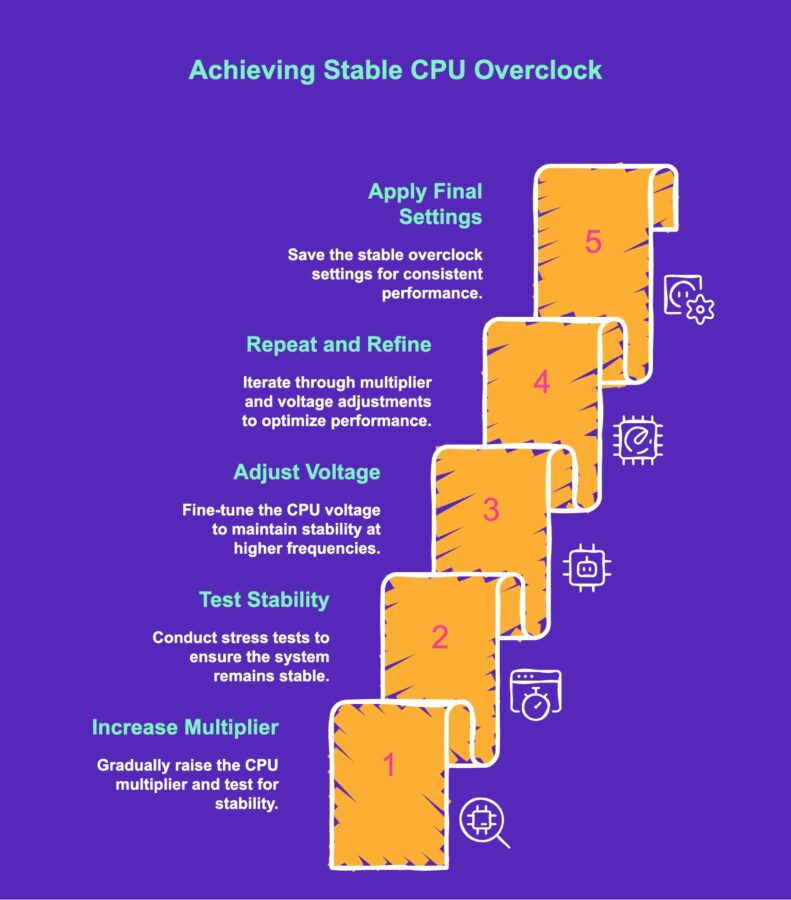
- Increase the **Core Ratio** or frequency multiplier by a small amount (e.g., 0.5x or 50 MHz).
- Run a CPU stress test (Cinebench R23 or Prime95 for a short duration), monitoring temperatures closely.
- If stable and temperatures are acceptable (below 95 degrees Celsius), repeat step 3.
- If unstable or temperatures are too high, revert to the last stable setting or consider **undervolting** instead, which reduces voltage and heat without significantly lowering performance.
How can I monitor my laptop's performance and stability after overclocking?
Constant monitoring is your safety net. Use tools like **HWMonitor** or **HWiNFO** to track real-time CPU and GPU temperatures, clock speeds, and power consumption. During gaming sessions, use an in-game overlay (like MSI Afterburner's built-in OSD or NVIDIA's GeForce Experience overlay) to keep an eye on FPS, GPU utilization, and temperatures. Run benchmarks like 3DMark or Heaven Benchmark after each adjustment to ensure consistent performance. Any crashes, visual artifacts, or sudden FPS drops indicate instability, requiring a reduction in your overclock settings.
What should I do if my overclocking attempts cause instability or crashes?
Don't panic! Instability is a common part of the overclocking process.
- Immediately revert to your previous stable settings or the default settings within your overclocking software (e.g., MSI Afterburner's reset button).
- If the system won't boot, you might need to enter your laptop's BIOS/UEFI (usually by pressing F2, Del, or Esc during startup) and reset settings to default, though CPU overclocking via BIOS is rare on laptops.
- Identify the last change you made that led to the instability.
- Reduce that specific setting (core clock, memory clock, or voltage) by a larger increment and try again, or simply stick with the last stable setting you achieved.
How can I maximize thermal performance for stable overclocking?
Thermal management is the backbone of stable laptop overclocking.
- **Cooling Pad**: Invest in a high-quality cooling pad that aligns with your laptop's intake vents.
- **Cleanliness**: Regularly clean your laptop's fans and heatsinks of dust using compressed air.
- **Repasting Thermal Compound**: For advanced users, replacing the stock thermal paste on your CPU and GPU with a high-quality aftermarket paste can significantly improve heat transfer.
- **Undervolting**: For CPUs and sometimes GPUs, slightly reducing voltage (undervolting) can lower temperatures without reducing clock speed, providing more thermal headroom for overclocking.
- **Optimal Environment**: Game in a cool room, on a hard, flat surface to allow maximum airflow.
Will overclocking void my laptop's warranty?
This is a tricky one. Officially, most manufacturers state that altering factory settings, including overclocking, *can* void your warranty. However, since most software-based overclocks are non-permanent and can be reverted to factory defaults, it's often difficult for manufacturers to detect. If your laptop fails due to an unrelated issue, they might not know. If, however, the failure is directly attributable to overvoltage or extreme heat caused by aggressive overclocking, your warranty could be invalidated. Proceed with this understanding and weigh the risks versus the performance gains, especially if your laptop is still under warranty.
What kind of performance gains can I expect from overclocking a gaming laptop in 2026?
The performance gains from overclocking a gaming laptop in 2026 can be quite satisfying for the effort. Typically, a well-tuned and stable GPU overclock can yield anywhere from **5% to 15% increase in FPS**. This might translate to turning on a higher graphical setting, enjoying smoother gameplay, or gaining a slight competitive edge in fast-paced titles. CPU overclocking usually offers more modest gains in FPS for most games, perhaps 2-5%, but can significantly improve minimum framerates in CPU-bound scenarios. With current trends showing mobile gaming dominance and social cross-play being huge, even small improvements can make your shared gaming experiences much more enjoyable.
So, there you have it – a complete guide on how to overclock gaming laptop components to squeeze out every last drop of performance. It’s a rewarding process that empowers you to take control of your hardware, boosting your gaming experience without breaking the bank. Remember, patience and careful monitoring are your best friends. Start small, test thoroughly, and always keep an eye on those temperatures. Whether you're chasing higher frame rates for a new AAA title, looking to smooth out gameplay in your favorite competitive shooter, or simply want to optimize your existing setup for today's diverse gaming landscape of social and cross-play experiences, overclocking can provide a noticeable edge. It's about getting the most enjoyment from your passion, even when life keeps you busy.
What's your biggest gaming challenge with your current laptop setup? Comment below and let's tackle it together!
FAQ Section: Quick Answers to Your Overclocking Questions
Q: Will overclocking make my laptop run hotter?
A: Yes, generally overclocking increases heat generation. It's crucial to monitor temperatures closely and ensure adequate cooling to prevent thermal throttling or damage.
Q: Do I need special cooling for an overclocked gaming laptop?
A: While stock cooling might suffice for mild overclocks, a good cooling pad or even repasting your thermal compound can significantly help manage higher temperatures for more aggressive tuning.
Q: Can I revert my overclock settings if I encounter problems?
A: Absolutely. Most overclocking software allows you to easily revert to default settings or uninstall the application to remove any changes, restoring your system to its previous state.
Q: Is overclocking beneficial for all games?
A: Overclocking benefits GPU-intensive games the most by boosting frame rates. CPU overclocking helps in CPU-bound scenarios, often found in open-world games or simulations, but many modern games are more GPU-dependent.
Q: What's the typical performance gain from a laptop overclock?
A: Gains vary greatly by hardware and game, but a safe and stable overclock can often yield a 5-15% increase in frame rates. This might be the difference between playable and truly smooth performance.
Q: Should I undervolt my laptop even if I don't overclock?
A: Yes, undervolting is a fantastic way to reduce CPU and sometimes GPU temperatures and power consumption without losing performance, which can be beneficial even without overclocking for improved stability and fan noise.
Q: How long does a typical laptop overclock last before needing adjustment?
A: A stable overclock profile generally lasts indefinitely. However, major driver updates or game patches might sometimes require minor adjustments and retesting for optimal performance.
Safe overclocking techniques for gaming laptops in 2026 Understanding GPU and CPU limits Thermal management strategies Software tools for performance tuning Balancing performance with hardware longevity Risks and rewards of overclocking Step by step guide to boosting FPS Maximizing value from your current gaming rig Preventing overheating during intensive gaming sessions
35
How To Overclock CPU Safely PC Laptop Guide 2026 How To Overclock Cpu.webp. Best Gaming Laptops At CES 2026 RTX 5090 Options Dual Screen Picks Lenovo Legion Pro Rollable Concept. A Beginner S Guide To Your PC For Gaming OkJango Com Min . How To Overclock DDR5 RAM Safely In 2026 Gaming PC Guru Best 750 Gaming Pc Build 2026 800x500 . How To Overclock DDR5 RAM Safely In 2026 Gaming PC Guru 91m7iTC8UKL


How To Overclock DDR5 RAM Safely In 2026 Gaming PC Guru How To Overclock Ddr5 Ram Safely Hero . How To Overclock CPU Safely PC Laptop Guide 2026 Cpu Core Voltage Setting How To Overclock Cpu For Better Gaming And. How To Speed Up Gaming PC 2026 Pro Guide Speed Up PC. Budget Gaming PC Builds 2026 3 Complete Setups From 600 To 1300 Hero Budget Gaming Pc Build 2026.webp. 2026 GPU Guide Boosting Performance Safely Stably Efrr How To Overclock Gpu 2026 En
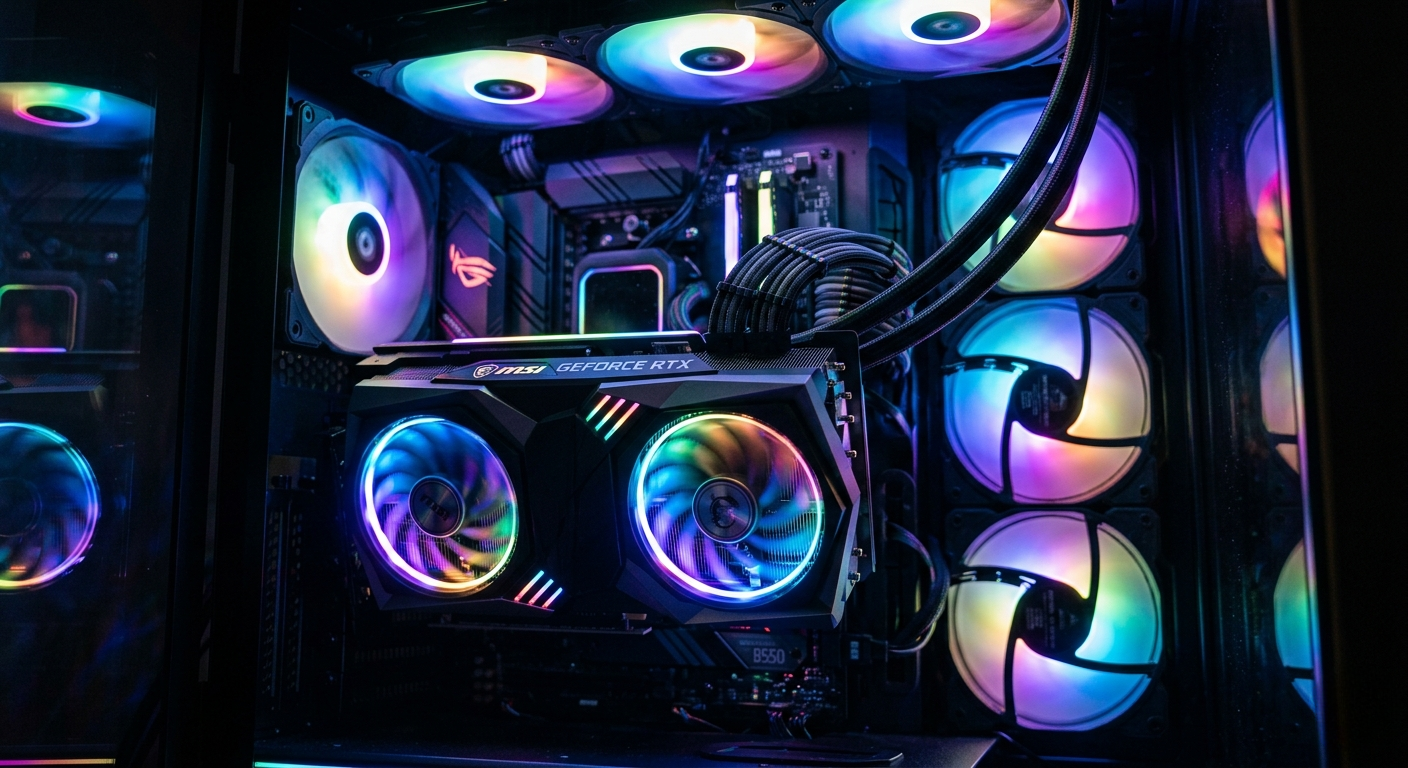

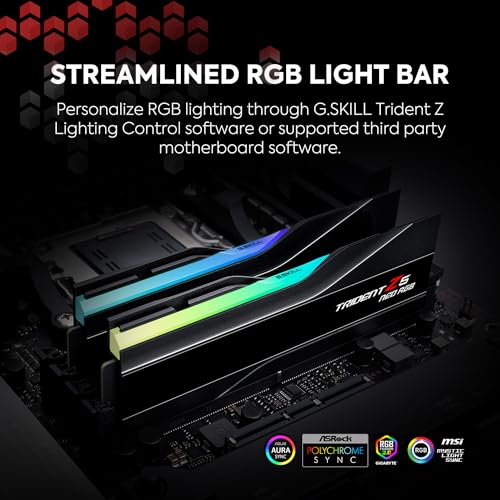
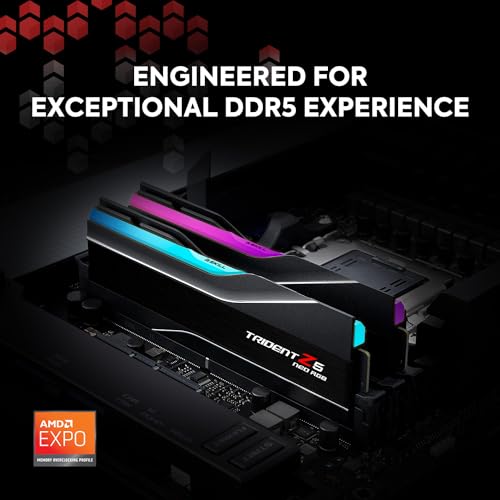
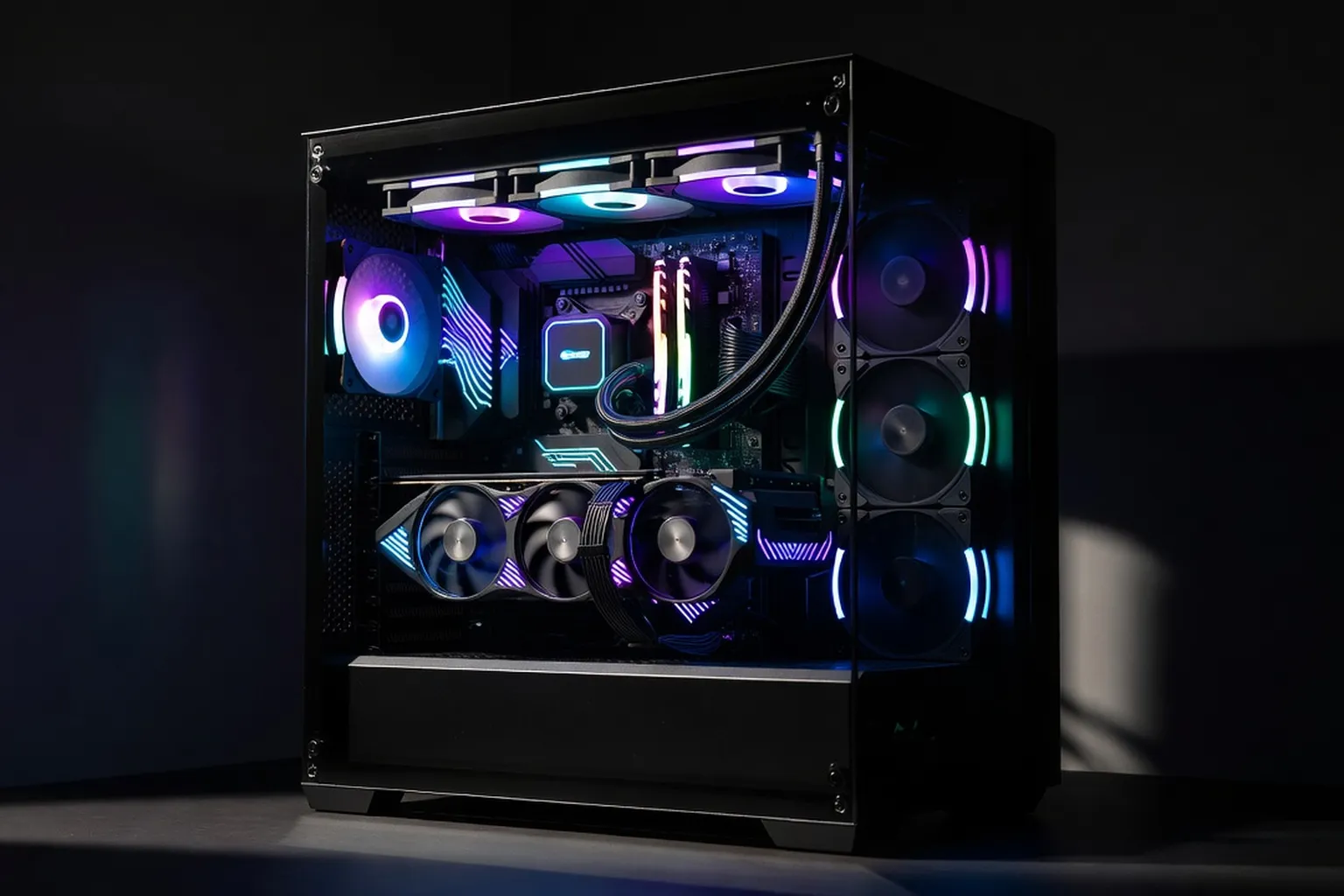
How To Fix Screen Tearing While Gaming 2026 How To Increase FPS On PC Complete 2026 Guide . How To Overclock A Monitor Get More Hz Safely 2026 Og Default . How To Overclock DDR5 RAM Safely In 2026 Gaming PC Guru 51BRRFj4v3L . How To Overclock DDR5 RAM Safely In 2026 Gaming PC Guru 41QfU9GA8bL . Best Gaming PC Builds 2026 500 To 2000 Hero Gaming Pc Builds.webp

How To Overclock Laptop YouTube . CES 2026 Asus ROG Zephyrus Duo Is Finally A Proper Dual Screen Gaming Hero . Gaming Laptop Buying Guide 2026 Complete Buyer S Guide Gaming Laptop Buying Guide 2026 . Gaming Laptop Buying Guide 2026 How To Choose The Right MSI Gaming Laptop Seo . Best Retro Handheld 2026 My Portable Picks For Playing The Classics


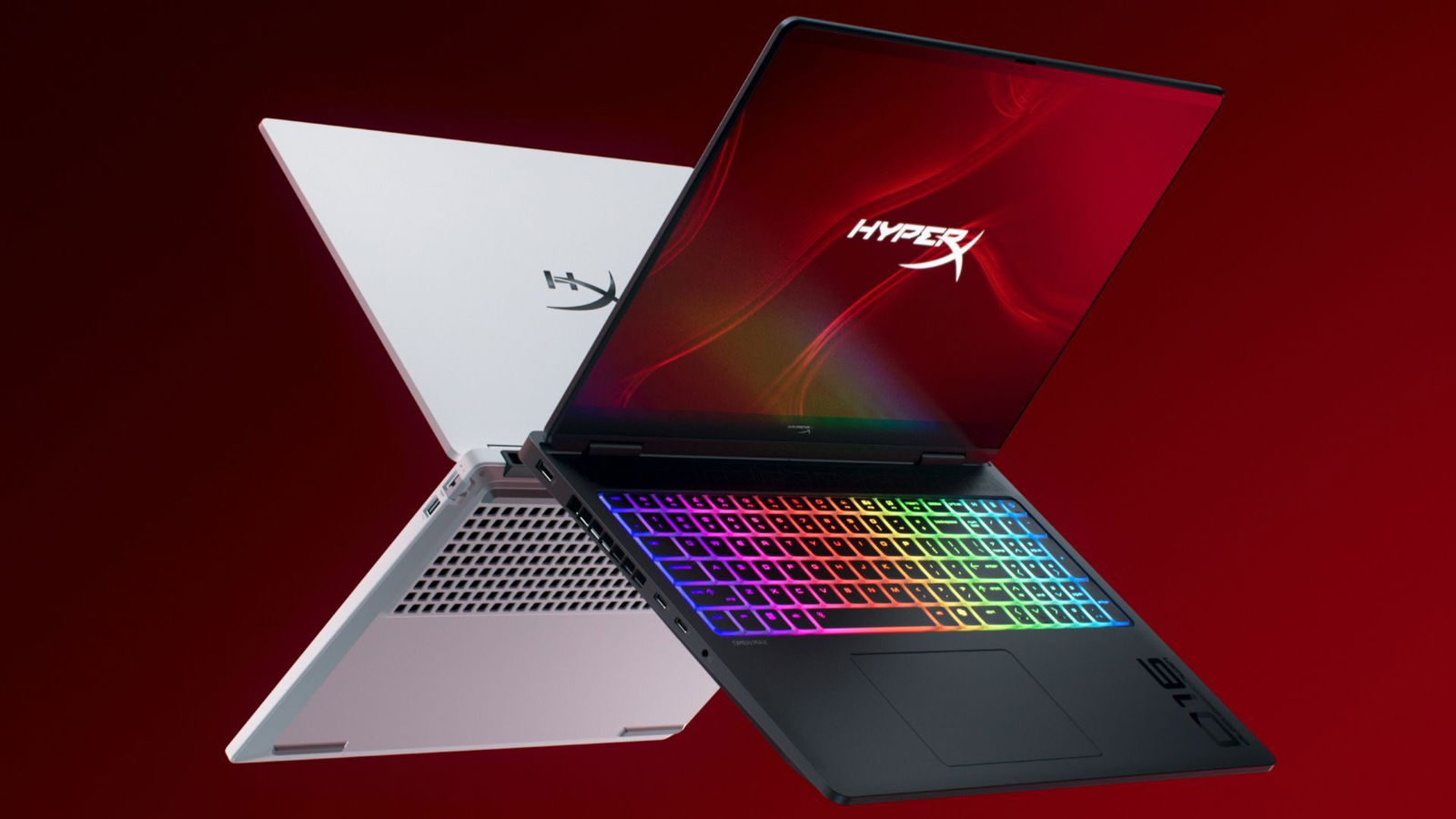
How To Choose The Right Gaming Laptop 2026 What You Need To Know WIRED The Ultimate Quest How To Choose The Right Gaming Laptop . Unlock Hidden Power How To Safely Overclock Your CPU And GPU 2026 7 Genius Ways To Boost Gaming Performance For Free In 2025 683x1024 . CES 2026 HyperX OMEN Gaming Laptops Have Been Revealed Ces 2026 Hyperx Omen Gaming Laptops Have Been Unleashed 2026 01 03 164747 . How To Overclock CPU Safely PC Laptop Guide 2026 How To Overclock CPU For Better Gaming And 791x900 . How To Overclock Your CPU Safely For Gaming 2026 Guide Opengraph Image
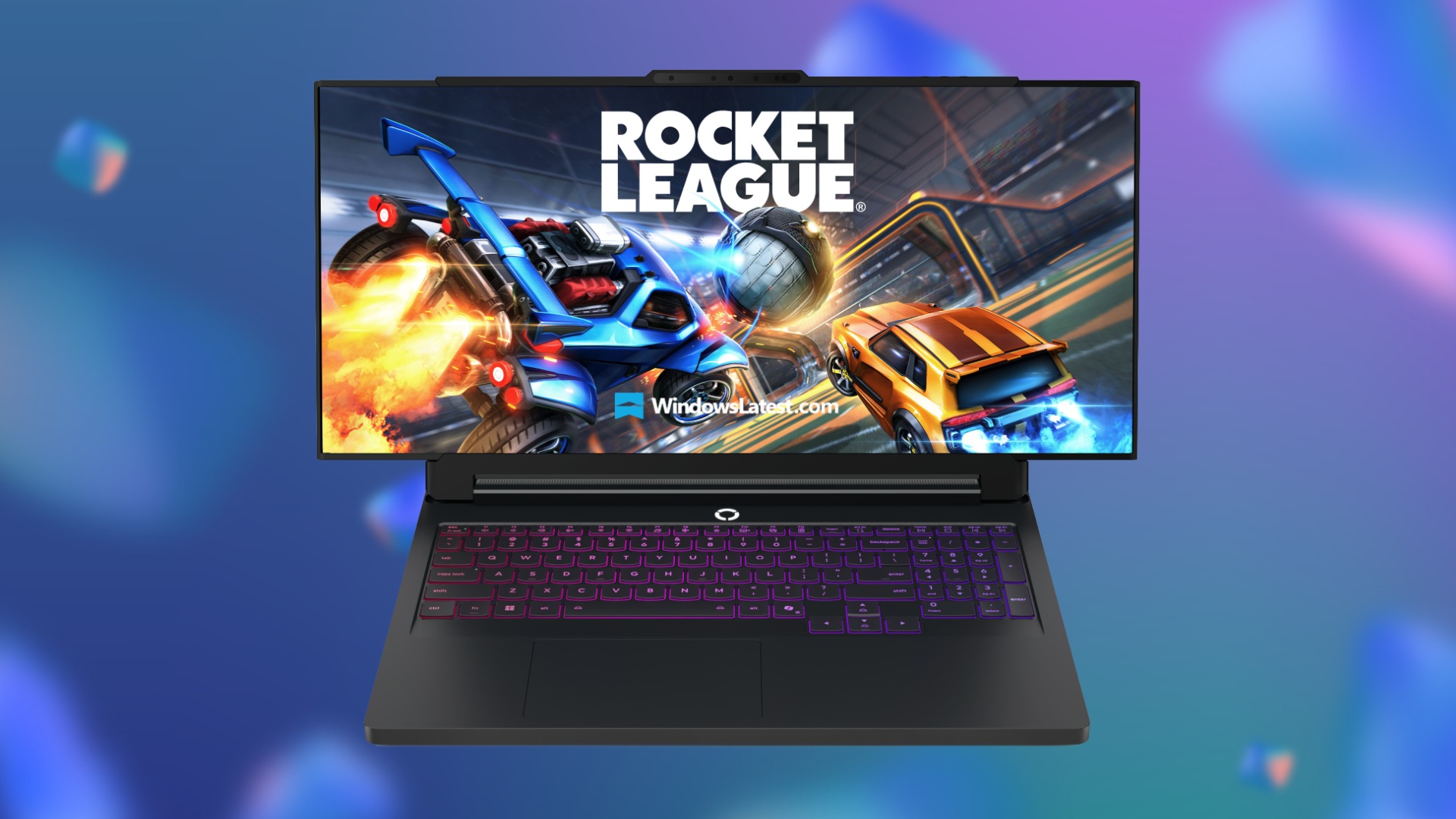
How To Overclock CPU Safely PC Laptop Guide 2026 Software Tuning Utilities. RTX 5080 Dubbed Monster By It S Like A Lenovo Legion Go Pro Rollable . How To Overclock CPU On Laptop Robots Net How Hot Should A Laptop Cpu Get 1690342648 . How To Overclock CPU Safely PC Laptop Guide 2026 Image 93 914x1536 . How To Overclock Your Monitor Our Step By Step Guide For 2026 How To Overclock Your Monitor


CES 2026 ASUS D Voile Ses Nouveaux PC Gaming ROG Avec RTX 5090 Et 2026 ROG Zephyrus Duo 1176x662 . How To Overclock GPU MSI Afterburner Guide 2026 GameZHaven ChatGPT Image Mar 20 2026 06 17 19 PM 768x512 . How Much For A PC Gaming Setup Cost Top 3 Gaming Laptops Of 2026 - The Ultimate Guide . How To Optimize Your PC For Gaming In 2026 The Complete Performance Airtable 1.webp. How To Overclock Your Gaming Laptop Robots Net How To Increase Gaming Laptop Performance 1701764499