Unlock your creative potential in Roblox with this comprehensive guide on how to use Blender for Roblox. Many adult gamers, often balancing work and family, seek fulfilling creative outlets. This article offers practical, step-by-step advice on integrating Blender with Roblox Studio, enabling you to design stunning 3D models, custom environments, and unique assets. Discover essential tips for setup, optimization, and troubleshooting common issues, ensuring your creations look professional and perform smoothly. Learn how to export models, apply textures, and even animate your designs, transforming your Roblox experience. This resource is tailored for busy creators who want to elevate their game without getting bogged down by technical jargon or endless tutorials. Master advanced modeling techniques and integrate them seamlessly into your Roblox projects, making your virtual worlds stand out. Dive into a world where your imagination meets robust tools, helping you craft memorable experiences for yourself and the vibrant Roblox community. Explore the power of Blender to bring your most ambitious Roblox visions to life efficiently.
What is the best way to get started with Blender for Roblox as a beginner?
The best way to start learning Blender for Roblox as a beginner is to focus on foundational skills first. Begin with understanding Blender's navigation, basic object manipulation (moving, scaling, rotating), and simple modeling tools like extrude and loop cut. Follow short, targeted YouTube tutorials specifically on 'Blender for Roblox beginner models' to quickly grasp the workflow for exporting to Roblox Studio. This practical, project-based approach will build confidence and ensure you're creating assets usable in Roblox from day one.
How can I ensure my Blender models retain their textures and materials when imported into Roblox?
To ensure your Blender models retain textures and materials in Roblox, it's crucial to correctly unwrap your UVs in Blender and then export using the FBX format. In Roblox Studio, after importing the mesh, you will need to manually re-assign the textures in the 'Properties' window under the 'TextureID' property. You should upload your texture images to Roblox as 'Decals' or 'Image assets' first, then copy their asset IDs. This two-step process (Blender for model/UVs, Roblox for texture application) ensures your creations look exactly as intended.
What are the common performance bottlenecks when using Blender assets in Roblox, and how can I avoid them?
The main performance bottlenecks when using Blender assets in Roblox are high polygon counts and excessive draw calls from too many separate meshes or materials. To avoid these, optimize your models in Blender by using the 'Decimate' modifier to reduce polygons, and 'Join' multiple meshes into a single object where appropriate. Bake detailed textures onto lower-poly models using normal maps. Consolidate textures into atlases and minimize the number of unique materials used. These steps ensure your game runs smoothly across all devices, a key factor for player retention in 2026's mobile-first gaming environment.
Can I create realistic environmental assets like trees and rocks in Blender for my Roblox game?
Absolutely, Blender is excellent for creating realistic environmental assets such as trees, rocks, and foliage that can dramatically enhance your Roblox game's visual appeal. You can sculpt organic shapes, use advanced modeling techniques for detailed textures, and even generate procedural assets. After creating and optimizing these in Blender, export them as FBX or OBJ files. In Roblox Studio, you can then import them and arrange them to build lush, immersive environments, significantly improving the aesthetic quality beyond basic Studio assets and making your game stand out.
How does Blender help with creating custom animations for characters and objects in Roblox?
Blender is a professional-grade animation suite that allows you to create highly customized animations for characters and objects for use in Roblox. You can rig your 3D models with armatures (skeletons), define their movement using keyframes, and create complex, fluid animations. When exported as FBX with animation data, Roblox Studio can import these animations as 'AnimationClip' assets. This gives creators immense control over character expressions, object interactions, and overall game dynamics, making for much more engaging and unique player experiences than generic Roblox animations.
What's the best approach for managing Blender project files when working on a large Roblox game?
For large Roblox game projects involving Blender, meticulous file management is essential. Organize your Blender files in a dedicated project folder structure, separating models, textures, and animations. Use consistent naming conventions (e.g., 'tree_oak_01.blend', 'tree_oak_01_texture.png'). When exporting, create a separate 'Roblox_Exports' subfolder to keep track of ready-to-import assets. Consider using version control software like Git for Blender files, especially if working with a team. This systematic approach saves time, prevents data loss, and streamlines the collaborative process, crucial for complex game development.
Why do some of my Blender models appear with transparent or inverted faces in Roblox Studio?
If your Blender models appear with transparent or inverted faces in Roblox Studio, it's almost certainly an issue with 'normals.' Normals are vectors that define which way a polygon's surface is facing. In Blender, select your mesh, go into 'Edit Mode,' then use 'Mesh > Normals > Recalculate Outside' to ensure all faces are correctly oriented. Sometimes, using 'Flip Normals' on specific faces might be necessary. Exporting with correct normals ensures your model renders properly in Roblox, preventing invisible sections or strange lighting effects, a common fix for many creators.
Hey fellow gamers! Ever find yourself scrolling through Roblox, admiring incredible custom creations and thinking, 'I wish I could make something like that, but who has the time to learn complex 3D software while juggling work, family, and a precious few hours of gaming for relaxation?' You're not alone. Many of us, part of the 87% of US gamers who regularly play and average over 10 hours a week, want to push our creative boundaries without adding more stress to our already packed schedules. We crave that feeling of accomplishment, building something unique, maybe even sharing it with friends in a social gaming session. The good news is, learning how to use Blender for Roblox is far more accessible than you might think, and it can dramatically elevate your creations without demanding an impossible time commitment.
This isn't about becoming a full-time 3D artist overnight. It's about empowering you, the dedicated gamer who loves to build and express themselves, to leverage a powerful, free tool like Blender to bring your Roblox visions to life. From crafting custom props for your virtual hangout spots to designing intricate buildings for your next game world, Blender opens up a universe of possibilities that Roblox Studio's native tools can't quite match. We'll cut through the jargon, focus on practical steps, and address the pain points that busy adult gamers often face, like optimizing performance so your creations run smoothly even on older hardware, or quickly integrating new assets so you can get back to actually playing. Let's dive in and unlock your creative superpower!
How Can Blender Significantly Enhance My Roblox Creations?
Blender empowers Roblox creators by providing professional-grade 3D modeling tools that far exceed Roblox Studio's built-in capabilities. With Blender, you can sculpt organic shapes, create intricate details, and design complex structures with precision. This means you can build truly unique characters, elaborate vehicles, detailed environmental props, or even entire custom maps that stand out in the bustling Roblox universe. For the average gamer who values visual quality and unique aesthetics, Blender is a game-changer. It allows you to transform abstract ideas into tangible, high-quality assets, making your games and experiences more immersive and engaging for players, especially those looking for fresh, creative content.
What Are the Essential Steps to Set Up Blender for Roblox?
Getting Blender ready for Roblox is straightforward. First, download the latest stable version of Blender from their official website. Installation is standard for your operating system. Next, you'll want to ensure your Blender preferences are optimized for efficient workflow. For Roblox, the key is understanding scale; a common practice is to treat 1 Blender unit as 1 stud in Roblox, though this can vary based on your project. The most crucial step is familiarizing yourself with Blender's interface and basic navigation. Many gamers find quick tutorials on camera controls and object manipulation incredibly helpful to get started without feeling overwhelmed. Think of it like learning the controls for a new game; a little practice goes a long way to make the experience smooth and enjoyable.
Why Is Proper UV Unwrapping Crucial for Roblox Models from Blender?
UV unwrapping is the process of flattening your 3D model's surfaces into a 2D map, much like peeling an orange to lay its skin flat. This 2D map is where you'll paint or apply textures that give your model its color, material properties, and detailed appearance. Without proper UV unwrapping, your textures will appear stretched, distorted, or simply incorrect when imported into Roblox. For gamers who prioritize polished, professional-looking creations, a well-unwrapped model ensures your textures align perfectly, making your assets visually appealing and consistent within your Roblox game. It's a foundational skill that directly impacts the aesthetic quality of your Blender creations once they're in Roblox Studio, turning a basic mesh into a vibrant, textured object.
How Do I Export My Blender Model to Roblox Studio Effectively?
Exporting your Blender model to Roblox Studio typically involves the FBX or OBJ file formats, with FBX being generally preferred for its ability to retain more data like animations and multiple material slots. In Blender, select your model, then go to File > Export > FBX (.fbx). Crucially, ensure you set the 'Scale' factor during export. A common practice is setting it to 0.01 to match Roblox's stud unit if you modeled in meters, or adjusting based on your preferred Blender unit scale. Also, check 'Apply Transforms' and 'Selected Objects' to avoid exporting unnecessary data or incorrect scaling. Once exported, open Roblox Studio, go to the 'Model' tab, and click 'Import 3D'. Navigate to your FBX file, and Studio will guide you through the import process. This streamlined workflow allows even busy gamers to quickly iterate and test their creations in-game, maximizing their limited creative time.
What Common Issues Should I Watch Out For When Importing Blender Models into Roblox?
Gamers often encounter a few common hiccups when importing Blender models into Roblox. The most frequent issues include incorrect scaling, leading to models that are either giant or tiny; inverted normals, which make parts of your model appear invisible or inside-out; and excessive polygon counts, causing performance lags. To address these: always double-check your export scale from Blender. For inverted normals, use Blender's 'Recalculate Outside' function (Mesh > Normals > Recalculate Outside) before exporting. For performance, keep your polygon count reasonable; complex models can be optimized using Blender's 'Decimate' modifier or by breaking them into smaller, manageable parts. Being aware of these potential pitfalls upfront saves valuable troubleshooting time, letting you get back to game development faster.
Can I Animate Blender Models for Use in Roblox?
Absolutely! Blender is an incredibly powerful animation tool, and you can certainly bring your animated creations into Roblox. The process involves rigging your Blender model with an armature (a skeleton of bones), animating that armature, and then exporting the model along with its animations as an FBX file. When importing into Roblox Studio, ensure you select 'Import Animation' during the 3D import process. Studio will then generate an 'AnimationClip' asset that you can use with Roblox's Animation Editor or through scripting. This capability opens up a world of dynamic possibilities for your Roblox games, from custom character movements to interactive environmental elements, providing a richer experience for players and a satisfying creative challenge for you. Think custom emotes or unique boss attack animations!
How Can I Optimize Blender Models for Better Performance in Roblox?
Performance optimization is key, especially for Roblox, which caters to a wide range of devices, including mobile. As US gamers often play across various platforms (mobile dominance continues to grow, with many juggling gaming on the go), optimizing models ensures a smooth experience for everyone. In Blender, focus on reducing polygon count without sacrificing visual quality. Use techniques like 'decimate' modifiers, manual retopology, or baking high-detail normal maps onto lower-polygon meshes. Additionally, consolidate materials and textures where possible to reduce draw calls in Roblox Studio. Utilize instances for repeating objects instead of unique copies. Efficient UV unwrapping and appropriate texture resolutions also play a role. A well-optimized model not only runs better but also loads faster, directly enhancing player enjoyment and retention, which is crucial for any game developer.
Are There Ways to Integrate Blender Work with Roblox's Social Aspects?
Integrating your Blender work with Roblox's social aspects is where your creativity truly shines. Custom Blender assets can become central to community engagement. Imagine creating unique avatar accessories that your friends can wear, custom furniture for a social hangout game, or visually distinctive environments for group events. You can even host 'build challenges' where players use your custom assets in their own creations, fostering a sense of shared creativity. Many gamers use platforms like Discord to share their progress and get feedback, making your Blender creations a topic of conversation. This social interaction amplifies the joy of creation, turning your technical skills into shared experiences and strengthening your connections within the Roblox community. Staying current with trends, such as social/cozy game genres, means your custom assets can find a perfect home.
What Are Some Budget-Friendly Tips for a Beginner Using Blender for Roblox?
Blender itself is free and open-source, making it incredibly budget-friendly from the start. For beginners, focus on free online tutorials and community resources rather than expensive courses. YouTube, Blender's official documentation, and forums are treasure troves of information. Start with simple projects like basic props or character modifications to build confidence before tackling complex builds. You don't need expensive hardware; Blender runs well on most modern PCs. If you're considering a hardware upgrade on a budget, prioritize more RAM and a decent graphics card, but only when necessary for performance, not just 'because.' Remember, the most valuable asset is your time and willingness to learn, not your wallet. Utilizing free texture sites and public domain assets can also save money while enhancing your creations.
How Do I Keep My Blender and Roblox Skills Updated Without Getting Overwhelmed?
Staying current in the fast-paced world of gaming and 3D creation can feel like a full-time job, especially when balancing gaming with life. The key is consistent, small efforts. Dedicate 15-30 minutes a few times a week to watch a new tutorial or experiment with a new Blender feature. Follow key Roblox developers and Blender artists on social media for quick tips and inspiration, but don't get caught up in the hype; focus on practical takeaways. Join a Discord community where you can ask questions and share progress. For example, monthly game jams or small community challenges can provide structure and motivation without the pressure of a huge project. Remember, it's about continuous learning and enjoyment, not becoming an expert overnight. Break down learning into bite-sized pieces and celebrate small victories. This measured approach prevents burnout and keeps the creative process fun and manageable.
So, there you have it! Integrating Blender into your Roblox workflow might seem daunting at first, but with a practical, problem-solving mindset, it's an incredibly rewarding journey. You've learned how to set up, model, texture, export, and optimize your creations, all while keeping performance and community engagement in mind. This blend of technical skill and creative expression is what makes being a gamer-creator so satisfying. You're not just playing; you're building worlds, sharing experiences, and making your mark on one of the most dynamic platforms out there. Go forth and create something amazing!
What's your biggest gaming or creation challenge right now? Comment below!
FAQ Section
How long does it take to learn basic Blender for Roblox?
Most gamers can grasp the fundamental Blender interface and basic modeling techniques relevant to Roblox in a few weeks of consistent, focused practice, roughly 30-60 minutes daily. Think of it as learning a new game's mechanics; initial investment yields significant creative returns.
What types of models are best created in Blender for Roblox?
Blender excels at organic shapes like characters and creatures, complex props with intricate details, highly optimized environmental assets, and stylized low-poly objects that are difficult to achieve with Roblox Studio's default tools. It's perfect for unique visual elements.
Is Blender free to use for Roblox development?
Yes, Blender is completely free and open-source. This makes it an incredibly accessible and budget-friendly tool for anyone looking to create assets for Roblox without incurring software costs. All you need is a computer and a willingness to learn.
Can I use Blender for Roblox on a Mac or Linux?
Absolutely. Blender is cross-platform compatible, with versions available for Windows, macOS, and Linux. This flexibility ensures that virtually any gamer, regardless of their operating system, can leverage Blender for their Roblox creation projects.
What is the importance of mesh optimization for Roblox models from Blender?
Mesh optimization is crucial for performance. High-polygon models can cause lag, especially on lower-end devices or mobile. Optimizing in Blender by reducing face counts and combining textures ensures your Roblox game runs smoothly, providing a better experience for all players.
Is it possible to create custom character rigs in Blender for Roblox?
Yes, you can create custom character rigs in Blender, animate them, and then import them into Roblox. This allows for highly personalized characters with unique animations and behaviors that go beyond Roblox's standard R15 or Rthro rigs, offering unparalleled creative freedom.
Unlock creative potential, master 3D modeling for Roblox with Blender, step-by-step guide for integration, optimize models for performance, troubleshoot common issues, enhance Roblox creations, learn export and texturing, create custom assets, perfect for busy adult gamers.
35


How To Animate Rigs In Blender For Roblox Studio Roblox Blender . Animate Your Roblox Avatar In Blender . Roblox Avatar To Blender Your Easy Guide . How To Use Blender To Make Roblox Models At Donald Childress Blog . Roblox Avatar To Blender Your Easy Guide

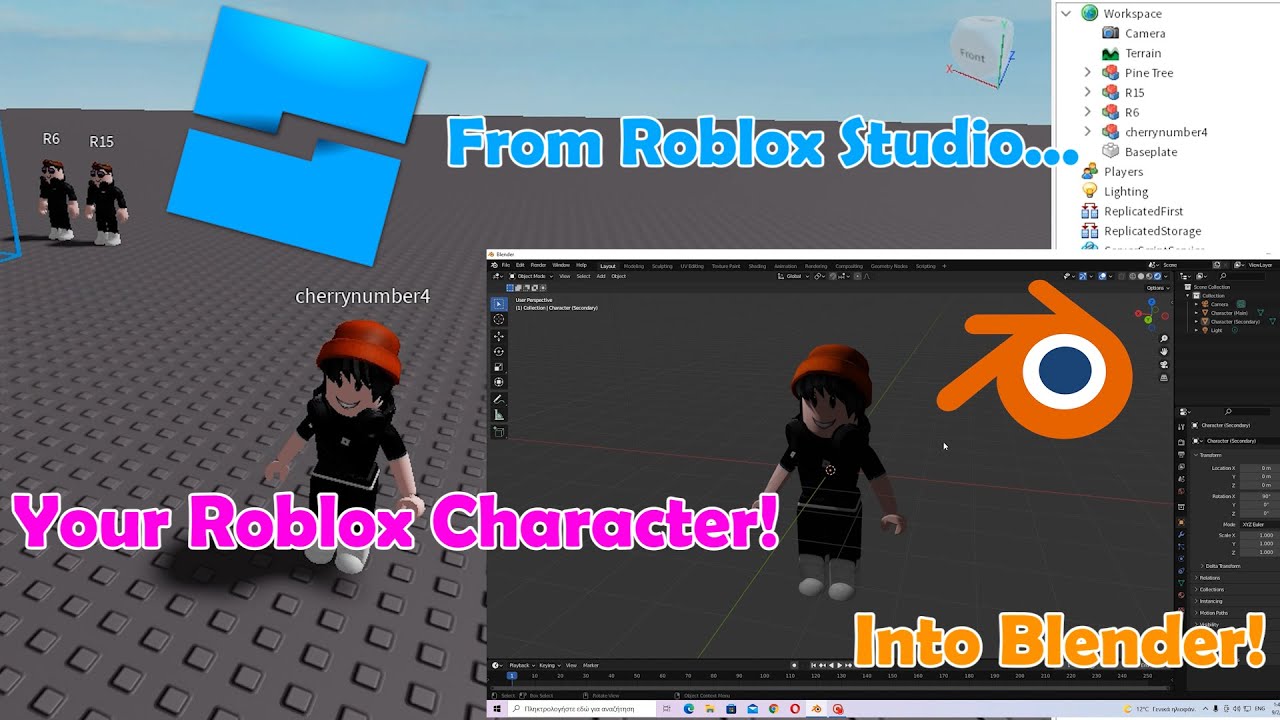


How To Use Blender To Make Roblox Models At Donald Childress Blog . Animations Blender To Roblox Made Easy . Animations Blender To Roblox Made Easy . Roblox Avatar To Blender Your Easy Guide . Get Blender Models To Roblox HOW TO MODEL Roblox Studio YouTube


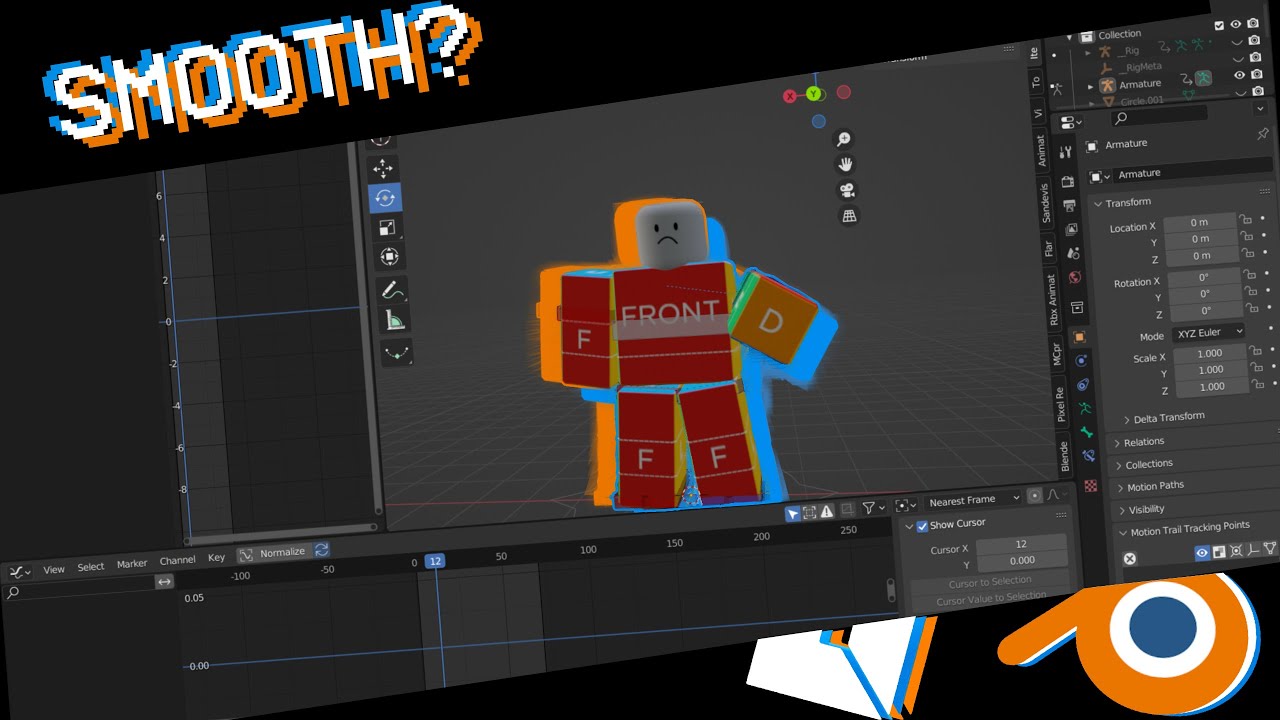
Animating Two Rigs In Roblox Studio A Simple Guide . Animate Your Roblox Avatar In Blender . Roblox Studio How To Import Blender Projects Into Roblox Studio YouTube . How To Create Smooth Roblox Animations In Blender 2024 YouTube . How To Use Blender With Roblox At Blake Sexton Blog


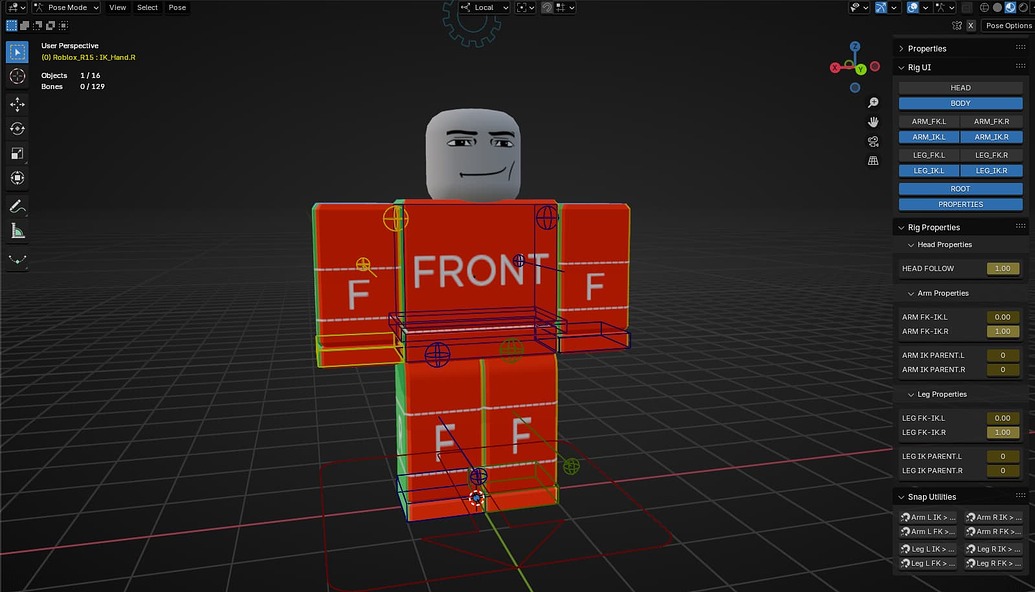
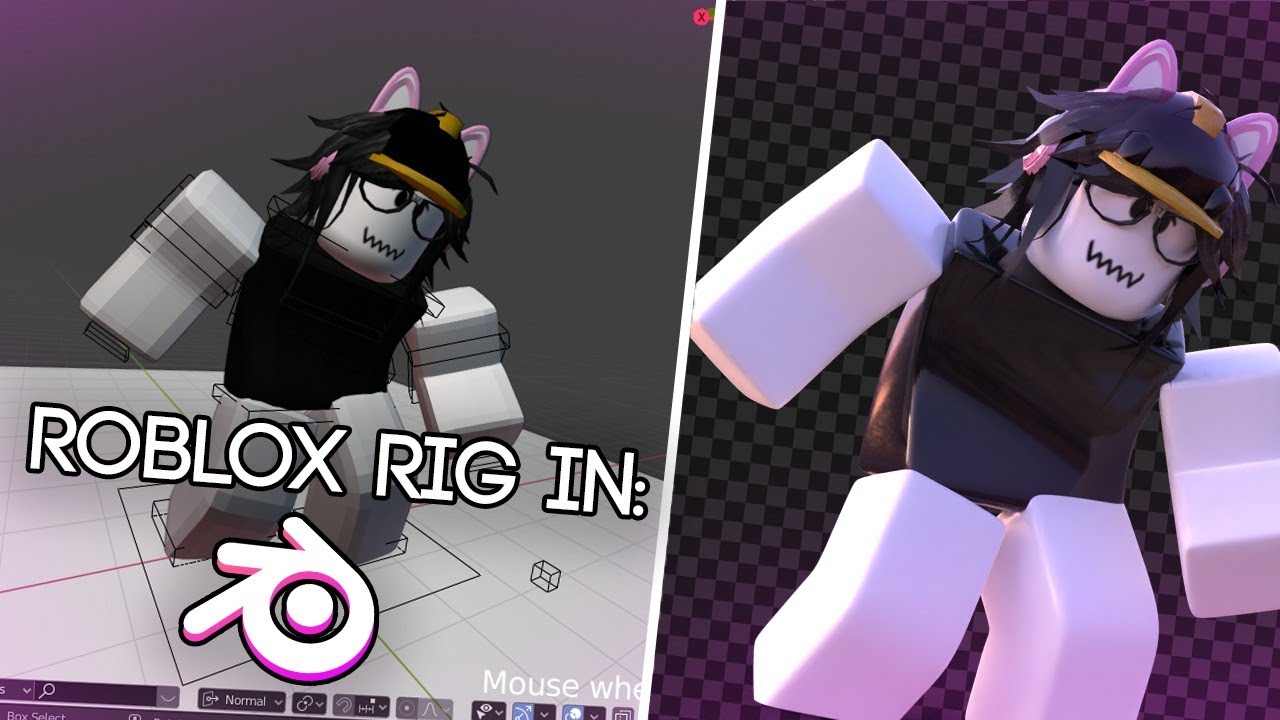

Animate Your Roblox Avatar In Blender . Animate Your Roblox Avatar In Blender . How To Use Blender Rigs In Roblox Your Creator Guide 2 1035x592 . How To Use Blender Rigs In Roblox Your Creator Guide . How To Use Blender Rigs In Roblox Your Creator Guide
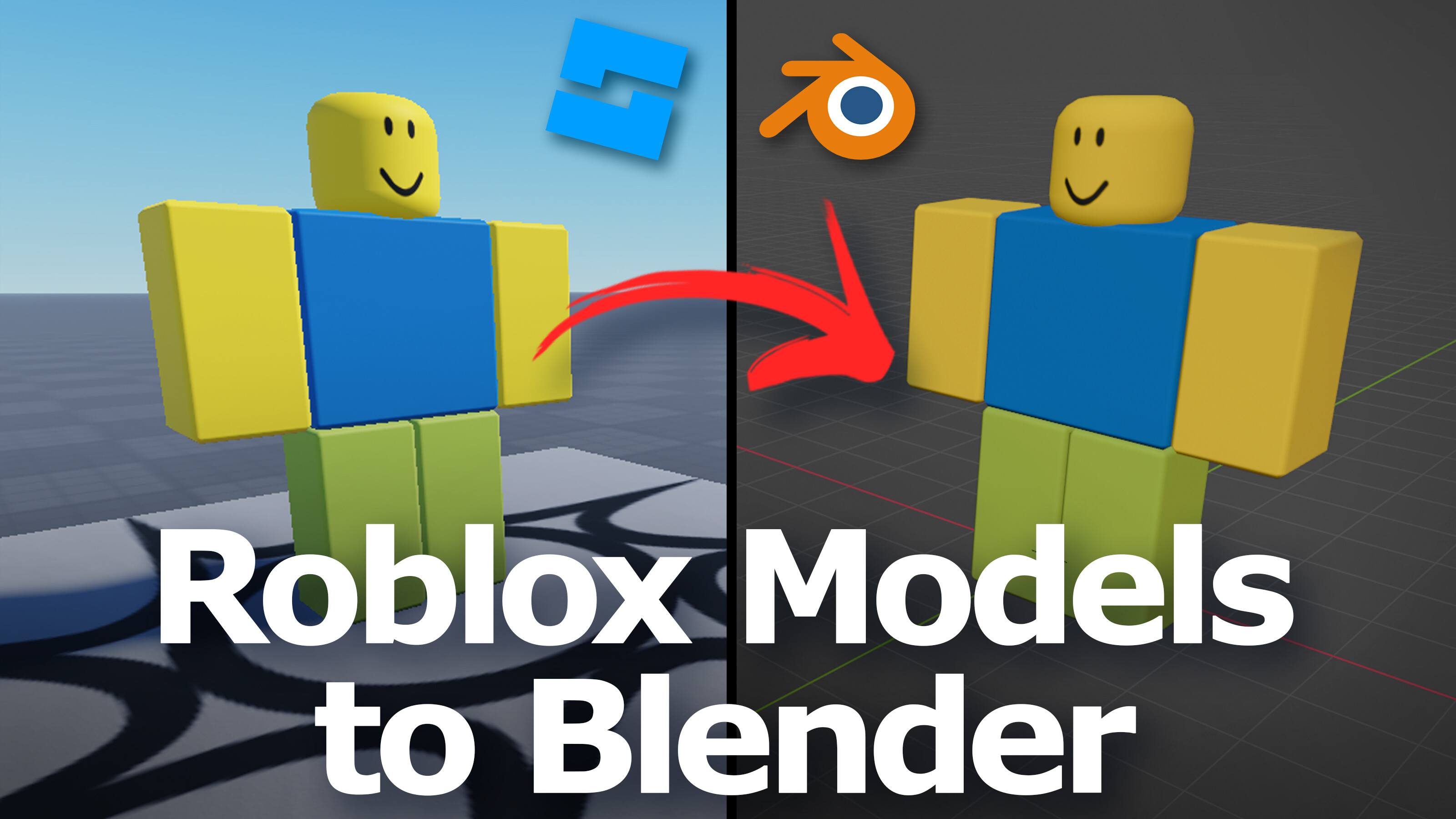

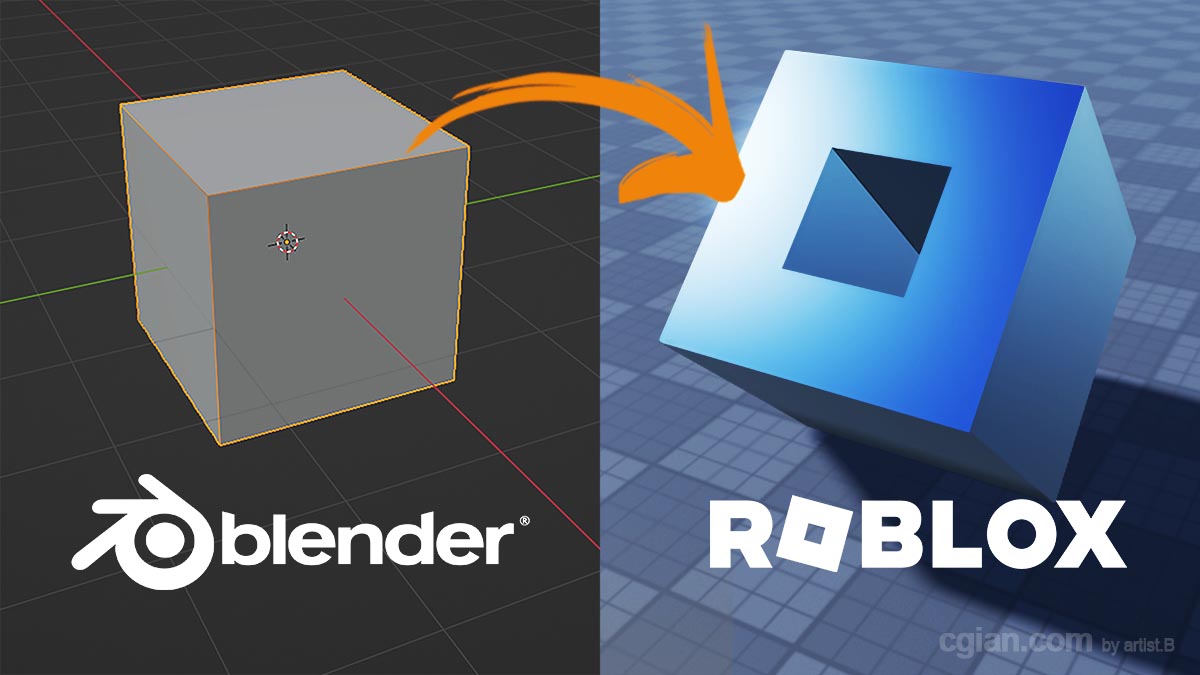

Roblox 3D Models To Blender Tutorials Tips And Tricks Blender . 122605 Imported Model Or Roblox Avatar To Blender Doenst Import Its 0060df69 326c 49a9 9bf3. Blender To Roblox Imports Easy Step By Step Tutorial YouTube . How To Import Blender Model Into Roblox Studio How To Make 3D Game Asset From Blender To Roblox Cgiam Com . NEW How To Use Blender For Roblox Accessories In 2026 YouTube
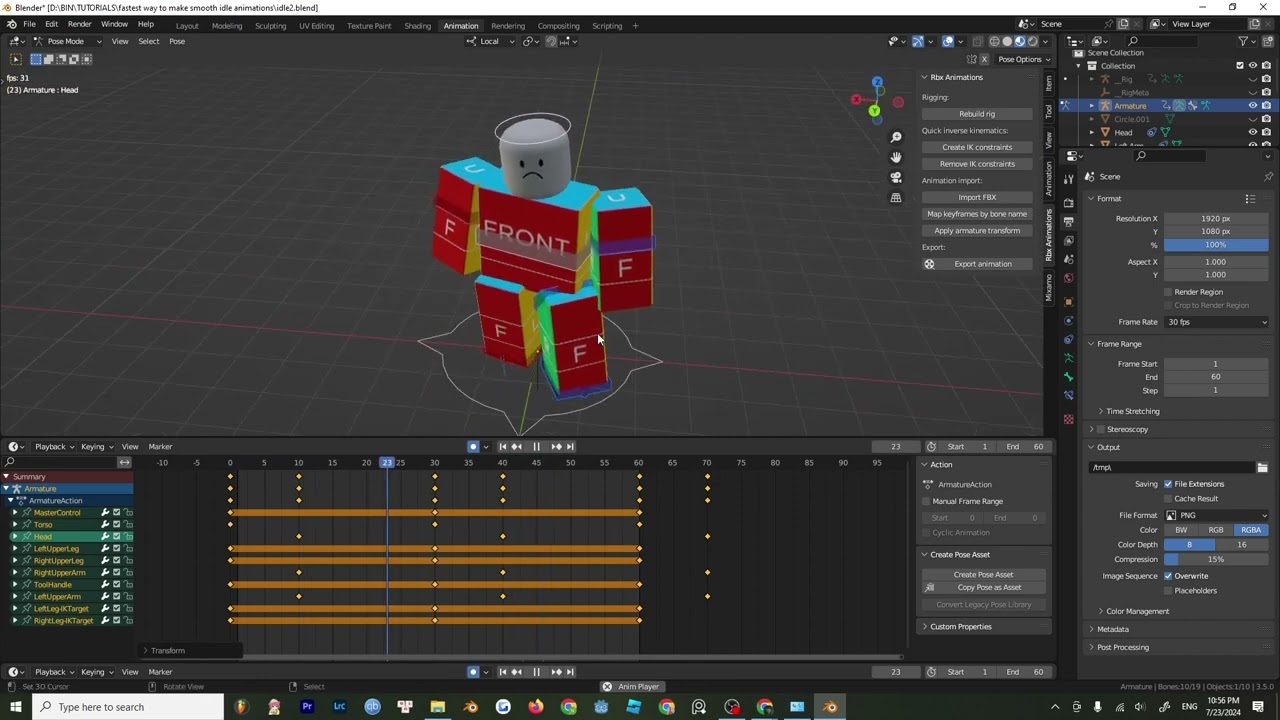


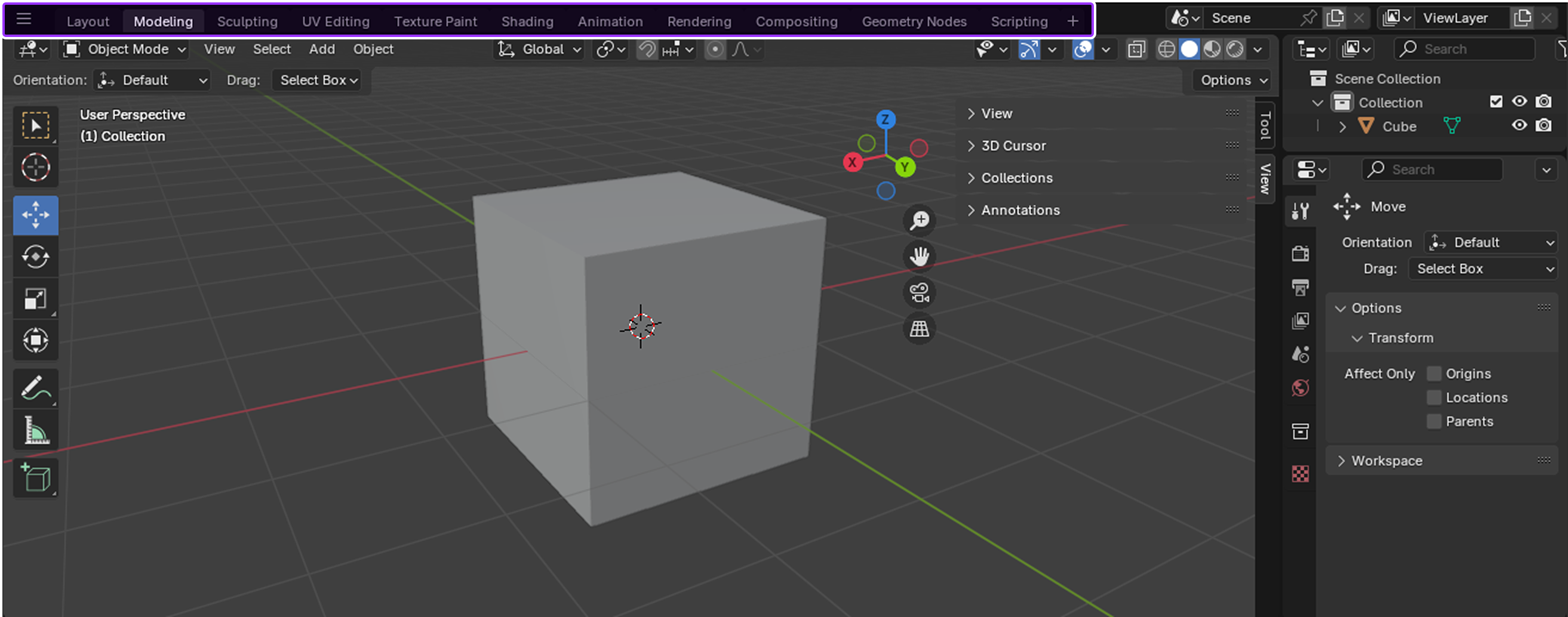
Fastest Way To Make Smooth Idle Animations In 5 Minutes Roblox Blender . I Ve Been Trying To Import A Roblox Character To Blender From Roblox Ive Been Trying To Import A Roblox Character To Blender V0 . Blender Rig Download Roblox At Louis Mitchell Blog . Animate Your Roblox Avatar In Blender . Blenders UI Mit Workspaces


How To Make A Hat In Blender Roblox At George Ochoa Blog 1358 738v2 Hq . How To Import A Model From Roblox Studio Into Blender EASY YouTube . Blender Rig Download Roblox At Louis Mitchell Blog . Roblox Avatar To Blender Your Easy Guide . How To Upload Meshes From Blender To Roblox Studio ZMTKLX